
Your old smartphone or tablet may look like a lifeless rectangle in a drawer, but it probably holds a surprising amount of personal history: photos, messages, payment apps, health data, saved passwords, and location records. Recycling it is a smart choice because it keeps valuable materials in use and reduces electronic waste, but you should never drop a device into a collection bin without preparing it first. A few careful steps can protect your privacy, help someone else reuse the device safely, and make the recycling process smoother.
TLDR: Before recycling a used smartphone or tablet, back up your data, sign out of accounts, remove personal information, and perform a factory reset. Take out SIM and memory cards, disable tracking locks, and clean the device physically. If the device is damaged or the battery is swollen, handle it carefully and use a certified recycler. These steps help protect your identity, preserve important files, and ensure your device is recycled responsibly.
1. Back Up Everything You Want to Keep
Before you erase anything, make sure you have saved the data you still care about. Smartphones and tablets often become digital memory boxes, holding years of photos, videos, notes, contacts, app data, and documents. Once you factory reset the device, recovering those files may be difficult or impossible.
Use your preferred backup method. For many people, that means cloud services such as iCloud, Google Drive, Google Photos, OneDrive, or a manufacturer-specific backup tool. You can also connect the device to a computer and manually transfer files. If you have important two-factor authentication apps, encrypted notes, or local game saves, check whether they require a special export or transfer process.
- Photos and videos: Make sure they are fully uploaded or copied.
- Contacts and calendars: Sync them to your main account.
- Messages: Back up chats from apps like WhatsApp, Signal, or iMessage if needed.
- Documents: Save PDFs, downloads, scans, and files from productivity apps.
- Authentication apps: Transfer accounts before wiping the device.
Tip: After backing up, open a few files on your new device or computer to confirm the backup worked. A backup you cannot access is not really a backup.
2. Transfer or Deactivate Important Services
Some apps and services are tied closely to a specific device. Before recycling your phone or tablet, check whether you need to transfer licenses, subscriptions, payment tools, banking apps, or security credentials. This is especially important for apps used for work, finance, health, or identity verification.
For example, your banking app may require you to approve a new device before the old one is removed. Some password managers and authentication apps require recovery codes or account confirmation. If your tablet is used for business, your employer may need to remove mobile device management software before the device can be erased or recycled.
Take your time with this step. It is much easier to move essential services while the old device still works than to deal with locked accounts after it has been wiped or recycled.
3. Sign Out of All Accounts
Signing out of your accounts helps prevent activation locks, syncing issues, and future access problems. Modern smartphones and tablets include theft-prevention features that can keep a device locked to your account even after a factory reset. That is good for security, but it can create trouble if the recycler or refurbisher cannot process the device properly.
On Apple devices, sign out of your Apple ID and disable Find My. On Android devices, remove your Google account and turn off device protection features when possible. Also sign out of major apps such as email, cloud storage, social media, streaming services, shopping apps, and payment services.
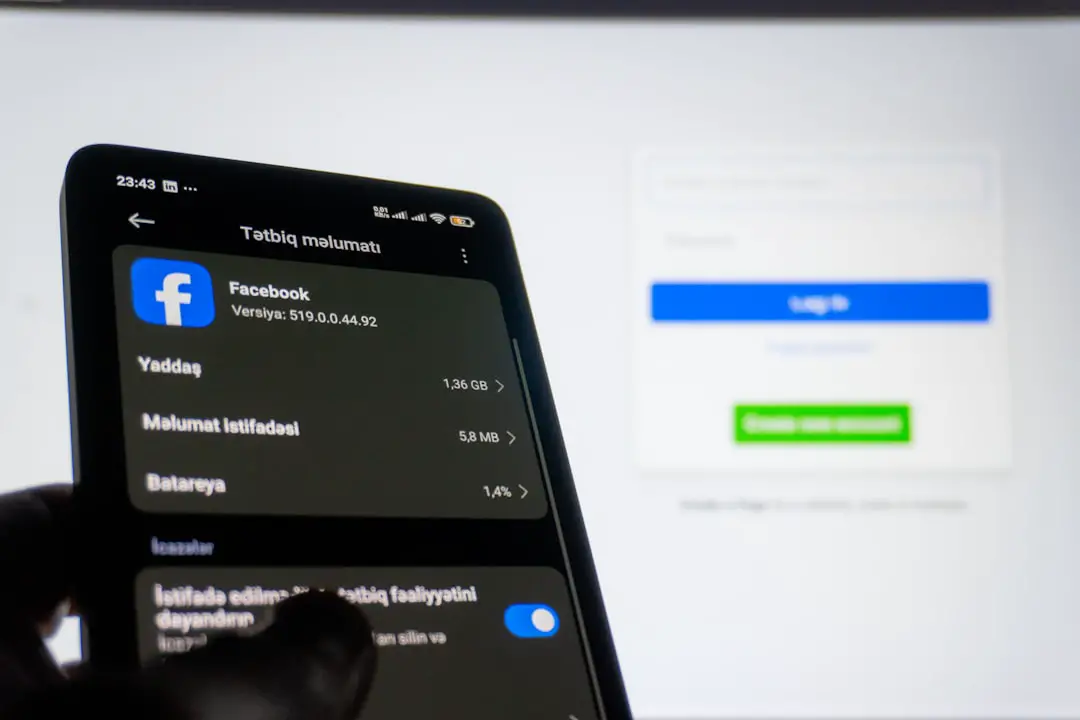
You should also check your account dashboards from another device. Many major services let you view devices currently signed in to your account. Remove the old phone or tablet from trusted-device lists once you are done with it.
4. Remove SIM Cards and Memory Cards
Before recycling, physically inspect the device for removable cards. Even if the phone no longer turns on, it may still contain a SIM card or microSD card. A SIM card may store phone-related information and remains linked to your mobile account unless deactivated or transferred. A memory card can hold photos, documents, downloads, app files, and other personal data.
Use the SIM eject tool that came with the device, or a small paper clip if needed. Check the tray carefully; some devices have spaces for both a SIM and a microSD card. If your card contains data you want to keep, copy it to another device first. If you do not need the card, wipe it securely or physically destroy it before disposal.
Do not assume a factory reset will erase an external memory card. In many cases, it will not.
5. Encrypt the Device Before Erasing It
Most newer phones and tablets use encryption by default, but it is still worth checking. Encryption scrambles the data stored on the device so it cannot be easily read without the correct passcode, PIN, or biometric unlock. When combined with a factory reset, encryption makes old data far harder to recover.
On recent iPhones and iPads, encryption is enabled when you use a passcode. On many Android devices, encryption is enabled automatically, though older models may require you to turn it on manually in the security settings. If your device has no passcode, set one before wiping it, if possible.
This step is especially important if the device held sensitive information such as business files, personal identification documents, medical records, tax forms, or financial apps.
6. Perform a Full Factory Reset
After you have backed up your files, signed out, removed accounts, and checked encryption, it is time to erase the device. A factory reset restores the phone or tablet to its original software state and removes your personal data from normal access.
On iPhone or iPad, you can usually go to Settings, then General, then Transfer or Reset, and choose Erase All Content and Settings. On Android devices, the wording varies, but you will usually find the option under Settings, then System, Reset options, or General management.
Keep the device plugged in if the battery is low. Interrupting a reset can cause problems. Once the reset is complete, the device should show a welcome or setup screen rather than your home screen, apps, or personal information.
7. Double Check That Your Data Is Gone
It may seem unnecessary, but a quick final check can save you from an unpleasant surprise. Turn the device back on after the reset and confirm that it starts at the initial setup screen. Do not sign in again. Just verify that your apps, photos, accounts, and messages are no longer visible.
If the device still shows your home screen or asks for your account password before resetting, the erase process may not have completed correctly. Repeat the reset process if needed. If you are recycling a device that will not power on, you obviously cannot perform this check, but you can still remove cards and choose a trustworthy recycling provider.
For devices used in a workplace, school, or organization, ask the IT department whether additional wiping or asset removal is required. Managed devices may have profiles, certificates, or security settings that need special handling.
8. Clean the Device and Remove Accessories
Recycling is not just about data. A clean, well-prepared device is easier to inspect, refurbish, donate, or process. Remove the case, screen protector, stickers, pop sockets, mounts, and any attached accessories. If you still have the charger or cable and the recycler accepts them, bundle them separately.
Wipe the device with a soft, slightly damp microfiber cloth. Avoid soaking it, spraying liquid directly onto it, or using harsh chemicals. Clean around the charging port, speakers, and camera area gently. If the device is cracked, wear gloves to avoid small glass cuts.

If the device is still usable, cleaning it may increase the chance that it can be refurbished rather than broken down for raw materials. Reuse is usually better than recycling because it extends the life of the product and reduces the need to manufacture a replacement.
9. Check the Battery Condition and Handle Damage Carefully
Lithium-ion batteries require careful handling. If your smartphone or tablet has a swollen battery, a strong chemical smell, excessive heat, leaking fluid, or a screen that is lifting away from the frame, do not place it in a regular recycling bin or mail it casually. Damaged batteries can be a fire risk.
Instead, contact a certified electronics recycler, repair shop, or local waste authority and explain the condition of the device. They can tell you how to transport it safely. In many areas, damaged lithium-ion batteries must be handled through special collection programs.
Even if the device looks normal, avoid crushing, puncturing, bending, or exposing it to high heat. Do not throw smartphones or tablets into household trash. Besides the fire risk, they contain metals and components that should be recovered through proper recycling channels.
10. Choose a Responsible Recycling Option
Once your device is clean, erased, and ready, choose where it should go. Not all recycling options are equal. A responsible recycler should follow safe environmental practices, protect data, and keep hazardous materials out of landfills. Look for certified electronics recycling programs, local government e-waste events, manufacturer take-back programs, carrier trade-in options, or reputable refurbishing charities.
If the device still works, consider whether it can be donated, traded in, sold, or passed on to someone who needs it. A working tablet might help a student, a community group, or a senior who needs basic internet access. A phone that seems outdated to you may still be useful as an emergency device, music player, remote control, or learning tool.
If you donate or sell the device, be honest about its condition. Mention battery issues, cracked screens, weak charging ports, or missing accessories. Transparency helps the next user or recycling center decide the best path for the device.
Bonus: Keep a Simple Recycling Checklist
Because device recycling is something most people do only occasionally, it is easy to forget a step. Keep a short checklist for future use, especially if your household has multiple phones, tablets, or laptops. A good checklist might look like this:
- Back up photos, contacts, messages, and documents.
- Transfer authentication apps and important services.
- Sign out of Apple, Google, email, and cloud accounts.
- Disable tracking and activation lock features.
- Remove SIM cards and memory cards.
- Confirm encryption is enabled.
- Perform a factory reset.
- Verify the reset worked.
- Clean the device and remove accessories.
- Use a certified recycler or trusted reuse program.
Final Thoughts
Recycling a smartphone or tablet is a small action with a meaningful impact. These devices contain valuable materials such as aluminum, copper, glass, rare earth elements, and lithium, all of which require energy and resources to mine and refine. When handled properly, an old device can become part of a circular electronics system instead of sitting forgotten in a drawer or ending up in a landfill.
The most important thing is to treat your device as both an environmental object and a personal data container. Protect your information first, then recycle responsibly. With a backup, account removal, factory reset, card removal, physical cleaning, and a reliable recycling destination, you can let go of your old smartphone or tablet with confidence.