
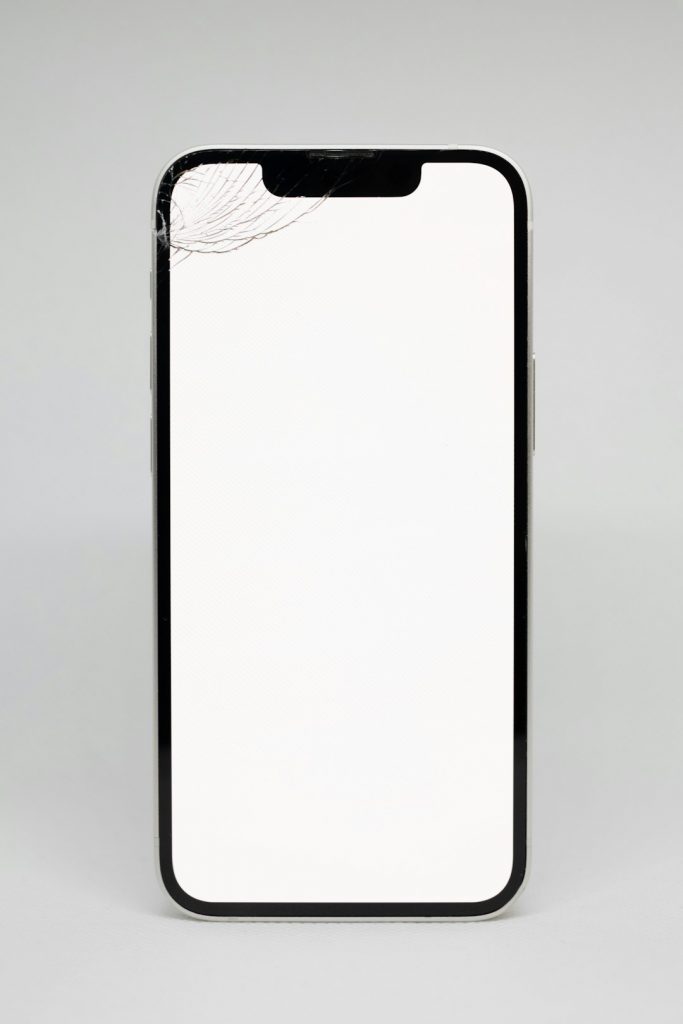
Phone displays can fail in subtle ways long before the device becomes unusable. A small white dot, a black pixel that never changes, a pink tint on the edge, or a glowing corner on a dark screen may all point to different kinds of display damage. Because modern phones use both LCD and OLED technologies, diagnosing the problem correctly helps determine whether the issue is minor, worsening, repairable, or a sign that the screen assembly needs replacement.
TLDR: Bright spots, dead pixels, and screen bleeding are different display problems with different causes. LCD screens are more likely to show backlight bleeding, pressure marks, and bright patches, while OLED screens are more likely to suffer from dead pixels, stuck pixels, burn-in, or color shifts. A proper diagnosis usually involves testing the screen with solid black, white, red, green, and blue images at different brightness levels. If the problem spreads, affects touch performance, or follows physical damage, professional repair is usually the safest option.
Understanding the Difference Between LCD and OLED Phone Displays
Before identifying specific damage, it helps to understand how the two main display types work. An LCD, or liquid crystal display, uses a backlight behind the screen. The liquid crystal layer controls how much light passes through each pixel. Because all pixels depend on a shared backlight, LCD problems often appear as uneven lighting, cloudy patches, pressure marks, or bleeding around the edges.
An OLED, or organic light emitting diode display, works differently. Each pixel produces its own light. When an OLED pixel shows black, it can turn off completely. This allows excellent contrast, but it also means individual pixels can fail, age unevenly, or retain image patterns over time. OLED damage often appears as dead pixels, stuck pixels, color tinting, image retention, or burn-in.
Both technologies can suffer from cracks, moisture damage, impact damage, connector issues, and manufacturing defects. However, the way the damage appears on the screen often gives important clues about the underlying cause.

What Are Bright Spots on a Phone Screen?
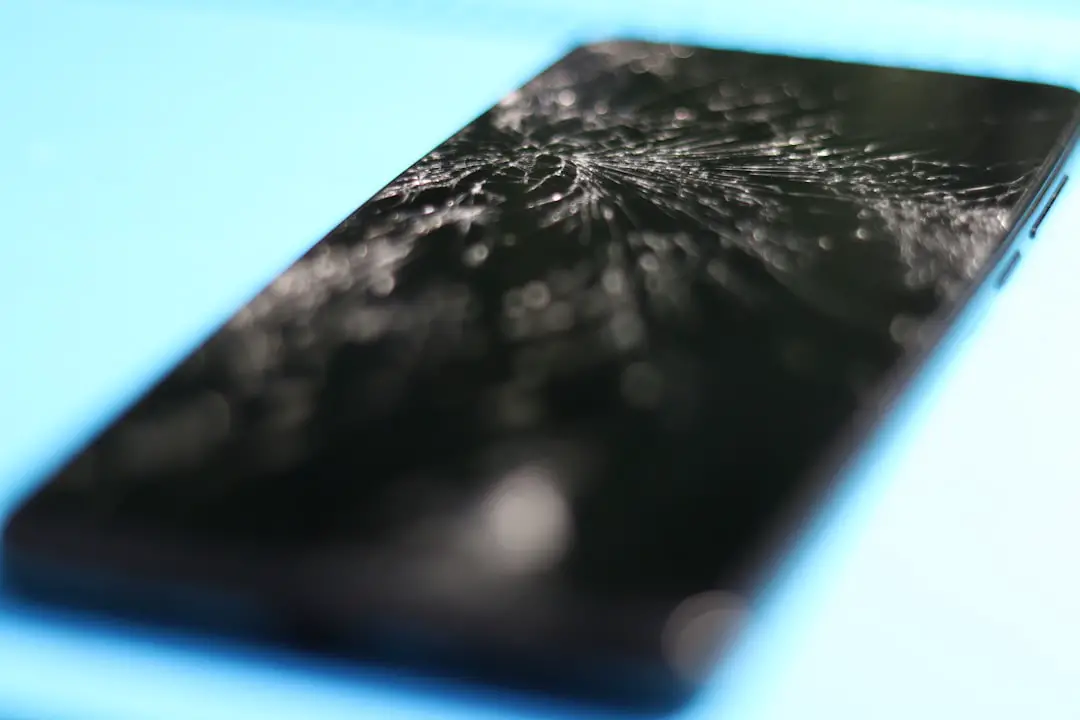
Bright spots are areas of the display that look noticeably lighter than the surrounding screen. They may appear as small white dots, cloudy patches, glowing circles, or uneven light zones. On an LCD phone, bright spots often suggest that pressure has affected the backlight layers or diffuser sheets behind the glass. A phone that has been sat on, dropped, bent, or pressed tightly in a bag may develop these marks.
On OLED screens, bright spots are less commonly caused by a backlight because OLED has no shared backlight. Instead, a bright spot on OLED may be caused by damaged pixels, electrical irregularities, moisture intrusion, or panel aging. Sometimes the spot appears only on certain colors, which can indicate that one color subpixel is malfunctioning.
Common Causes of Bright Spots
- Pressure damage: Repeated or sudden pressure can distort internal display layers.
- Impact damage: A drop may damage the panel even if the outer glass remains intact.
- Backlight diffuser damage: On LCDs, damaged diffuser layers can create white or cloudy spots.
- Moisture exposure: Liquid can cause uneven brightness, stains, or glowing areas.
- Manufacturing defects: Some spots appear early in the device’s life due to panel defects.
A technician usually checks whether a bright spot is visible on all backgrounds or only on specific colors. If it appears mainly on white or light gray backgrounds, an LCD diffuser or pressure issue is likely. If it appears on colored screens or changes intensity, pixel-level damage may be involved.
What Are Dead Pixels?
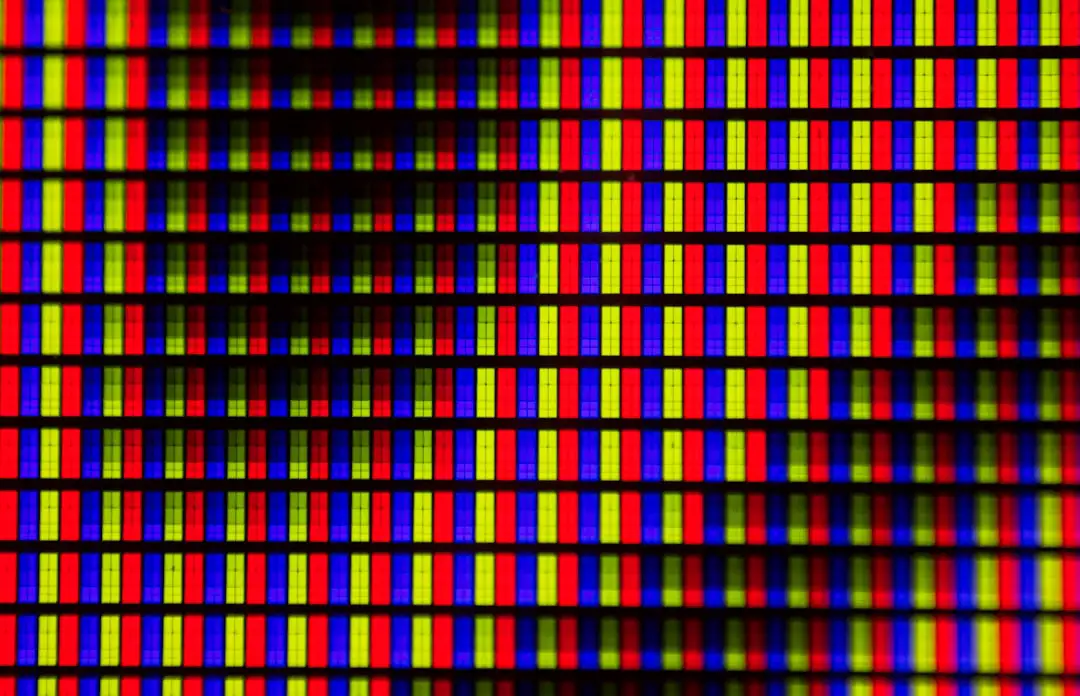
A dead pixel is a pixel that no longer displays an image correctly. It may appear as a tiny black dot, a white dot, or a colored dot that remains unchanged regardless of what is shown on the screen. Dead pixels are often easier to see on solid color backgrounds.
Strictly speaking, a black pixel that never lights up is usually called a dead pixel. A pixel that remains red, green, blue, or white is often called a stuck pixel. The difference matters because stuck pixels may occasionally recover through pixel-refreshing methods, while truly dead pixels usually require screen replacement.
Dead Pixel vs. Stuck Pixel
- Dead pixel: Usually black and unresponsive on all test colors.
- Stuck pixel: Stays one color, such as red, green, blue, or white.
- Hot pixel: Appears unusually bright, often on dark backgrounds.
- Cluster defect: Several failed pixels grouped together, sometimes more noticeable and more serious.
Dead pixels can occur on both LCD and OLED panels. In OLED screens, each pixel is self-emissive, so a failed pixel may remain permanently black. On LCD screens, the issue may involve the liquid crystal cell, the transistor controlling the pixel, or the backlight interaction behind that pixel.
What Is Screen Bleeding?
Screen bleeding, also called backlight bleeding, is most closely associated with LCD screens. It happens when light from the backlight leaks unevenly around the edges or corners of the display. The effect is most visible when the phone shows a black or very dark image in a dim room.
Screen bleeding can look like pale yellow, white, blue, or gray light spreading from the edge of the screen. Mild bleeding is common on some LCD panels and may be considered normal if it is only visible at maximum brightness in a dark environment. Severe bleeding, however, can interfere with normal viewing and may indicate pressure damage, frame warping, poor assembly, or panel separation.
Because OLED pixels turn off to display black, true backlight bleeding does not occur on OLED screens. If an OLED display shows glowing patches on black, the issue may be image retention, burn-in, a panel defect, or damage that prevents pixels from turning off properly.

How to Diagnose Display Damage at Home
A careful screen test can help identify the type of damage. The phone should be cleaned first, because dust, oil, screen protector bubbles, and scratches can look like pixel defects. The tester should then remove or inspect the screen protector if the mark appears to sit above the glass rather than inside the display.
Step 1: Test With Solid Color Screens
The display should be tested using solid black, white, red, green, blue, and gray images. Many diagnostic apps and websites provide full-screen color tests. Each color reveals different types of defects:
- Black screen: Best for finding LCD backlight bleeding, OLED glow issues, and stuck bright pixels.
- White screen: Best for spotting dark dead pixels, dust-like marks, yellowing, and pressure points.
- Red, green, and blue screens: Best for identifying stuck subpixels or color-specific OLED defects.
- Gray screen: Best for seeing uniformity problems, tinting, banding, and cloudy areas.
Step 2: Change the Brightness
The same tests should be repeated at low, medium, and maximum brightness. LCD bleeding usually becomes more obvious at high brightness. OLED burn-in or tinting may appear at certain brightness levels and disappear at others. If a mark changes dramatically with brightness, it may be related to lighting uniformity rather than a simple surface scratch.
Step 3: Rotate the Screen and Change Content
If a suspicious dot stays in the exact same physical location while the image changes or rotates, the problem is likely hardware-related. If the mark moves with the image, it may be a software artifact, app issue, video compression problem, or screenshot-related defect. Taking a screenshot can help: if the mark appears in the screenshot when viewed on another device, the problem is software or image-based. If it does not appear, the phone’s display hardware is likely responsible.
Step 4: Check for Touch Problems
Display damage is more serious when it affects touch response. A phone may show bright spots or bleeding while touch still works normally, but impact damage can also affect the digitizer. Missed taps, ghost touches, delayed swipes, or dead touch zones suggest that the screen assembly may need replacement rather than simple monitoring.
How to Tell Whether the Damage Is From Pressure, Impact, or Moisture
Different forms of damage leave different clues. Pressure damage often appears as bright cloudy spots, especially on LCD panels. It may be located where a finger, object, or tight case pressed against the screen. Impact damage may create black patches, colored lines, flickering, or spreading ink-like marks, especially if the display beneath the glass is cracked.
Moisture damage can be harder to identify. It may create stains, uneven brightness, green or pink tinting, flickering, or areas that change over time. Liquid damage can also corrode display connectors, causing intermittent lines or blackouts. If the issue began after rain exposure, a spill, bathroom steam, or a drop in water, moisture should be considered even if the phone still powers on.
LCD-Specific Symptoms
LCD phones commonly show problems related to the backlight and layered construction of the panel. Since the screen depends on a uniform light source, any disturbance in the layers can become visible.
- Backlight bleeding: Light leaks from edges or corners on dark screens.
- Pressure marks: White, cloudy, or bright patches caused by compression.
- Dark bruises: Areas where the liquid crystal layer may be damaged.
- Uneven color temperature: One side may look warmer, cooler, or dimmer.
- Horizontal or vertical lines: Possible panel, cable, or driver damage.
Mild LCD bleeding may remain stable for years. However, pressure marks, spreading dark areas, flickering, or lines after a drop often indicate damage that may worsen.
OLED-Specific Symptoms
OLED displays tend to have deeper blacks and higher contrast, but they can develop issues linked to pixel aging and individual pixel failure.
- Dead pixels: Tiny black dots where pixels no longer emit light.
- Stuck pixels: Pixels that remain red, green, blue, or white.
- Burn-in: Faint permanent outlines of navigation bars, keyboards, icons, or status elements.
- Image retention: Temporary ghost images that fade after content changes.
- Color shift: Pink, green, or blue tinting, often more visible on gray backgrounds.
OLED burn-in is usually cumulative. It develops when the same bright elements remain on screen for long periods. High brightness, always-on display features, navigation buttons, and static app layouts can increase the risk.

When Software May Be the Cause
Not every display oddity is physical damage. Software glitches, display scaling errors, accessibility settings, night mode, color filters, or app bugs can change how the screen looks. A restart, system update, safe mode test, or factory reset may help rule out software causes. However, a factory reset should only be considered after data is backed up.
If lines, dots, or discoloration appear on the boot logo, recovery screen, or system menus before third-party apps load, the issue is more likely hardware-related. If the problem appears only in one app, the app itself may be responsible.
Can Bright Spots, Dead Pixels, or Bleeding Be Fixed?
The repairability depends on the defect. A stuck pixel may sometimes improve after running a pixel-refreshing video or app that rapidly cycles colors. This method is not guaranteed and should be used carefully to avoid unnecessary heat or battery drain. A truly dead pixel rarely recovers.
LCD backlight bleeding usually cannot be repaired without replacing or reseating the display assembly. In some cases, a poorly fitted case or screen protector may create pressure that makes bleeding look worse. Removing the case temporarily can help confirm whether external pressure contributes to the issue.
OLED burn-in is generally permanent because it reflects uneven pixel wear. Software tools may reduce its visibility by adjusting colors or brightness, but they do not restore the aged pixels. If the damage is distracting, screen replacement is the only complete fix.
When Professional Repair Is Recommended
Professional diagnosis is recommended when the screen defect is growing, when touch response is unreliable, when the phone has been dropped or exposed to liquid, or when the image flickers, flashes, or shows lines. A repair technician can inspect the screen assembly, frame, connectors, and internal liquid indicators. In many modern phones, the glass, digitizer, and display are laminated together, so partial repairs are often impractical.
Warranty coverage depends on the cause. Manufacturing defects such as early pixel failure may be covered, while impact, pressure, and liquid damage usually are not. The owner should document the issue with photos, color test results, and the date the symptom first appeared.
How to Prevent Future Display Damage
- Use a high-quality case with raised edges to reduce impact on the screen.
- Avoid placing the phone in tight pockets, overloaded bags, or under heavy objects.
- Keep the device away from moisture, steam, and extreme heat.
- Use moderate brightness when possible, especially on OLED screens.
- Enable dark mode and screen timeout features to reduce OLED wear.
- Avoid leaving static images on the screen for long periods.
- Replace damaged screen protectors that may create pressure or optical distortion.
Accurate diagnosis begins with observing when and where the defect appears. A bright patch on an LCD, a black dot on an OLED, and a glowing edge on a dark screen may look similar at first, but they point to different problems. By testing colors, brightness levels, screenshots, and touch response, a user or technician can better decide whether the issue is cosmetic, progressive, or repair-worthy.
FAQ
What is the difference between a dead pixel and a stuck pixel?
A dead pixel usually stays black and does not respond to any color. A stuck pixel remains one color, such as red, green, blue, or white. Stuck pixels sometimes improve, while dead pixels usually require screen replacement.
Does screen bleeding happen on OLED phones?
True backlight bleeding does not happen on OLED phones because OLED displays do not use a backlight. If an OLED screen glows unevenly on black, the cause may be burn-in, image retention, pixel defects, or panel damage.
Are bright spots on a phone screen dangerous?
Bright spots are not usually dangerous, but they can indicate pressure damage, impact damage, or moisture exposure. If the spot spreads or touch performance changes, professional inspection is recommended.
Can a phone screen with dead pixels be repaired without replacing it?
In most cases, truly dead pixels cannot be repaired individually. Since phone displays are sealed assemblies, replacement of the screen assembly is usually the only complete repair.
How can screen bleeding be tested?
Screen bleeding is best tested by displaying a solid black image in a dark room with brightness turned up. Light leaking from the edges or corners suggests LCD backlight bleeding.
Can software cause fake display damage?
Yes. App bugs, color filters, night mode, accessibility settings, or system glitches can mimic display problems. If the mark appears in a screenshot viewed on another device, the cause is likely software or image-related rather than physical screen damage.
When should a phone display be replaced?
Replacement is usually appropriate when the defect is spreading, touch input fails, lines appear, the screen flickers, burn-in is severe, or the display was damaged by impact or liquid exposure.