
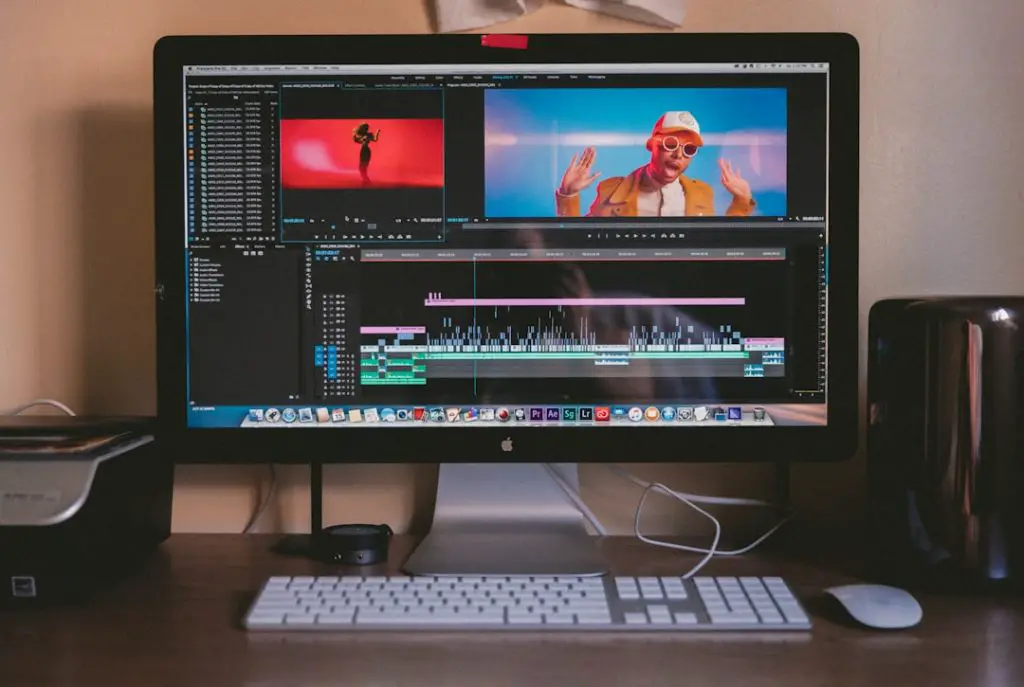
So, you’ve made a great video in iMovie. Nice cuts. Clean transitions. Cool music. But something’s missing. Yup—subtitles. Whether you want better accessibility, social media engagement, or just cool on-screen text, subtitles can take your video to the next level.
TL;DR: Adding subtitles in iMovie is easy using the Titles feature. Just drag a title style to your timeline, type your text, and adjust timing. You can customize font, size, position, and duration. Repeat for each subtitle segment, and you’re done!
Let’s break it all down. Step by step. No confusion. No stress.
Why Add Subtitles in iMovie?
Before we jump into the how, let’s quickly cover the why.
- Accessibility: Helps viewers who are deaf or hard of hearing.
- Social media friendly: Many people scroll with sound off.
- Better understanding: Accents and background noise become less of a problem.
- Professional vibe: Subtitled videos feel polished.
Now let’s get into the fun part.
Step 1: Open Your iMovie Project
First things first.
- Open iMovie.
- Click Create New or open an existing project.
- Make sure your video is already in the timeline.
If you haven’t imported your video yet:
- Click the Import Media button.
- Select your file.
- Drag it into the timeline.
Easy, right?
Step 2: Go to the Titles Tab
This is where the magic happens.
At the top of iMovie, click on Titles. You’ll see a bunch of text styles appear. Some animate. Some stay still. Some look dramatic. Others are simple.
For subtitles, simple is best.
Good options include:
- Lower
- Standard
- Reveal
These are clean. Easy to read. Not distracting.

Step 3: Add Your First Subtitle
Now let’s actually add text.
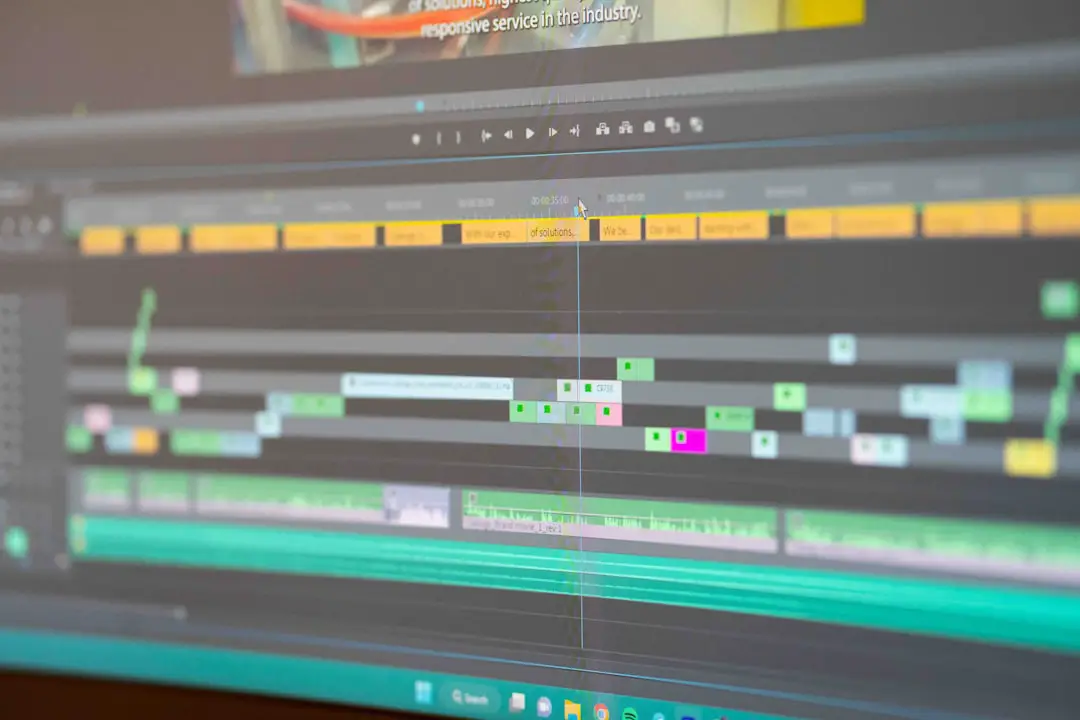
- Drag your chosen title style down onto the timeline.
- Position it above the video clip where you want subtitles to start.
- Click on the text box in the preview window.
- Type your subtitle.
That’s it. You’ve added your first subtitle!
But wait. Timing matters.
Step 4: Adjust Subtitle Timing
Subtitles need to match speech. Perfectly.
To adjust timing:
- Click the subtitle bar in the timeline.
- Drag the edges to shorten or extend the duration.
- Move it left or right to align with speech.
Pro tip: Play the video and press pause exactly where dialogue starts. Then position your subtitle there.
Keep sentences short. Break long dialogue into multiple subtitle sections. Viewers need time to read.
Step 5: Customize Your Subtitles
You don’t want giant neon pink text (unless that’s your thing).
To edit the subtitle style:
- Select the subtitle in the timeline.
- Click the Font options above the preview screen.
- Adjust:
- Font style
- Font size
- Text color
- Alignment
For subtitles, follow these best practices:
- Use white or yellow text.
- Add a subtle shadow for contrast.
- Keep text near the bottom of the screen.
- Avoid covering faces.

Step 6: Repeat for Each Line
Here’s the not-so-fun part.
iMovie does not automatically generate subtitles. You must add them manually.
So what do you do?
- Listen to a short chunk of dialogue.
- Add a title.
- Type the text.
- Match the timing.
- Repeat.
Yes. It takes time. But the result is worth it.
Shortcut tip: Instead of dragging a new title every time, copy and paste your existing subtitle. Then just edit the text and adjust timing. Much faster.
How to Make Subtitles Look Professional
Want your video to look like Netflix instead of a school project?
Follow these simple rules:
- Keep each subtitle under 2 lines.
- Use no more than 42 characters per line.
- Keep subtitles on screen for at least 1 second.
- Avoid flashy animations.
Consistency is key. Use the same font. Same size. Same placement.
Can You Import Subtitle Files into iMovie?
Short answer: No.
iMovie does not support importing SRT subtitle files directly.
If you already have subtitles in SRT format, you need a workaround:
- Use another app to burn subtitles into the video.
- Or manually copy-paste text into iMovie titles.
If you work with subtitles often, you may want to explore more advanced tools.
iMovie vs Other Subtitle Tools
If you’re curious how iMovie compares, here’s a quick breakdown:
| Feature | iMovie | Final Cut Pro | CapCut | Adobe Premiere Pro |
|---|---|---|---|---|
| Manual subtitles | Yes | Yes | Yes | Yes |
| Automatic captions | No | Yes | Yes | Yes |
| Import SRT files | No | Yes | Yes | Yes |
| Beginner friendly | Very | Medium | Very | Medium |
| Price | Free | Paid | Free | Subscription |
So, if you want quick and free, iMovie works great. If you want automation, you may need something stronger.
How to Add Subtitles on iPhone or iPad
Using iMovie on mobile? No problem.
- Open your project.
- Tap the video clip in the timeline.
- Tap Titles.
- Choose a style.
- Tap to edit the text.
Timing works the same way. Drag the edges to adjust duration.

The interface is smaller. But the process is nearly identical.
Common Subtitle Mistakes (And How to Avoid Them)
Let’s save you some frustration.
Mistake 1: Text too small
Fix it: Increase font size. Test on a phone screen.
Mistake 2: Bad timing
Fix it: Zoom into the timeline for precise edits.
Mistake 3: Too much text at once
Fix it: Break long sentences into multiple subtitles.
Mistake 4: Poor contrast
Fix it: Use high contrast colors with shadows.
Bonus Tip: Speed Up Your Workflow
Adding subtitles manually can be slow.
Here’s how to move faster:
- Write a full transcript first.
- Break it into short lines ahead of time.
- Copy and paste into iMovie.
- Duplicate title blocks instead of adding new ones.
This cuts your editing time almost in half.
Final Thoughts
Adding subtitles in iMovie isn’t complicated. It’s just repetitive. Once you understand the Titles tool, everything becomes simple.
Remember the core steps:
- Open Titles.
- Drag style to timeline.
- Type your text.
- Adjust timing.
- Repeat.
That’s it.
Subtitles make your content more accessible. More engaging. And more professional.
Take your time. Keep it clean. Keep it readable.
Now open iMovie and start subtitling like a pro.