

Adjusting clip speed is one of the most powerful techniques in video editing. Whether the goal is to create cinematic slow motion, energetic fast-forward sequences, or precise speed ramps, DaVinci Resolve provides a wide range of tools to help editors control timing with precision. From simple percentage adjustments to advanced retiming curves, understanding how to change clip speed can dramatically improve storytelling and pacing.
TLDR: Changing clip speed in DaVinci Resolve can be done using several tools, including Change Clip Speed, Retime Controls, and Retime Curves. Basic speed adjustments are quick and easy through right-click options, while advanced speed ramping requires keyframes and curve editing. The software also supports frame interpolation for smoother slow motion. Choosing the right method depends on the level of control and visual polish required.
Why Change Clip Speed?
Editors modify clip speed to serve both technical and creative needs. Slowing down footage can emphasize emotional moments, while speeding it up can condense time or add energy. Speed manipulation is frequently used in:
- Action sequences for dramatic slow motion
- Travel videos for hyperlapse effects
- Tutorials to skip repetitive steps
- Corporate videos to maintain tight pacing
DaVinci Resolve integrates all speed tools directly inside the Edit Page, making it accessible for beginners while offering deep customization for advanced users.
Method 1: Using “Change Clip Speed”
The simplest way to adjust speed is through the Change Clip Speed option.

How to Use It
- Select the clip in the timeline.
- Right-click and choose Change Clip Speed.
- Adjust the Speed percentage.
- Click Change.
If a clip is set to 50%, it plays at half speed. If set to 200%, it plays at double speed.
Available Options
- Reverse Speed – Plays the clip backward.
- Ripple Timeline – Adjusts surrounding clips to fill gaps.
- Pitch Correction – Maintains natural audio tone when changing speed.
This method is best for straightforward speed changes without transitions or ramps.
Method 2: Using Retime Controls
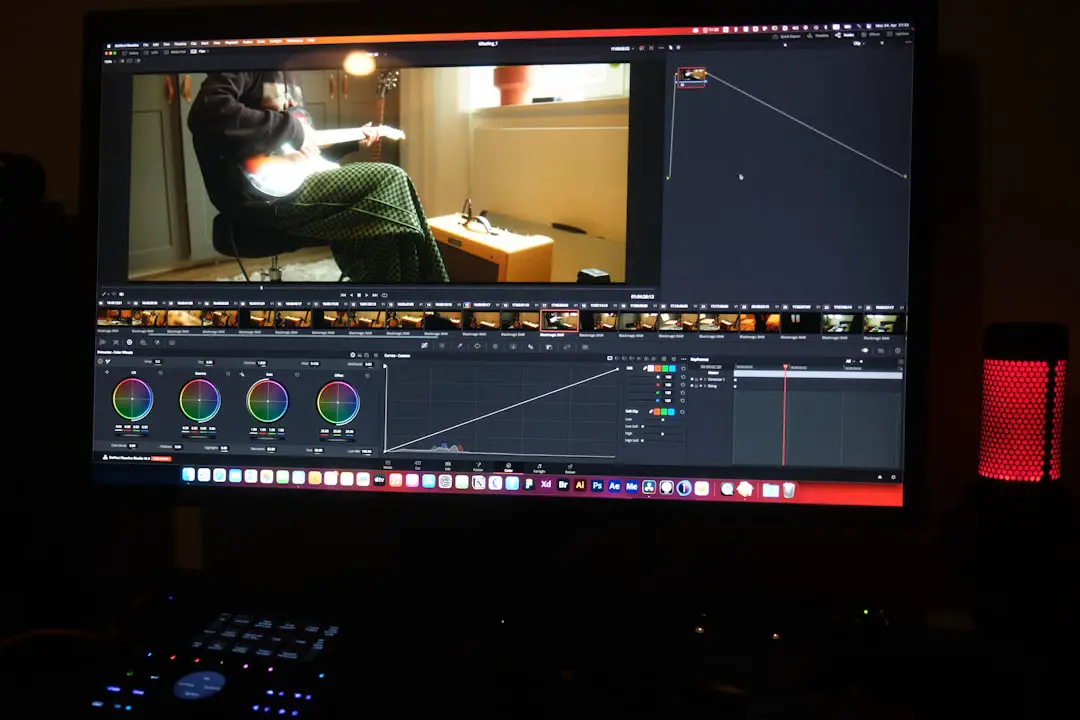
Retime Controls add more flexibility and are ideal for creating multiple speed segments within a single clip.
Steps to Access Retime Controls
- Select a clip.
- Press Ctrl + R (Windows) or Cmd + R (Mac).
- A speed bar will appear on the clip.
- Click the dropdown arrow to change speed presets.
Preset options include 50%, 100%, 200%, and more. Editors can also select Add Speed Point to create different speed sections.
Creating Speed Points
Speed points allow different parts of the same clip to play at different speeds. For example:
- First section: 100%
- Middle section: 25% slow motion
- Final section: 300% fast motion
This technique is commonly used in sports edits and dramatic reveals.
Method 3: Using Retime Curves for Speed Ramping
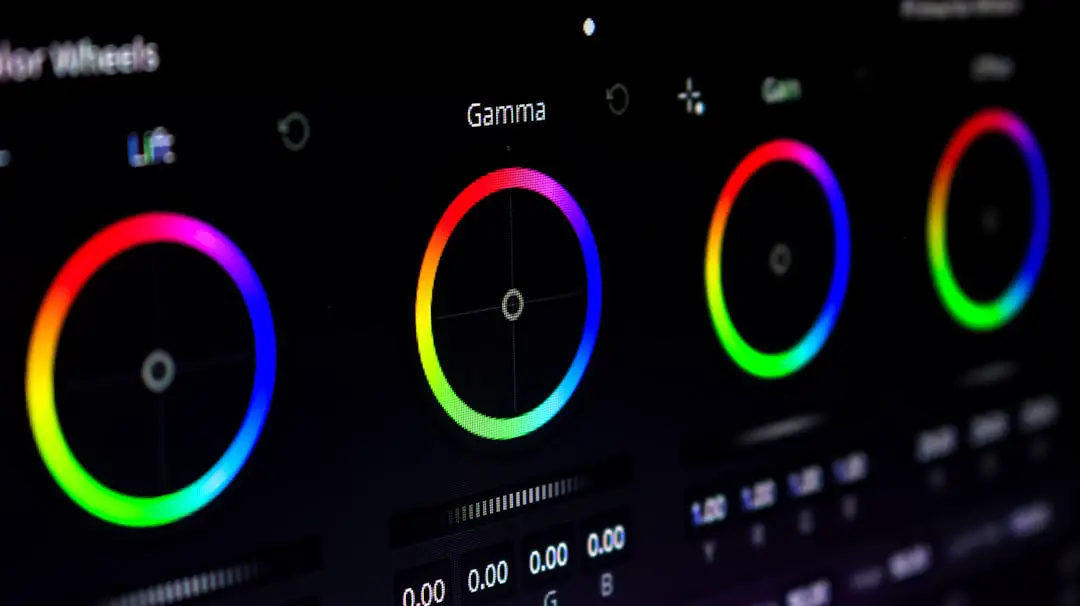
For smooth cinematic speed transitions, editors rely on Retime Curves. Unlike abrupt speed changes, curves allow gradual acceleration and deceleration.
How to Use Retime Curves
- Enable Retime Controls.
- Click the dropdown on the clip.
- Select Retime Curve.
- Choose Speed from the curve options.
- Add keyframes and drag curve handles to smooth transitions.
By adjusting bezier handles, editors can create fluid ramps rather than sudden jumps, producing a more professional look.
Method 4: Changing Clip Duration Directly
Another simple method is dragging the clip edge while holding a modifier key.
- On Windows: Hold Ctrl and drag the clip edge.
- On Mac: Hold Cmd and drag the clip edge.
This automatically adjusts the playback speed to match the new clip length.
While convenient, this method offers less precise control than Retime Controls.
Enhancing Slow Motion with Frame Interpolation
When slowing down footage significantly, playback may look choppy. DaVinci Resolve includes frame interpolation tools to smooth motion.
How to Enable Frame Interpolation
- Right-click the clip.
- Select Clip Attributes.
- Go to the Video tab.
- Change Retime Process to Optical Flow.
For best results, set Motion Estimation to Enhanced Better or Speed Warp (Studio version).
Tip: Optical Flow analyzes pixel movement and generates new frames, producing smoother slow motion compared to standard frame blending.
Comparison of Clip Speed Methods
| Method | Ease of Use | Best For | Speed Ramping | Precision Level |
|---|---|---|---|---|
| Change Clip Speed | Very Easy | Basic speed changes | No | Low to Medium |
| Retime Controls | Moderate | Multiple speed segments | Limited | High |
| Retime Curves | Advanced | Cinematic speed ramps | Yes | Very High |
| Clip Edge Dragging | Very Easy | Quick adjustments | No | Low |
| Optical Flow | Moderate | Smooth slow motion | Works with others | High |
Common Mistakes to Avoid
- Ignoring frame rate: Slowing 24fps footage too much can cause stutter.
- Overusing speed ramps: Excessive ramps can distract viewers.
- Forgetting ripple timeline: This can leave unwanted gaps.
- Not adjusting audio: Speed changes may distort sound.
Professional editors plan speed adjustments before finalizing timeline structure to avoid rework later.
Tips for Professional Results
- Shoot at higher frame rates (60fps or 120fps) for better slow motion.
- Use Speed Warp for premium-quality interpolation.
- Combine speed ramps with sound design for dramatic impact.
- Add motion blur effects for realism when speeding up clips.
Timing is storytelling. Even subtle changes can influence emotional perception and viewer engagement.
FAQ
How do you slow down a clip in DaVinci Resolve?
Select the clip, right-click, choose Change Clip Speed, and reduce the percentage below 100%. For smoother slow motion, enable Optical Flow in Clip Attributes.
What is the shortcut for Retime Controls?
Press Ctrl + R on Windows or Cmd + R on Mac to toggle Retime Controls.
How do you create a speed ramp?
Enable Retime Controls, add speed points, then open Retime Curves to adjust bezier handles for smooth transitions.
Why does my slow motion look choppy?
This typically happens when slowing low-frame-rate footage. Use Optical Flow or shoot at higher frame rates for smoother results.
Can you reverse a clip in DaVinci Resolve?
Yes. Right-click the clip, choose Change Clip Speed, and check the Reverse Speed option.
Does changing clip speed affect audio?
Yes. Speeding up raises pitch, and slowing down lowers pitch. Enable Pitch Correction to maintain natural audio tone.
What is the difference between Retime Controls and Retime Curves?
Retime Controls allow users to segment clips into speed sections. Retime Curves provide fine-tuned graph-based control for smoother transitions and cinematic effects.
Mastering clip speed adjustments in DaVinci Resolve gives editors greater creative flexibility and storytelling power. Whether applying simple percentage changes or crafting intricate speed ramps, the platform offers tools suitable for every skill level. With practice and careful attention to detail, speed manipulation can transform ordinary footage into visually compelling sequences.