

Monitoring your CPU temperature is crucial for maintaining the health and performance of your computer. Whether you’re a gamer, a video editor, or just someone who wants their system running smoothly, ensuring your CPU stays within safe temperature limits can help prolong its lifespan and prevent unexpected shutdowns or slowdowns.
TL;DR: Keeping an eye on your CPU temperature in Windows 11 is essential for system stability and hardware longevity. This article walks you through four easy ways to check CPU temperature using built-in and third-party tools. We also recommend reliable software to make the process effortless. Whether you’re a beginner or a power user, there’s a method here that fits your needs.
Why Monitoring CPU Temperature Matters
Your CPU (Central Processing Unit) is the heart of your computer. It executes instructions and performs calculations that keep your system running. However, high temperatures can lead to thermal throttling, decreased performance, or even permanent damage.
Knowing how to monitor and manage CPU temperature in Windows 11 isn’t just for tech-savvy users—it’s something every user should learn to ensure their computer remains reliable.
4 Easy Methods to Check CPU Temperature in Windows 11
1. Use BIOS/UEFI Firmware
This is the most direct method but not the most convenient. You’ll need to restart your PC to access the BIOS or UEFI firmware, where most systems include at least basic thermal monitoring information.
- Step 1: Restart your machine.
- Step 2: During startup, press the BIOS key (usually Del, F2, or Esc).
- Step 3: Navigate to the Hardware Monitor or similar section.
- Step 4: Here, you’ll see real-time CPU temperature readings.
Pros: Accurate and direct from motherboard sensors.
Cons: Requires a reboot; no ongoing temperature monitoring during typical computer usage.
2. Use Windows Task Manager (Indirectly)
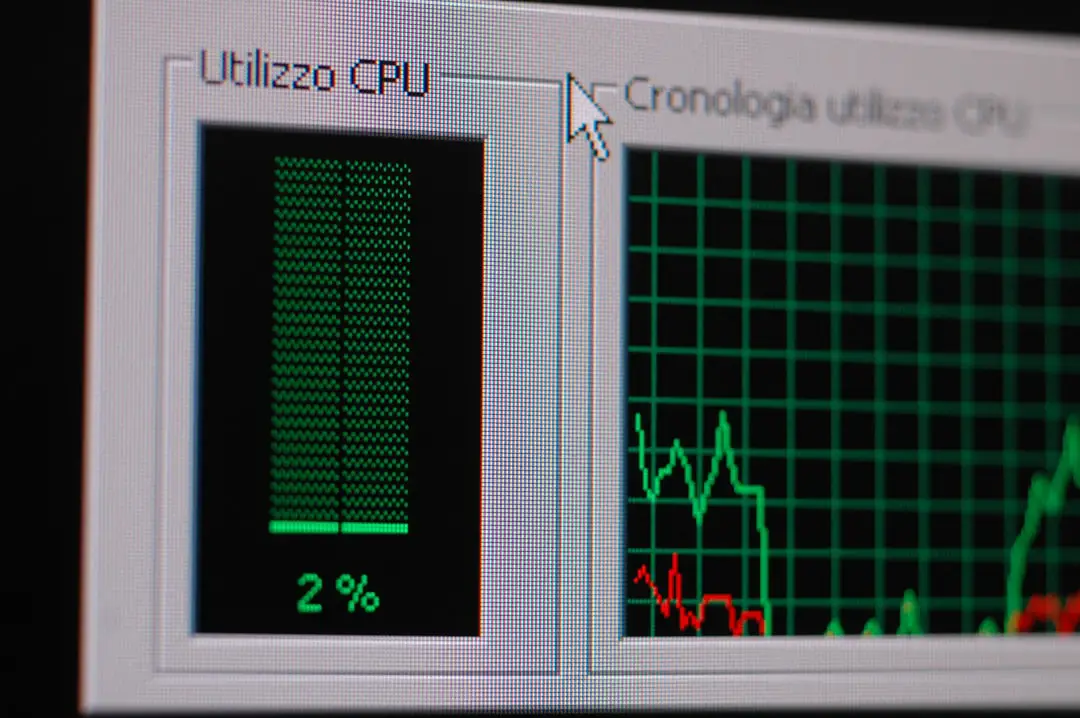
While the Task Manager itself doesn’t provide CPU temperature by default, it can help identify whether performance issues are temperature-related by showing CPU utilization and clock speed.
To get a more detailed hardware analysis, use the Windows 11 Performance Monitor or Resource Monitor to correlate system stress with potential overheating.
However, if you are experiencing high CPU usage in Task Manager consistently, it’s a good sign to check temperature with a proper monitoring tool.

3. Use Third-Party Software for Accurate Monitoring
Third-party tools provide the most convenient and comprehensive way to monitor CPU temperature in real-time. Most of the tools listed below are free and provide detailed statistics on temperature, voltage, fan speeds, and more.
Recommended Tools:
- Core Temp: A lightweight tool focused solely on CPU temperature. Offers highly accurate readings per CPU core.
- HWMonitor: Provides temperature monitoring for your entire system including CPU, GPU, and motherboard.
- Speccy: Offers an easy-to-read overview of your entire system, including CPU health and temperature.
- Open Hardware Monitor: Open source and supports custom widgets. Excellent for power users with feature-rich dashboards.
How to Use Core Temp as an Example:
- Download Core Temp from the official website.
- Install the software and launch it.
- You’ll immediately see the temperature of each CPU core displayed in real-time.
Pros: Real-time readings, alerts, compatibility with modern CPUs.
Cons: May require initial setup or understanding of CPU architecture.
4. Use Manufacturer-Specific Software
Major CPU manufacturers like Intel and AMD offer their own utilities for monitoring and managing hardware. These tools are optimized for specific processors and often provide the most reliable readings.
For Intel CPUs:
Intel® Extreme Tuning Utility (XTU) – Designed for unlocking advanced features, it also provides temperature data, clock speeds, and power usage. Good for overclockers and enthusiasts.
For AMD CPUs:
AMD Ryzen Master – Offers real-time monitoring and performance tuning. It’s especially helpful for users with Ryzen processors who want highly accurate temperature readings and control.
Pros: Highly accurate for CPUs made by the same manufacturer.
Cons: Not cross-compatible (Intel tools won’t work on AMD and vice versa).
Recommended CPU Temperature Ranges
Knowing the safe operating temperature for your CPU is vital. These ranges vary slightly depending on the processor model, but here are some general guidelines:
- Idle: 30°C to 45°C (86°F to 113°F)
- Normal Load: 50°C to 70°C (122°F to 158°F)
- Heavy Load/Gaming: Up to 85°C (185°F)
- Critical: 90°C+ (194°F+) – May cause thermal throttling or shutdown
If your CPU frequently operates above 85°C, consider cleaning your fans, reapplying thermal paste, or upgrading your cooling solution.
Tips to Reduce High CPU Temperature
If you find that your CPU is running hotter than it should be, try the following solutions:
- Improve airflow: Clean case fans and remove dust buildup.
- Upgrade your cooling system: Consider switching to a larger air cooler or liquid cooling.
- Reapply thermal paste: Over time, thermal paste between the CPU and heatsink can degrade.
- Avoid overclocking: Make sure your CPU is not running beyond its rated specifications.
- Close background apps: Resource-heavy applications can cause CPU usage spikes.
Set Up Alerts and Automation
Many third-party tools like HWMonitor or Open Hardware Monitor let you set temperature thresholds and receive audio or popup alerts. This allows for proactive monitoring and immediate reaction if something goes wrong.
Conclusion
Keeping your CPU temperature in check is a key part of maintaining your Windows 11 PC’s performance and longevity. From accessing BIOS to using advanced third-party tools, there are multiple options to suit all types of users. Whether you’re a casual user or a seasoned power user, regular temperature monitoring is a simple yet powerful form of system maintenance.
By using the right tools and taking proactive steps, you not only extend the life of your CPU but also ensure your system remains stable, efficient, and ready to handle whatever tasks you throw at it.
Stay cool—and keep those temperatures under control.