
Your keyboard can do more than type. It can glow like a tiny disco. It can match your room, your game, or your mood. If you have an iBuyPower keyboard, changing the RGB colors is usually easy once you know where to look.
TLDR: You can customize iBuyPower keyboard RGB colors with keyboard shortcuts or software. Start by checking the Fn key combinations printed on your keyboard. If your model supports software, use the iBuyPower or keyboard control app to pick colors, effects, brightness, and speed. If nothing works, check your keyboard model, USB connection, and manual.
Why Customize Your Keyboard RGB?
RGB lighting is not just pretty. It can also be useful. You can set one color for work. You can set another for gaming. You can make important keys stand out. Or you can just make your desk look awesome.
Some people like calm blue. Some like scary red. Some want rainbow waves racing across the keys. There is no wrong answer. It is your keyboard. Let it shine.
And yes, making your keyboard glow green might actually make you feel more powerful. Science may not agree. But your gaming setup will.
First, Know What Type of iBuyPower Keyboard You Have
Not every iBuyPower keyboard works the same way. Some models use built-in shortcuts. Others use software. Some basic models only have a few lighting modes. Higher-end models may let you pick each key color.
Before you start, look at your keyboard. Check the keys. Look for tiny icons printed on them. These may show a sun, light bulb, arrows, or color symbols. These are clues.
You can also check the bottom of the keyboard. Many keyboards have a label. It may show the model name or number. Write it down. This helps if you need to search for a manual.
Method 1: Use Keyboard Shortcuts
This is the fastest way. Many iBuyPower keyboards use the Fn key for RGB changes. The Fn key is usually near the bottom-left corner. It works like a secret button.
Hold Fn. Then press another key. The second key controls the lighting.
Common shortcut keys may include:
- Fn + Insert to change lighting effects.
- Fn + Home to switch colors.
- Fn + Page Up to increase brightness.
- Fn + Page Down to lower brightness.
- Fn + Arrow Up to make lights brighter.
- Fn + Arrow Down to make lights dimmer.
- Fn + Arrow Left to slow the effect.
- Fn + Arrow Right to speed it up.
These shortcuts are common, but not universal. Your keyboard may use different ones. So check the small icons on your keys. They are your treasure map.
If one shortcut does nothing, try another. You will not break anything. At worst, your keyboard may become a rainbow tornado for a few seconds.
Method 2: Cycle Through Lighting Modes
Many iBuyPower keyboards come with preset modes. These are ready-made effects. You do not need to build them from scratch.
Popular RGB modes include:
- Static: One solid color. Clean and simple.
- Breathing: The light fades in and out slowly.
- Wave: Colors move across the keyboard.
- Ripple: Light spreads when you press a key.
- Reactive: Keys light up as you type.
- Rainbow: All colors at once. Maximum party mode.
To cycle modes, look for a key with a lighting icon. Hold Fn and press that key. Press again to move to the next mode.
Keep pressing until you find one you like. Try typing while it runs. Some modes look much cooler in action.

Method 3: Use RGB Software
Some iBuyPower keyboards support software control. This gives you more options. You may be able to choose exact colors. You may also control speed, direction, and custom profiles.
First, check if your keyboard came with software. Look in your Start menu. Search for terms like:
- iBuyPower
- RGB
- Keyboard
- Peripheral
- Lighting
If you find an app, open it. Look for a tab called Keyboard, Lighting, RGB, or Device. Then select your keyboard.
From there, you can usually pick colors from a color wheel. You can also choose effects from a menu. Click Apply or Save when you are done.
If your keyboard does not appear in the software, do not panic. The app may only control your PC case lighting. Some included keyboards only use hardware shortcuts.
How to Pick a Solid Color
A solid color is great for a clean setup. It also makes the keyboard easier to see. This is perfect for night gaming, homework, or late typing sessions.
To choose one color with shortcuts:
- Hold the Fn key.
- Press the key that changes color or mode.
- Stop when the keyboard shows one solid color.
- Use the color shortcut to cycle colors.
- Adjust brightness if needed.
To choose one color with software:
- Open the RGB control app.
- Select your keyboard.
- Choose Static or Solid.
- Pick a color from the color wheel.
- Click Apply or Save.
Want a sleek look? Try white, ice blue, or purple. Want a battle station look? Try red or neon green. Want cozy vibes? Try amber or soft pink.
How to Make a Gaming Profile
A gaming profile is a color setup made for one game or style. It can be simple. It can also be dramatic. Your choice.
For example, you can use:
- Red for action games.
- Blue for racing games.
- Green for survival games.
- Purple for fantasy games.
- Orange for cozy adventure games.
If your software supports custom keys, highlight important controls. Make WASD one color. Make number keys another color. Make skill keys bright. This helps you find them faster.
If your keyboard only has presets, choose a mode that feels right. A slow wave looks cool. A reactive mode feels fast. A static color is calm and focused.
Best RGB Color Ideas
Need ideas? Here are some easy themes. They look great and take little effort.
- Cyber Blue: Blue and white. Clean and futuristic.
- Lava Mode: Red and orange. Hot and bold.
- Poison Glow: Green and purple. Great for spooky setups.
- Ice Cave: White, cyan, and light blue. Cool and calm.
- Midnight: Dark blue with low brightness. Great at night.
- Rainbow Party: Every color. Loud, fun, and proud.
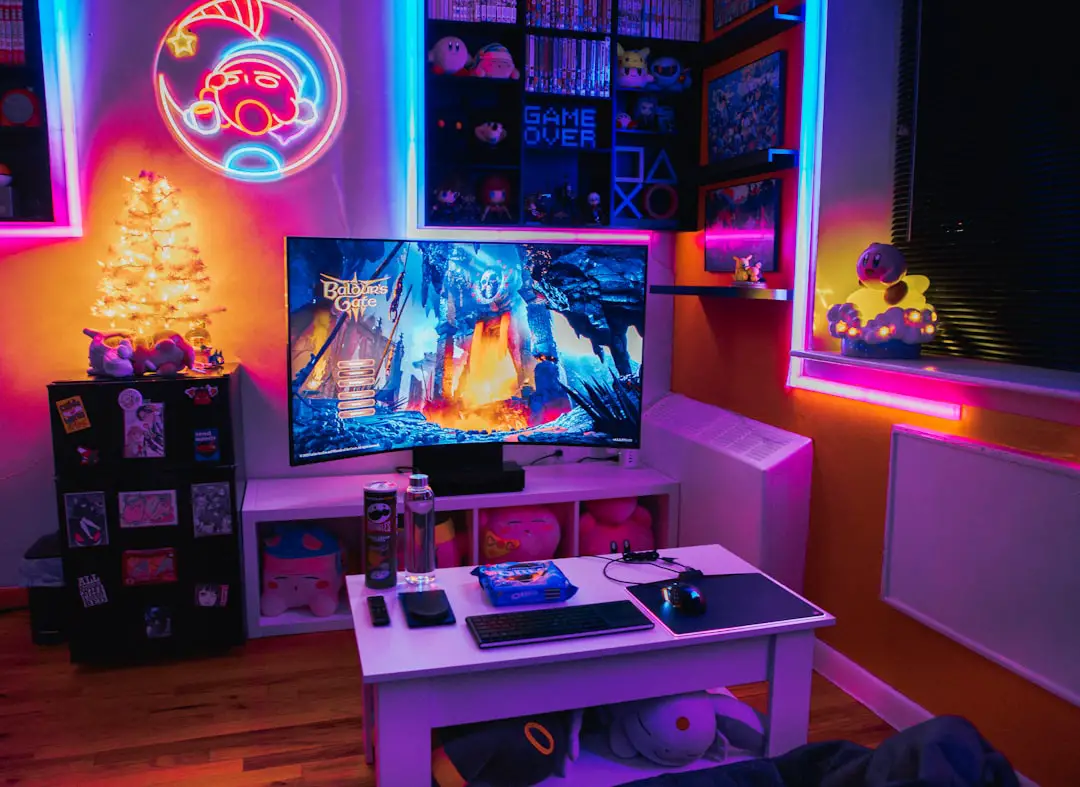
Try matching your keyboard to your mouse, PC fans, and wallpaper. When everything matches, your desk feels complete. It is like giving your computer a tiny outfit.
How to Adjust Brightness
Brightness matters. Full brightness looks amazing in photos. It may be too much in a dark room. Low brightness is softer. It can also be less distracting.
Use the brightness shortcut if your keyboard has one. This is often Fn plus an arrow key or lighting key. Press it a few times. Stop when it feels right.
If you use software, look for a brightness slider. Drag it left or right. Then save your setting.
Tip: For late-night use, lower the brightness. Your eyes will thank you. Your room will also stop looking like a spaceship cockpit.
How to Adjust Effect Speed
Some effects move. A wave can be slow and smooth. It can also be fast and wild. If it moves too quickly, it may get annoying.
Look for speed controls. With shortcuts, these may be on the arrow keys. With software, look for a slider called Speed or Effect Speed.
For daily use, slow effects are best. For gaming, medium speed feels fun. For showing off, crank it up. Let the rainbow run free.
What If the RGB Is Not Working?
Sometimes the lights do not change. That is annoying. But the fix is often simple.
Try these steps:
- Unplug the keyboard and plug it back in.
- Try a different USB port.
- Restart your computer.
- Check if the keyboard has a lock mode.
- Look for the correct Fn shortcuts.
- Update or reinstall the keyboard software.
- Check the keyboard model and manual.
If the keyboard lights up but will not change, the shortcuts may be different. If the keyboard does not light up at all, check the cable. Also check the USB port.
If software does not detect the keyboard, close the app and open it again. Run it as administrator if needed. Also make sure no other RGB app is fighting for control.
Can You Sync the Keyboard With the PC Lights?
Sometimes, yes. Sometimes, no. It depends on the keyboard and the system.
Some iBuyPower PCs have separate RGB control for case fans, RAM, or motherboard lights. The keyboard may not always sync with those parts. It may use its own controls.
If your software shows both the PC lights and keyboard, you may be able to sync them. Look for options like Sync, All Devices, or Lighting Link.
If not, you can still match them manually. Set the PC lights to blue. Then set the keyboard to blue. Boom. Fake sync. Still stylish.
Simple Tips for Better RGB
RGB is fun, but too much can be chaos. Use these tips to keep things nice.
- Pick two or three main colors.
- Use lower brightness at night.
- Choose slow effects for work.
- Use static colors when you need focus.
- Save profiles if your software allows it.
- Match colors with your desktop wallpaper.
Also, clean your keyboard. Dust can make lighting look dull. Use a soft brush or compressed air. Do not pour water on it. Keyboards are not soup.
Final Thoughts
Customizing iBuyPower keyboard RGB colors is simple once you learn the controls. Start with the Fn key. Try the lighting shortcuts. If your keyboard has software, use it for deeper customization.
The best setup is the one that makes you smile. Go calm. Go bright. Go rainbow. Make your keyboard match your game, your room, or your mood.
Have fun with it. Your keyboard is not just a tool. It is part of your setup. So give it some color and let it glow.