
Use the No Right Click Images Plugin to block image right-clicks on your WordPress interior design portfolio. It is simple, light, and made for this exact job. The plugin is listed in the official WordPress plugin directory, so you can install it right from your dashboard [source: WordPress.org].
TLDR: Install No Right Click Images Plugin, turn it on, and it will stop the normal “Save image as” right-click option on your portfolio images. For example, if a visitor opens 25 room photos, the plugin can block the quick right-click save menu on all 25. It will not stop every possible copying method, but it removes the easiest one. That alone helps protect mood boards, client projects, staged rooms, and custom design shots.

Why disable right-click on interior design images?
Your portfolio is not just “pretty pictures.” It is your work. Your taste. Your hours spent picking fabrics, lighting, art, sofas, tiles, and tiny brass handles that somehow cost more than dinner.
So yes, it feels annoying when someone can right-click and save your best living room photo in two seconds.
For an interior design site, image protection is useful when you show:
- Client home makeovers
- Before and after galleries
- Custom mood boards
- 3D design renders
- Styled photoshoots
- Premium portfolio images
The goal is not to build a digital vault. That is not realistic. The goal is to stop casual copying. Most people will not bother with extra tricks if right-click does nothing.
The plugin to use
The plugin you want is No Right Click Images Plugin.
It disables right-clicking on images only. That is nice. It does not block right-click across your whole site. Your visitors can still use normal browser actions on text, links, and menus.
That matters. A full right-click block can feel clunky. It drives me crazy when a site blocks everything, even opening a link in a new tab. That feels heavy-handed. This plugin keeps things more focused.
How to install it
Here is the easy path.
- Log in to your WordPress dashboard.
- Go to Plugins.
- Click Add New.
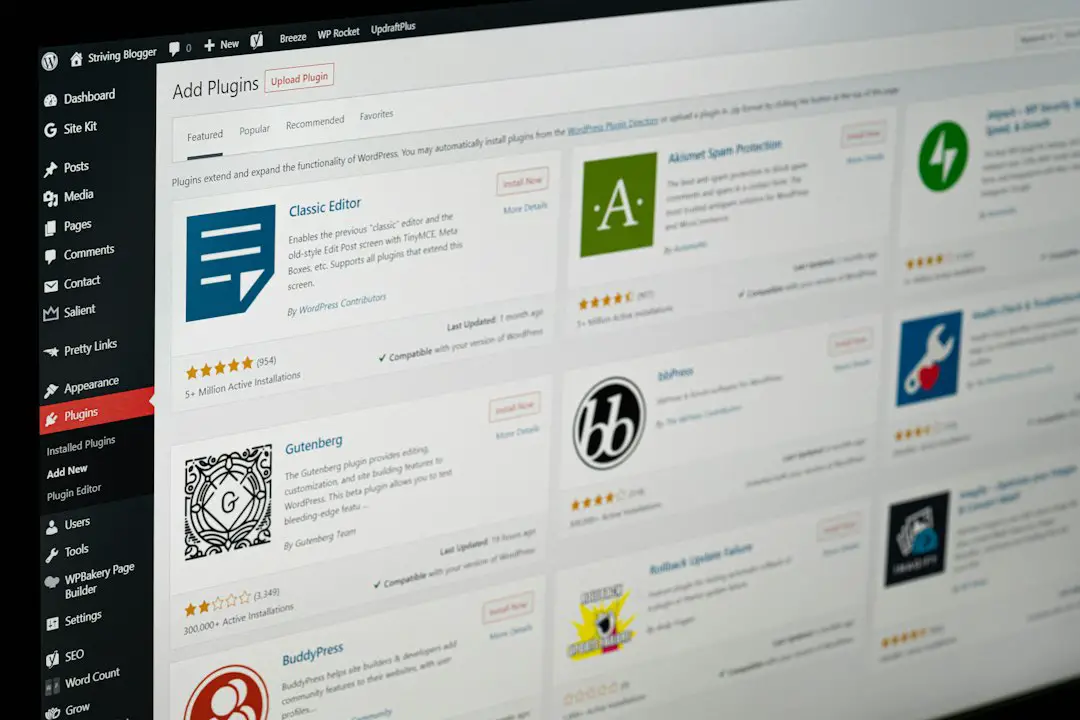
- Search for No Right Click Images Plugin.
- Click Install Now.
- Click Activate.
That is it. No scary code. No editing theme files. No “oops, the whole site is white now” moment.

How to test it
After activation, open your portfolio page in a new browser tab.
Try this:
- Right-click on a room image.
- Check if the normal menu appears.
- Try another image in another gallery.
- Test on mobile if your audience uses phones a lot.
If the plugin works, visitors should not get the usual image-saving menu on your design photos.
Honestly, expect to waste 30 seconds testing caching. Sometimes WordPress cache makes changes show up late. If nothing happens, clear your cache. Then refresh the page.
Best settings for a design portfolio
The plugin is simple, which is part of the charm. Still, think about how your portfolio works.
Use it on pages like:
- Portfolio
- Project galleries
- Case studies
- Press kit image pages
- Client reveal posts
If your site has a shop, test product images too. You do not want to block something that hurts sales or confuses buyers.
Will this fully protect your images?
No. And any tool that says it can fully stop image theft is being a bit too cheerful.
People can still take screenshots. They can inspect code. They can use browser tools. They can photograph the screen with a phone. Fancy? No. Possible? Yes.
But the plugin still helps. It stops the fastest method. That is enough for many portfolio sites.
Think of it like a “Please do not touch” sign in a showroom. It will not stop everyone. It will stop a lot of people who were only going to poke the velvet chair because it was easy.
Add watermarks for extra safety
For your best work, add a subtle watermark. Keep it classy. You are an interior designer, not a ransom note artist.
Good watermark ideas:
- Your studio name in one corner
- A small logo with low opacity
- Your website URL
- A soft mark across large hero images
Do not cover the whole image. People still need to see the room. The sofa deserves its moment.

Compress images before uploading
Large images make your site slow. Slow sites lose visitors. Nobody wants to wait five seconds to see a beige kitchen, even a very tasteful one.
Resize your photos before upload. Use JPG or WebP when possible. Keep images sharp, but not massive.
A good rule is simple:
- Hero images: around 1600 to 2000 pixels wide
- Gallery images: around 1200 to 1600 pixels wide
- Thumbnails: much smaller
This also makes stolen images less useful for print or large reuse.
Do not forget basic site security
Image protection is one layer. Your WordPress login needs care too.
Use strong passwords. If you share access with an assistant or photographer, use a password manager. You can read more about password security if your logins are currently living in a sticky note universe.
If your studio site gets serious traffic, you may also care about cloud based firewall protection. Bigger agencies may even compare enterprise network protection options.
Final tips
- Use the plugin to block easy right-click saving.
- Add watermarks to your best images.
- Resize photos before upload.
- Keep backups of all original design files.
- Update WordPress, themes, and plugins often.
The simple winning setup: use No Right Click Images Plugin, watermark your best room shots, and upload optimized images. Your portfolio stays pretty. Your work gets basic protection. And your visitors still get a smooth browsing experience.