
Whether you’re a tech enthusiast, a busy multitasker, or someone who simply closed a program by accident, finding recently closed apps in Windows 11 or 10 can be incredibly useful. Keeping track of your activity not only helps restore productivity but also saves time otherwise spent reopening and configuring software all over again. Thankfully, Windows offers both built-in tools and some useful third-party applications to help with this task.
TLDR: Summary
If you’ve accidentally closed an application or want to revisit your recent workflow, there are several methods to find recently closed apps in Windows 11/10. Built-in options like Task Manager and Event Viewer provide system-based insights, while free tools like RecentFilesView and Process Explorer make tracking easier and more detailed. Combination of these tools offers the best way to trace app history, especially when combined with manual system restore points or activity logs.
Using Built-in Tools to Find Recently Closed Applications
Windows doesn’t offer a one-click solution dedicated solely to listing “recently closed apps,” but it includes several built-in utilities that can provide a detailed operational view of system processes and events. Here are the primary tools:
1. Task Manager (Indirect Method)
While Task Manager doesn’t display a history of closed apps per se, it can give a clear snapshot of what’s currently running and what’s recently used:
- Press Ctrl + Shift + Esc to open Task Manager.
- Click on the App history tab (on Windows 10; for Windows 11, use the Startup or Processes tab instead).
- Here, check usage stats like CPU time, network bandwidth, and last run info.
While this doesn’t list *closed* apps, high recent usage can indicate previously opened applications.
2. Event Viewer
This is one of the best built-in tools for identifying closed and opened applications:
- Press Win + X and click Event Viewer.
- Navigate to Windows Logs > System or Application.
- Apply a filter by clicking Filter Current Log and selecting Event IDs related to program terminations (e.g., 1000 to 1005).
- Review the details to find timestamped logs of opened and closed apps.
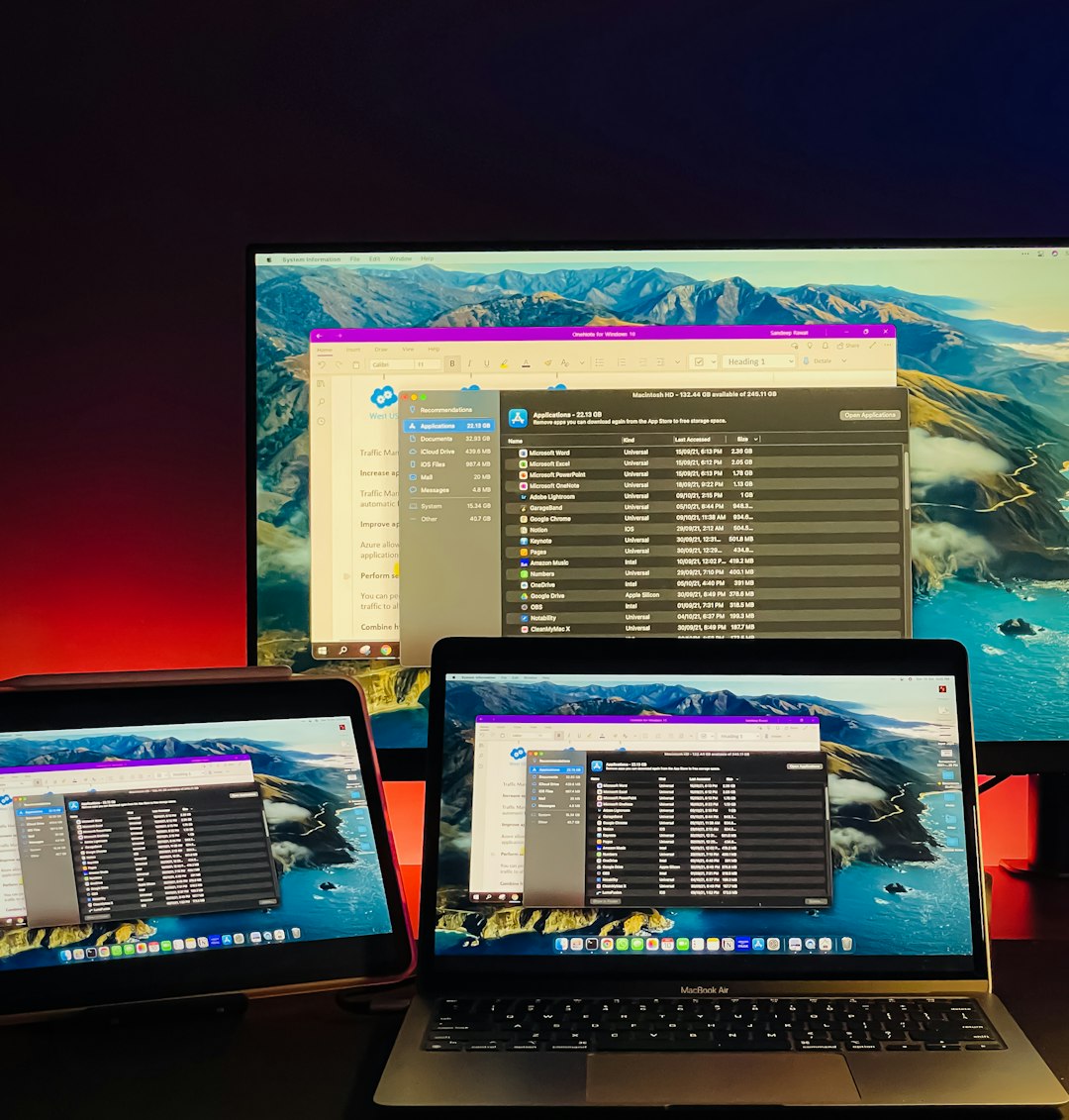
It takes a bit of practice, but Event Viewer offers one of the most granular insights into your system’s activities, including app crashes, forced closures, and regular terminations.
3. Reliability Monitor
This is an underrated feature in both Windows 10 and 11 that visually displays app crashes and other system events:
- Access it by typing “Reliability Monitor” into the Start Menu and opening the “View reliability history” link.
- The graph shows days and logs events such as critical errors, warnings, and informational messages.
- You can click on any day to expand and see what applications were closed unexpectedly and why.
Using Free Third-Party Tools
Built-in options are helpful, but sometimes a specialized tool can save you time and provide more in-depth real-time monitoring. Here are some free tools to consider:
1. Process Explorer by Microsoft Sysinternals
This advanced version of Task Manager allows you to monitor process activity in real-time. Although it doesn’t restore history after a reboot, if left running, it can help track the opening and closing of applications with full detail.
- Download from the Microsoft Sysinternals site.
- Run it with administrator privileges.
- Sort by column “Start Time” or “Command Line”.
You can also use filters to isolate system vs user applications to make the view clearer.
2. RecentFilesView by NirSoft
This lightweight utility scans your recent documents, programs, and other accessed files. While it doesn’t isolate “closed apps,” it indirectly helps you find what executable or document was opened—which typically clues you into the app that used it.
- No installation required; just unzip and run the .exe file.
- It generates a list of recently accessed files, complete with timestamps and file paths.
- You can use the filter to focus on .exe files—indicating recently run apps.
3. LastActivityView (also by NirSoft)
Another fantastic app from NirSoft, LastActivityView provides a unified log of user actions:
- It lists process initiation and terminations, system shutdowns, program uninstallations, login sessions, and more.
- Provides a timestamp, file path, and description of the activity.
- Ideal for identifying programs that were closed, either normally or as a result of a crash.
Additional Tips
Aside from using the tools listed above, consider these supplemental strategies:
Enable System Restore Points
While not targeted for app history, restore points can help in rolling back to a previous system state in extreme cases (like accidental uninstalls or crashes).
Create a Custom Script
Advanced users can create PowerShell scripts or batch files to log app activity. A basic script can regularly export running processes to a log file, offering a basic way to “retrace steps.”
Use Auto Runs
If a closed app is a startup program, tools like Autoruns from Sysinternals can help visualize all startup entries and recently run apps during boot-up.
Summary: Best Practices
- Use Event Viewer or Reliability Monitor for in-depth log information about app closures and system-related events.
- Install LastActivityView if you need a timeline overview of all system and user activity, including app launches and terminations.
- For instant process monitoring, keep Process Explorer running in the background.
- Always be proactive: enabling logs or maintaining a minimal activity monitor can prevent future productivity losses.
Frequently Asked Questions (FAQ)
1. Can I see a list of recently closed apps directly in Windows without third-party tools?
No. Windows doesn’t offer a dedicated list of recently closed apps. However, tools like Event Viewer and Reliability Monitor offer indirect ways to find this data.
2. Is it safe to use third-party tools like NirSoft utilities?
Yes, NirSoft tools are widely used by IT professionals. While some antivirus programs may flag them due to behavior patterns, they are generally safe if downloaded from the official site.
3. Will these methods work after a system reboot?
Built-in tools like Event Viewer and Reliability Monitor retain logs even after reboot. However, some third-party tools like Process Explorer don’t save history unless explicitly configured to log.
4. Can I recover unsaved work from a recently closed app?
This depends on the application. Programs like Microsoft Word offer auto-recovery features. However, unless an app has built-in recovery, restoring unsaved data may be difficult without backup or restore points.
5. Is it possible for recently closed background applications to not show up in Event Viewer?
Yes, especially if the app doesn’t generate Windows logs. Lightweight apps or portable executables may not appear unless they crash or cause a noticeable system event.
Locating recently closed apps can feel like digital detective work—but with the right tools, it becomes much more manageable. Whether using built-in utilities or powerful free tools, Windows offers ample ways to retrace user activity with precision and control.