
For most Ubuntu web servers, install Apache if you want the simplest LAMP setup, and choose Nginx with PHP FPM if you expect heavy traffic or plan to run several sites behind one server. Ubuntu LTS is a strong base because it receives five years of standard security maintenance, which matters when the server will stay online for years [source: Ubuntu]. Strictly speaking, LAMP means Linux, Apache, MySQL, PHP. If you use Nginx instead of Apache, the stack is usually called LEMP, but the goal is the same: serve PHP applications from a Linux server.
TLDR: Use Apache for a standard WordPress, Drupal, Laravel, or phpMyAdmin server where quick setup and broad documentation matter. Use Nginx when concurrency, reverse proxying, and lower memory use matter more than easy configuration. For example, a small business site with 5,000 monthly visits will run fine on Apache, while a SaaS landing site receiving 300 simultaneous requests may fit Nginx better. Expect Apache to be faster to configure, but Nginx is often cleaner once traffic grows.


What You Are Actually Installing
A basic Ubuntu web server needs four parts:
- Linux: Ubuntu Server, usually an LTS release.
- Web server: Apache or Nginx.
- Database: MySQL or MariaDB.
- PHP: The language runtime used by many CMS and web apps.
Apache reads PHP through an Apache PHP module or through PHP FPM. Nginx cannot process PHP by itself, so it passes PHP files to PHP FPM. That extra piece is not hard, but it adds one more service to check when something breaks. Honestly, the PHP socket mismatch is the kind of small server issue that can waste 20 minutes for no good reason.
Option 1: Install a Classic LAMP Stack with Apache
Start with a clean Ubuntu server. Log in as a sudo user, then update packages:
sudo apt update
sudo apt upgrade -y
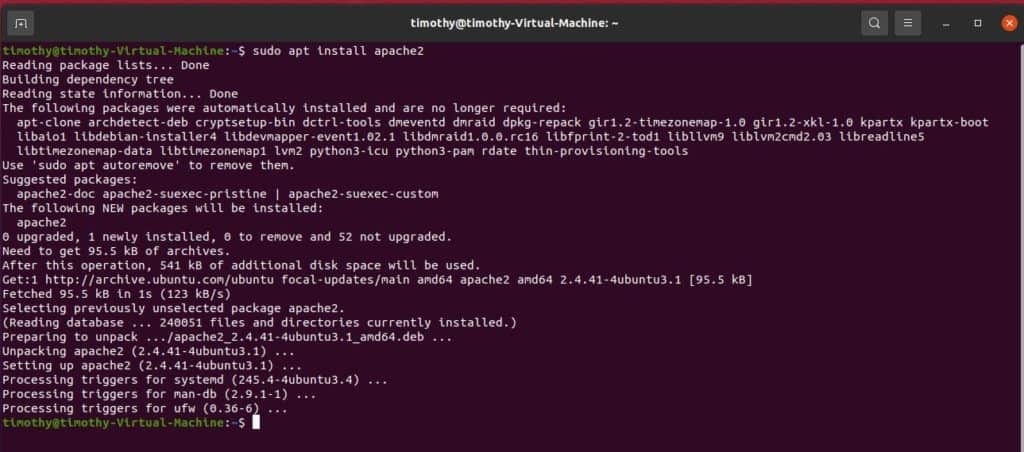
Install Apache, MySQL, PHP, and the common PHP MySQL extension:
sudo apt install apache2 mysql-server php libapache2-mod-php php-mysql -yEnable and start the services:
sudo systemctl enable --now apache2
sudo systemctl enable --now mysql
Allow web traffic through the firewall:
sudo ufw allow 'Apache Full'
sudo ufw enable
Then run the MySQL security helper:
sudo mysql_secure_installationApache should now serve its default page at your server IP address. Place site files in:
/var/www/htmlTo test PHP, create a temporary file:
echo "<?php phpinfo(); ?>" | sudo tee /var/www/html/info.phpVisit:
http://your_server_ip/info.phpIf the PHP information page appears, PHP works. Delete the file right away:
sudo rm /var/www/html/info.phpLeaving phpinfo() public is sloppy. It exposes paths, modules, and version data attackers do not need to see.
Option 2: Install Nginx with MySQL and PHP FPM
If you prefer Nginx, install it with MySQL and PHP FPM:
sudo apt update
sudo apt install nginx mysql-server php-fpm php-mysql -y
Start and enable services:
sudo systemctl enable --now nginx
sudo systemctl enable --now mysql
sudo systemctl enable --now php8.3-fpm
Your PHP version may differ. Check it with:
php -v
systemctl status php*-fpm
Allow Nginx traffic:
sudo ufw allow 'Nginx Full'
sudo ufw enable
Create a simple Nginx server block:
sudo nano /etc/nginx/sites-available/example.comAdd this configuration, changing the domain and PHP version if needed:
server {
    listen 80;
    server_name example.com www.example.com;
    root /var/www/example.com;
    index index.php index.html;

    location / {
        try_files $uri $uri/ /index.php?$args;
    }

    location ~ \.php$ {
        include snippets/fastcgi-php.conf;
        fastcgi_pass unix:/run/php/php8.3-fpm.sock;
    }

    location ~ /\.ht {
        deny all;
    }
}
Create the web root and enable the site:
sudo mkdir -p /var/www/example.com
sudo ln -s /etc/nginx/sites-available/example.com /etc/nginx/sites-enabled/
sudo nginx -t
sudo systemctl reload nginx
Nginx is strict about syntax. That is good for production, but annoying during setup. A missing semicolon can stop the reload cold.

Apache vs Nginx: Which One Should You Use?
| Factor | Apache | Nginx |
|---|---|---|
| Ease of setup | Very easy for PHP apps | Moderate, needs PHP FPM |
| Performance | Good for most sites | Very strong with many concurrent connections |
| Configuration style | Supports .htaccess |
Central server blocks only |
| Shared hosting habits | Common and familiar | Less forgiving, cleaner at scale |
| Reverse proxy use | Works well | Often preferred |
Choose Apache if you are installing WordPress quickly, using legacy PHP software, or relying on .htaccess rules. Many plugins and CMS guides assume Apache. That saves time.
Choose Nginx if you want a front end for PHP apps, Node.js apps, containers, or multiple upstream services. Nginx is also a strong pick for static files, caching, and reverse proxy setups. The official Nginx documentation describes the server block model in detail [source: Nginx].
Secure the Server Before You Publish
Do not stop after the first successful page load. A working server is not the same as a safe server.
- Enable automatic security updates: install
unattended-upgrades. - Use SSH keys: avoid password based root access.
- Install TLS: use Certbot for a free Let’s Encrypt certificate.
- Limit open ports: keep only SSH, HTTP, and HTTPS open unless needed.
- Back up databases: test restore steps, not just backup jobs.
- Check logs: review
/var/log/apache2/,/var/log/nginx/, and auth logs.
For Apache TLS:
sudo apt install certbot python3-certbot-apache -y
sudo certbot --apache
For Nginx TLS:
sudo apt install certbot python3-certbot-nginx -y
sudo certbot --nginx
After that, test renewal:
sudo certbot renew --dry-run
Final Recommendation
If this is your first Ubuntu Linux web server, start with Apache LAMP. It is direct, heavily documented, and friendly to common PHP software. If you already know your site will handle higher concurrency or act as a reverse proxy, use Nginx with PHP FPM.
The practical answer is simple. Apache gets you online faster. Nginx gives you tighter control as traffic and complexity increase. Pick the server that matches the workload, not the trend.