

Spotify has become a cornerstone of digital music libraries for millions around the world. With custom playlists tailored to moods, moments, and memories, losing them—even temporarily—can wreak havoc on a carefully curated listening experience. Many users have recently reported that after a system update, their playlists suddenly disappeared, even though their accounts seemed intact. Following what appeared to be a failed data sync, panic set in, but recovery, fortunately, is often possible.
TL;DR
After a recent Spotify update, some users noticed that playlists vanished even though their accounts remained accessible. This issue often results from synchronization errors or cached data conflicts. In most cases, playlists can be recovered by logging in on a different device, clearing cache, or using Spotify’s playlist recovery tool. Deeper tech methods and tips from the community can also assist, especially if the platform’s native tools fall short.
Understanding the Issue: When Playlists Vanish but the Account Doesn’t
When users experience a loss of playlists but still have access to their Spotify accounts, the issue typically lies within either data synchronization errors or app cache corruption following an update. Spotify stores your playlists in the cloud, so they’re not permanently lost unless deleted from the account itself.
However, temporary bugs after system or app updates can make Spotify load with outdated or incomplete data. In these cases, your playlists still exist on Spotify’s servers—they just aren’t displaying correctly on your app or web interface.
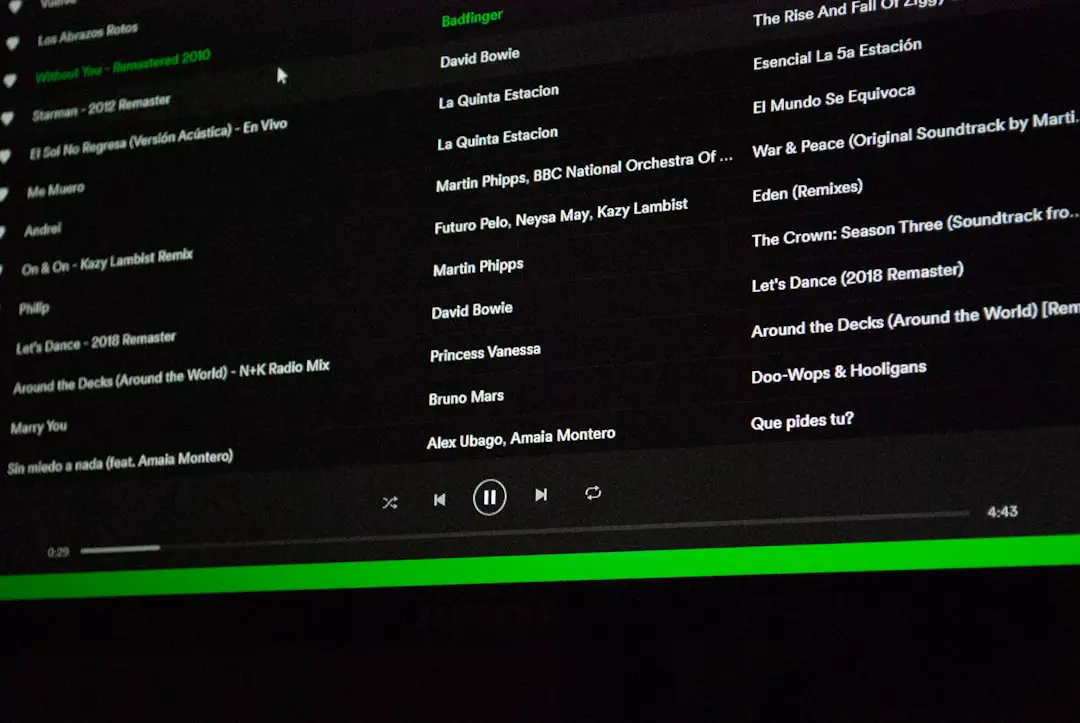
Common Causes for Missing Playlists
While the sudden disappearance of playlists can be alarming, identifying the root cause helps streamline the recovery process. Below are the most common culprits:
- App Update Bugs: Newly pushed updates may contain bugs that affect how data is fetched from the server.
- Corrupted Cache: Old or corrupted cache may prevent the app from loading the most up-to-date user data.
- Multiple Spotify Accounts: Many users accidentally log in with the wrong account (Google, Facebook, Apple, or email-linked), making it appear as though playlists are missing.
- Sync Errors from Cloud: Sometimes, the app fails to pull data from the cloud due to faulty internet or a flawed initial sync.
What Users Have Tried — and What Worked
Based on user reports from forums, Reddit, Spotify Community, and tech blogs, here are some tested methods that have helped people recover their playlists:
1. Re-login Using All Credential Methods
Many users found that they were mistakenly logged into a different Spotify account—often created by accident using Google or Apple credentials. Users should:
- Log out completely from all active sessions.
- Try logging in using all known email addresses, Facebook, Google, and Apple IDs.
- Access the Spotify account overview page at spotify.com/account/overview to verify account info and date of sign-up.
2. Use Spotify’s Playlist Recovery Feature
Spotify offers an official recovery tool. Once you’re logged into your correct account, head here:
https://www.spotify.com/account/recover-playlists
You’ll see a list of recently deleted playlists. Click Restore next to any playlist you want to bring back. Many users reported success with this method even when the playlists didn’t show on their mobile or desktop apps.
3. Clear Cache and Reinstall
If the app itself is to blame due to corrupted cache or stuck sync data, a fresh install can often solve the issue.
Steps:
- Uninstall Spotify completely from your device.
- Manually delete cache folders if you’re on a desktop (located under C:\Users\[Username]\AppData\Roaming\Spotify for Windows).
- Reinstall the app and log in again.
Be sure to restart your device between uninstall and reinstall for best results.
4. Try Logging in on a Different Device
Some users found their playlists reappeared immediately when logging into their account from a different device, such as a smart TV, tablet, or desktop. This may trigger a fresh sync with the server and bypass local cache problems.
5. Reach Out to Spotify Support
When all else fails, contacting Spotify Support either through the Spotify Help Center or via social media like Twitter/X (@SpotifyCares) has resolved the issue for numerous affected users. Support agents can manually check for sync failures, assist account verification, and help restore missing content.
User Testimonials & Workarounds That Helped
Based on online communities and user testimonials:
- “I thought I lost everything, but logging in through my Gmail instead of Facebook showed all my playlists again. I had apparently made two accounts by mistake.” — u/NateListens
- “I cleared the cache on my iPhone, restarted the app, and bam, everything was back to normal.” — Tina R., Spotify Forum
- “Reinstalling the desktop app is what finally did it for me. The mobile one didn’t show it after 24 hrs, but desktop updated instantly.” — Jason L., Reddit
Preventing Playlist Loss in the Future
Prevention is always better. While Spotify sync issues are sometimes unavoidable, you can reduce your risks with these practices:
- Keep Spotify updated but avoid installing updates immediately—wait a day or two to avoid buggy releases.
- Back up playlists via third-party tools like TuneMyMusic or Soundiiz, which export playlists in text or spreadsheet format.
- Avoid duplicate accounts by choosing a single login method and sticking to it.
FAQs: Lost Spotify Playlists and How to Recover Them
- Q: Are lost playlists gone forever?
- No. Most playlists are stored on Spotify’s servers, and unless deleted, they can usually be recovered by logging in properly or using the recovery page.
- Q: Why did my playlists disappear after an update?
- This is often due to cache corruption or app sync errors, not actual deletion.
- Q: What should I do first if I notice my playlists are gone?
- Start by logging out of Spotify and logging back in with different credentials you may have used. Then, visit the recovery page on Spotify’s website.
- Q: Can Spotify Support recover my old playlists?
- Yes, especially if there’s evidence of sync failure or duplicate account confusion. They can assist in data verification and recovery.
- Q: How can I know if I have multiple Spotify accounts?
- Visit Spotify’s account page and check sign-up details. Try recovering accounts using all email addresses and login methods you’ve used. Spotify Support can also help identify this.
Conclusion
Lost Spotify playlists can be a nerve-wracking experience, but in most cases, they’re recoverable. The key is staying calm and methodically trying the recommended steps—re-logging in, verifying account info, clearing cache, and using Spotify’s recovery tools. With the right approach, your favorite tracks can be back where they belong—at your fingertips.