
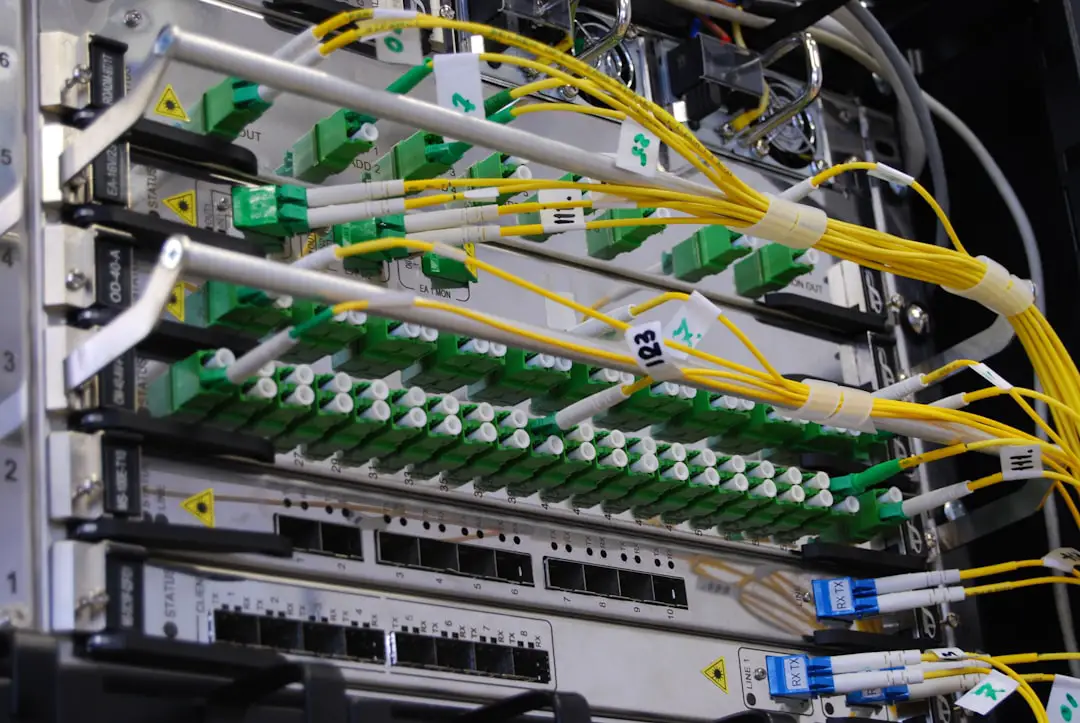
Setting up a user on a Cisco 9200L switch is a foundational task for network administrators who want to secure device access and delegate management responsibilities properly. The Cisco Catalyst 9200L series runs on Cisco IOS XE, offering flexible authentication options and role-based access control. Whether it is for a small office network or an enterprise deployment, configuring users correctly ensures both security and operational efficiency.
TLDR: Creating a user on a Cisco 9200L involves entering global configuration mode, defining a username and secret password, and assigning appropriate privilege levels. Administrators can store credentials locally or integrate with external authentication servers like RADIUS or TACACS+. After configuration, it is essential to save changes and verify access. Proper user setup enhances security, accountability, and operational control.
Why User Accounts Matter on Cisco 9200L
Cisco 9200L switches often operate as access-layer devices, connecting endpoints such as computers, phones, and access points. Because these switches play a critical role in enterprise networks, administrators must prevent unauthorized access to the command-line interface (CLI) and management features.
Creating individual user accounts instead of relying solely on a shared password provides:
- Accountability – Each administrator has unique credentials.
- Granular privilege control – Different access levels can be assigned.
- Improved auditability – Logs can associate actions with specific users.
- Enhanced security – Strong password encryption protects credentials.
Prerequisites Before Configuration
Before beginning the configuration process, ensure the following requirements are met:
- Physical or remote console access to the Cisco 9200L switch
- Administrative access to enter privileged EXEC mode
- Basic familiarity with Cisco IOS CLI commands
- Terminal software such as PuTTY, Tera Term, or SecureCRT
It is also recommended to confirm that the switch firmware is updated to a stable Cisco IOS XE release to avoid compatibility or security issues.
Step 1: Access the Switch CLI
Connect to the switch using a console cable or via SSH if remote access is already configured. Once connected, enter privileged EXEC mode:
Switch> enable
Switch#
The enable command elevates the user to privileged mode, allowing configuration changes.
Step 2: Enter Global Configuration Mode
To make configuration changes, enter global configuration mode:
Switch# configure terminal
Switch(config)#
This mode allows modification of system-wide settings, including user accounts.
Step 3: Create a Local Username and Password
To create a new local user, use the following syntax:
Switch(config)# username admin privilege 15 secret StrongPassword123
Breaking this command down:
- username admin – Defines the account name.
- privilege 15 – Grants full administrative privileges (0–15 scale).
- secret StrongPassword123 – Sets an encrypted password.
Using the secret keyword ensures the password is encrypted in the running configuration.
Understanding Privilege Levels
Cisco devices support privilege levels ranging from 0 to 15:
- 0–1: Limited or user-level access
- 2–14: Customizable intermediate levels
- 15: Full administrative access
If an organization wants limited access for helpdesk personnel, the command may look like:
Switch(config)# username helpdesk privilege 5 secret HelpdeskPass456
Step 4: Configure Line Access for Local Login
Creating a username alone is not enough. The switch must be instructed to use local authentication for console and VTY (SSH/Telnet) lines.
Configure Console Login
Switch(config)# line console 0
Switch(config-line)# login local
Switch(config-line)# exit
Configure VTY (Remote) Login
Switch(config)# line vty 0 4
Switch(config-line)# login local
Switch(config-line)# transport input ssh
Switch(config-line)# exit
Using transport input ssh ensures secure remote access instead of insecure Telnet.
Step 5: Enable SSH (If Not Already Enabled)
If SSH has not been configured, it must be enabled to allow secure remote login.
Switch(config)# ip domain-name example.com
Switch(config)# crypto key generate rsa
Switch(config)# ip ssh version 2
This sequence generates RSA keys and enforces SSH version 2 for improved security.
Step 6: Save the Configuration
After creating the user and configuring login settings, save the configuration to prevent loss during reboot:
Switch# write memory
Alternatively:
Switch# copy running-config startup-config
Failure to save changes will result in the user account being removed after a restart.
Step 7: Verify the Configuration
To verify that the user has been created successfully:
Switch# show running-config | include username
To test access, log out and reconnect via console or SSH using the newly created credentials.
Optional: Integrating External Authentication
In enterprise environments, local user accounts may not scale efficiently. Cisco 9200L supports external authentication methods such as RADIUS and TACACS+.
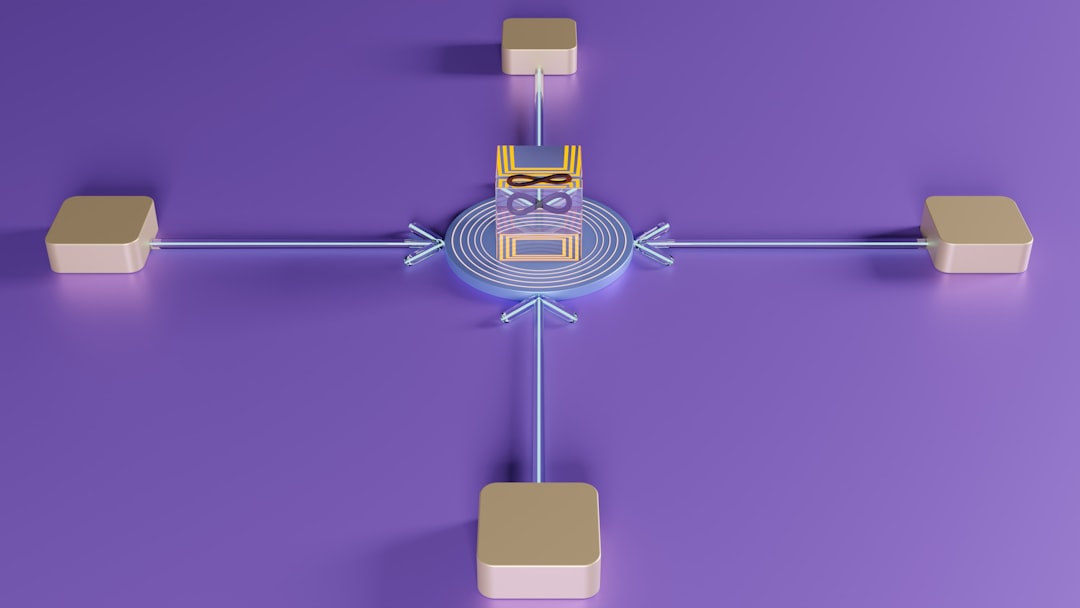
Below is a comparison chart of common authentication methods:
| Feature | Local Authentication | RADIUS | TACACS+ |
|---|---|---|---|
| Centralized Management | No | Yes | Yes |
| Encryption | Local only | Encrypts password only | Encrypts entire packet |
| Command Authorization | Limited | Limited | Granular control |
| Best For | Small networks | User access control | Admin device control |
Organizations that require detailed command-level auditing typically prefer TACACS+, while smaller deployments may rely solely on local authentication.
Best Practices for User Configuration
- Always use secret instead of password.
- Enforce strong password policies.
- Disable unused accounts promptly.
- Use SSH over Telnet.
- Consider role-based access control (RBAC).
- Regularly review the running configuration.
Additionally, administrators should implement AAA (Authentication, Authorization, and Accounting) for more advanced security policies.
Troubleshooting Common Issues
Issue: Login rejected via SSH
Ensure that login local is configured under VTY lines and SSH keys are properly generated.
Issue: Privilege level not applied
Confirm that the user was created with the intended privilege level and that AAA configurations are not overriding local settings.
Issue: Configuration lost after reboot
Verify that the configuration was saved using write memory.
Conclusion
Setting up a user on a Cisco 9200L switch is a straightforward but critical task for maintaining a secure and manageable network environment. By creating properly encrypted user accounts, assigning correct privilege levels, and enforcing secure access methods like SSH, administrators can significantly strengthen device security. Whether using local authentication for small deployments or integrating centralized AAA servers in enterprise networks, the Cisco 9200L offers flexible and powerful user management capabilities.
Frequently Asked Questions (FAQ)
1. What is the difference between “password” and “secret” in Cisco IOS?
The secret command encrypts the password using a stronger hashing algorithm, while password may store credentials in weaker or plain text formats. The secret option is strongly recommended.
2. How many users can be created locally on a Cisco 9200L?
The switch supports multiple local users, limited primarily by system resources. For large environments, centralized authentication is recommended.
3. Can privilege levels be customized?
Yes. Privilege levels 2–14 can be customized to allow access to specific commands, though this requires additional configuration.
4. Is Telnet recommended for remote access?
No. Telnet transmits data in plain text. SSH should always be used for encrypted and secure communication.
5. What happens if AAA is enabled?
If AAA is configured, authentication methods defined under AAA policies may override local login settings. Proper configuration order is essential.
6. How can a user be removed?
Use the following command in global configuration mode:
Switch(config)# no username admin
This deletes the specified user from the configuration.
7. How can the current privilege level be checked?
After logging in, use:
Switch# show privilege
This command displays the current session’s privilege level.