
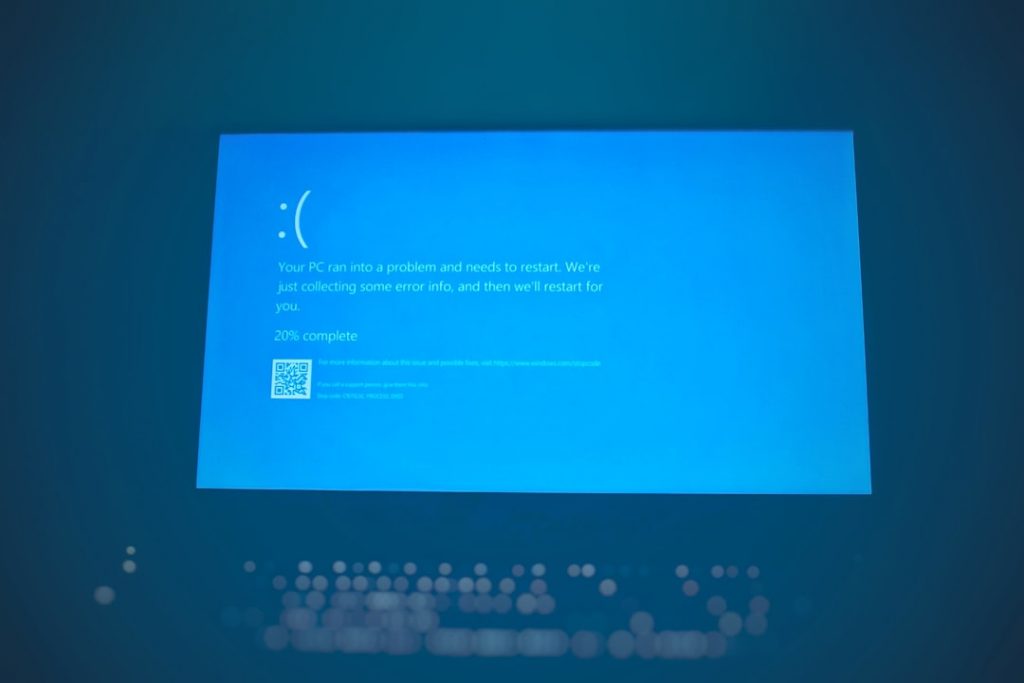
Few browser errors feel as unhelpful as ERR_SSL_PROTOCOL_ERROR. One moment you are opening a website as usual; the next, Chrome or another browser refuses to load the page and tells you that a secure connection could not be established. The good news is that this error is usually caused by something practical: an incorrect system clock, cached SSL data, browser settings, antivirus inspection, or a misconfigured website certificate.
TLDR: ERR_SSL_PROTOCOL_ERROR means your browser could not complete the secure HTTPS handshake with the website. Start by checking your date and time, clearing browser cache, and trying the site in another browser or network. If the problem affects only one website, the site owner may need to fix its SSL certificate or server configuration. If it affects many websites, focus on your Windows or Mac settings, antivirus, DNS, and browser configuration.
What Does ERR_SSL_PROTOCOL_ERROR Mean?
When you visit a website that uses HTTPS, your browser and the website’s server perform a security check known as the SSL/TLS handshake. During this exchange, they agree on encryption settings and verify that the website has a valid certificate. If something goes wrong during that process, the browser may display ERR_SSL_PROTOCOL_ERROR.
Although people often say “SSL,” most modern websites use TLS, the newer and more secure version of the protocol. The error can appear in Google Chrome, Microsoft Edge, Brave, Opera, and other Chromium-based browsers. Safari and Firefox may show differently worded messages, but the underlying issue can be similar.
This error can happen because of problems on your device, your network, your browser, or the website itself. That is why troubleshooting works best when you move from simple checks to more advanced fixes.

1. Refresh the Page and Check the Website Address
Start with the simplest step: reload the page. A temporary network hiccup can interrupt the secure connection. Press Ctrl + R on Windows or Command + R on Mac.
Next, look carefully at the web address. Make sure you typed the domain correctly and that you are not visiting an outdated or unusual URL. If the site has both http:// and https:// versions, try entering the full address with https:// at the beginning.
If the error appears only on one page of a website, try visiting the homepage. For example, if a product page fails, go to the main domain first. This helps determine whether the issue affects the entire site or only a specific section.
2. Check Your Date and Time Settings
An incorrect clock is one of the most common causes of SSL errors. Website certificates are valid only during specific date ranges. If your computer thinks it is months or years in the past or future, your browser may reject otherwise valid certificates.
On Windows
- Open Settings.
- Go to Time & language > Date & time.
- Turn on Set time automatically.
- Turn on Set time zone automatically, if available.
- Click Sync now under additional clock settings.
On Mac
- Open System Settings.
- Go to General > Date & Time.
- Enable Set time and date automatically.
- Confirm that your time zone is correct.
After correcting the time, close and reopen your browser, then try the website again.
3. Clear Browser Cache, Cookies, and SSL State
Browsers store a lot of information to make websites load faster. Sometimes cached data becomes outdated or conflicts with a site’s current SSL configuration. Clearing it can force the browser to create a fresh secure connection.
Clear Cache in Chrome or Edge
- Open the browser menu.
- Go to Settings > Privacy and security.
- Select Clear browsing data.
- Choose Cached images and files and Cookies and other site data.
- Set the time range to All time, then click Clear data.
On Windows, you can also clear the SSL state:
- Open the Start menu and search for Internet Options.
- Open it and select the Content tab.
- Click Clear SSL state.
- Restart your browser.
Mac does not have the same “Clear SSL state” button, but clearing browser data and restarting the browser usually achieves a similar result.

4. Try Another Browser or Incognito Window
Testing in another browser is a quick way to narrow the problem. If Chrome shows ERR_SSL_PROTOCOL_ERROR but Safari or Firefox loads the site, the problem may be related to Chrome settings, extensions, or cached data.
You can also use a private browsing window:
- Windows Chrome or Edge: Press Ctrl + Shift + N.
- Mac Chrome or Edge: Press Command + Shift + N.
- Safari: Press Command + Shift + N.
If the website works in private mode, a cookie, extension, or cached item in your regular browser session may be the culprit.
5. Disable Browser Extensions Temporarily
Extensions that filter traffic, manage privacy, block ads, or inspect scripts can sometimes interfere with HTTPS connections. Security and proxy-related extensions are especially likely to create conflicts.
In Chrome or Edge, open the extensions page by typing chrome://extensions or edge://extensions into the address bar. Turn off extensions one by one, then reload the website after each change. If the site starts working, you have found the extension causing the issue.
Do not forget to re-enable the extensions you trust after testing. If one extension repeatedly causes SSL problems, update it, change its settings, or remove it.
6. Update Your Browser and Operating System
Outdated software may not support the latest TLS versions or certificate standards. Modern websites increasingly reject old encryption methods, and browsers regularly update their security rules.
On Windows, check for updates under Settings > Windows Update. On Mac, go to System Settings > General > Software Update.
For Chrome, Edge, or Firefox, open the browser’s About page. Most browsers automatically check for updates there. After updating, restart the browser and test the website again.
7. Check Antivirus, Firewall, or VPN Settings
Some antivirus tools include a feature often called HTTPS scanning, SSL inspection, or web shield. This feature intercepts encrypted traffic to scan it, but if it misbehaves, it can cause SSL protocol errors.
Temporarily disable HTTPS scanning in your antivirus settings and reload the website. If that fixes the error, update the antivirus software or adjust its web protection settings. Avoid disabling your entire security suite permanently; the goal is to identify the conflicting feature, not remove protection altogether.
VPNs and proxies can also interfere with secure connections. Disconnect from your VPN, turn off proxy settings, and try again. If the website works without the VPN, switch to a different server or contact the VPN provider.
8. Flush DNS and Reset Network Settings
DNS translates domain names into IP addresses. If your computer has cached an outdated or incorrect DNS record, it might connect to the wrong server, producing SSL issues.
Flush DNS on Windows
- Right-click the Start button.
- Open Terminal or Command Prompt as administrator.
- Run:
ipconfig /flushdns - Restart your browser.
Flush DNS on Mac
Open Terminal and run the command below:
sudo dscacheutil -flushcache; sudo killall -HUP mDNSResponder
You may need to enter your Mac password. Afterward, reopen the browser and test the site.
You can also try changing your DNS servers to a reliable public provider, such as Google DNS or Cloudflare DNS. This can help if your internet provider’s DNS is returning bad or delayed records.

9. Review Proxy Settings
A misconfigured proxy can prevent the SSL handshake from completing. This is common on work computers, school networks, or devices that were previously connected to a corporate environment.
On Windows
- Open Settings.
- Go to Network & internet > Proxy.
- Turn off any proxy server you do not recognize.
- Keep Automatically detect settings enabled unless your network requires otherwise.
On Mac
- Open System Settings.
- Go to Network.
- Select your active connection and click Details.
- Open Proxies and disable anything you do not use.
If you are on a company or school network, ask the administrator before changing proxy settings permanently.
10. Check Whether the Website Is the Problem
If the error appears on only one website and other HTTPS sites work normally, the problem may be on the site’s server. The website might have an expired certificate, an incomplete certificate chain, unsupported TLS settings, or a misconfigured redirect.
Try opening the website from another device or network, such as your phone using mobile data. If it fails everywhere, you probably cannot fix it from your computer. In that case, contact the website owner or wait for them to resolve the issue.
Site owners should verify that the certificate is valid, matches the domain name, includes intermediate certificates, and supports modern TLS versions. They should also check recent hosting, CDN, or firewall changes.
11. Reset Browser Settings as a Last Resort
If nothing else works and the issue appears browser-specific, resetting the browser can help. This restores default settings while usually keeping bookmarks and saved passwords.
In Chrome, go to Settings > Reset settings > Restore settings to their original defaults. In Edge, go to Settings > Reset settings. After the reset, revisit the site before reinstalling extensions.
Final Thoughts
ERR_SSL_PROTOCOL_ERROR sounds technical, but troubleshooting it is mostly a process of elimination. Begin with your clock, browser cache, and extensions, then move on to antivirus scanning, VPNs, DNS, and proxy settings. If the error affects many secure websites, the cause is probably on your device or network. If it affects only one website, the server’s SSL configuration may need attention.
By taking a structured approach on Windows or Mac, you can usually find the cause quickly and get back to browsing securely.