

Use APT from the command line when you want controlled, repeatable Ubuntu updates; use Ubuntu Software Updater when you want a safer visual prompt and do not need fine control. Ubuntu LTS releases receive five years of standard support for the main repository, while interim releases usually receive nine months, so regular updates are not optional housekeeping; they are basic system maintenance [source: Ubuntu].
TLDR: For most servers, developer machines, and serious desktops, run sudo apt update followed by sudo apt upgrade. For example, a laptop left untouched for 14 days may show 50 to 150 packages ready to install, and APT often handles that faster than waiting for the graphical updater to scan and prompt. Ubuntu Software Updater is still useful for casual users because it groups updates clearly and asks for confirmation. Use sudo do-release-upgrade, not plain apt upgrade, when moving from one Ubuntu version to another.
What “updating Ubuntu” really means
Ubuntu updates are not one single action. There are package index refreshes, installed package upgrades, security fixes, kernel updates, Snap updates, and release upgrades. Mixing these up causes bad advice and, sometimes, broken systems.
APT handles packages from Ubuntu’s Debian-style repositories. These include system libraries, command-line tools, desktop components, drivers from configured repositories, and applications installed as .deb packages. Ubuntu Software Updater is a graphical tool that uses the same package system underneath, but it wraps the process in prompts and notifications.
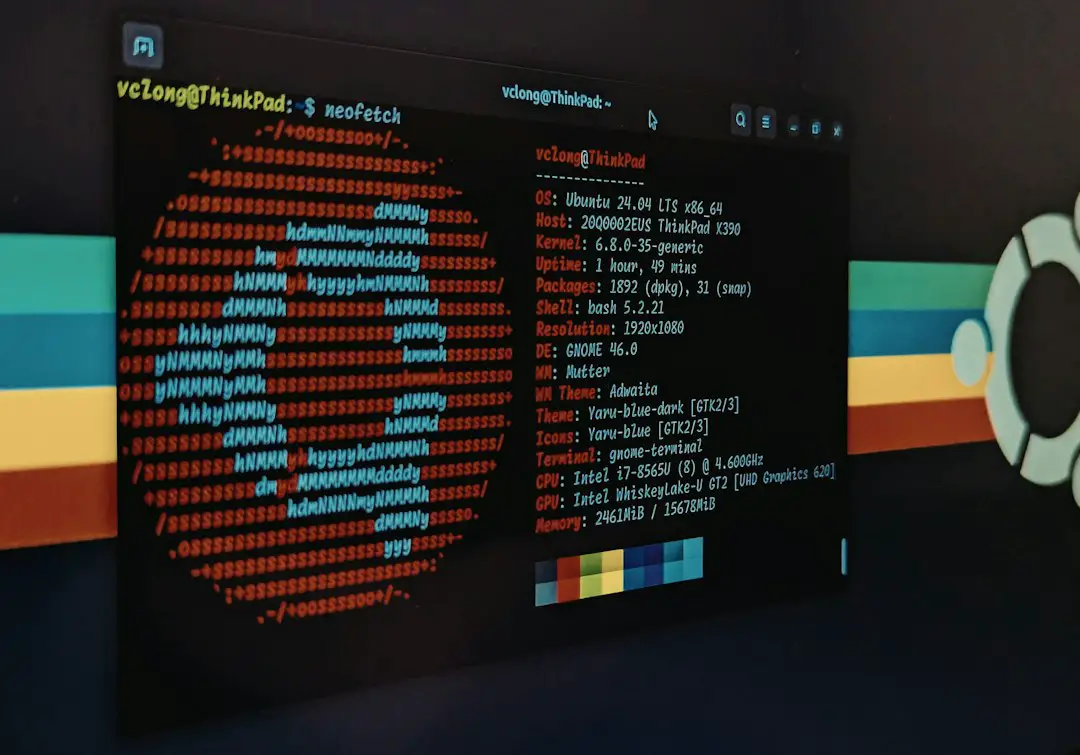
The safest command-line update routine
For normal system updates, use this sequence:
sudo apt updateapt list --upgradablesudo apt upgradesudo apt autoremove
sudo apt update does not install updates. It refreshes the local package index so Ubuntu knows what new versions exist. Think of it as checking the catalog before buying anything.
apt list --upgradable shows what will change. This is worth doing on workstations and production systems. If you see a new kernel, graphics stack, database package, or display manager, plan for a reboot or at least a service restart.
sudo apt upgrade installs available package updates without removing installed packages. This is usually the right choice for routine maintenance.
sudo apt autoremove cleans old packages that are no longer needed, often old kernels or libraries. Read the list before accepting. It is usually safe, but blind confirmation is a bad habit.
When to use full-upgrade
sudo apt full-upgrade is more aggressive than apt upgrade. It can install new dependencies and remove packages if needed to complete an upgrade. That sounds useful, and it is, but it deserves attention.
Use full-upgrade when Ubuntu holds back packages during a normal upgrade, especially after kernel, driver, or desktop stack changes. Do not treat it as a magic fix. Read the proposed removals. If APT wants to remove your desktop environment, database server, or GPU driver, stop and investigate.
A practical routine looks like this:
- Run
sudo apt update. - Run
sudo apt upgrade. - If packages are held back, run
sudo apt full-upgrade. - Review the transaction before pressing
Y. - Reboot if the kernel, systemd, graphics driver, or core services changed.
APT vs Ubuntu Software Updater
APT and Ubuntu Software Updater often install the same updates, but they serve different users.
- APT is faster and clearer for technical users. It shows exact package names, versions, removals, and errors.
- Ubuntu Software Updater is easier for casual desktop users. It groups updates and reduces the chance of typing the wrong command.
- APT works well over SSH. This matters for servers, remote desktops, lab machines, and virtual machines.
- Software Updater is better for users who dislike terminals. It can prompt for restarts and show update categories in plain language.
The annoying part is that the graphical updater can feel vague. It may say updates are available without showing enough detail up front. APT is less friendly, but it tells you exactly what is about to happen.

What Ubuntu Software Updater does well
Ubuntu Software Updater is not just a “beginner tool.” It has real value on desktop systems. It checks for package updates, displays a summary, asks for your password, and handles restart prompts. For many users, that is enough.
It also reduces risky copy-paste behavior. A user who only needs browser patches, library fixes, and kernel updates may be better served by pressing Install Now than by copying commands from a random forum thread.
For managed family computers or office desktops, the GUI updater keeps things simple. Users see that updates exist. They install them. They reboot when asked. That routine prevents a surprising number of stale systems.
Where APT wins
APT wins when precision matters. It is scriptable, auditable, and easy to run remotely. If an update fails, the terminal output usually gives better clues than a spinning desktop window.
APT is also better for scheduled maintenance. An administrator can capture logs, compare package lists, and apply updates during a known service window. On servers, this control matters. A reboot at the wrong time can interrupt users, jobs, or monitoring agents.
Use APT when you need to:
- Update a server over SSH.
- See exact packages before installation.
- Fix broken dependencies.
- Automate patching with scripts or configuration tools.
- Keep logs for audits or change records.
Do not use apt upgrade for Ubuntu version upgrades
There is a major difference between updating Ubuntu and upgrading Ubuntu to a new release. sudo apt upgrade updates packages within the current release. It does not properly move Ubuntu from 22.04 to 24.04, or from 23.10 to 24.04.
For release upgrades, use:
sudo do-release-upgradeon servers and command-line systems.- The graphical release upgrade prompt on desktops.
Before a release upgrade, back up your data. Remove abandoned third-party repositories. Check disk space. If the machine runs production work, test the upgrade on a clone or snapshot first. Honestly, it feels like extra work until the one time a third-party package blocks the upgrade and saves you from a long afternoon.
What about Snap packages?
APT does not manage Snap packages. Ubuntu may install some desktop applications as Snaps, including Firefox on many releases. Snap updates are handled by snapd and often run automatically.
You can check Snap updates with:
snap refresh --listsudo snap refresh
This matters because a fully updated APT system may still have Snap changes pending. On desktop Ubuntu, check both if you want a complete picture.
Recovery commands when updates fail
Most Ubuntu updates finish cleanly. When they do not, stay calm and avoid stacking random commands. Start with the basics:
sudo apt --fix-broken installsudo dpkg --configure -asudo apt updatesudo apt upgrade
If APT complains about a third-party repository, inspect files under /etc/apt/sources.list and /etc/apt/sources.list.d/. Disable stale entries, especially after a release upgrade. Vendor repositories are a common cause of update failures.
Recommended approach
For servers, use APT. Run updates in a planned window, read the package list, and reboot when core components change. For desktops used by technical users, APT is still the better daily tool because it is quick and transparent.
For non-technical desktop users, Ubuntu Software Updater is fine. It is safer than ignoring updates or pasting commands without understanding them. The tool may be slower and less detailed, but it gets critical patches installed with less friction.
The best rule is simple: use APT when you need control, and use Software Updater when you need convenience. Both rely on the same package foundation for standard Ubuntu packages. What changes is how much detail you see, how much control you have, and how quickly you can spot trouble before it turns into downtime.