

iBUYPOWER PCs are best known for gaming performance, customizable hardware, and bold case designs, but practical connectivity features matter just as much as graphics cards and RGB lighting. One common question from photographers, video creators, students, and everyday users is whether an iBUYPOWER PC supports SD cards. The answer is not the same for every model, because SD card support depends on the specific case, front panel, motherboard, and accessories included with the system.
TLDR: Most iBUYPOWER desktop PCs do not include a built-in SD card reader by default, unless the product listing specifically says they do. However, they can still use SD cards easily through a USB SD card reader or an installed internal card reader. Before buying, check the front panel ports, case specifications, and included accessories to confirm whether SD card support is built in.
Does an iBUYPOWER PC Support SD Cards?
In most cases, an iBUYPOWER desktop PC supports SD cards indirectly rather than through a built-in slot. That means the computer can read and write SD cards when you connect a compatible card reader, usually through USB. Windows will typically recognize the SD card as removable storage, allowing you to transfer photos, videos, documents, firmware files, or other data.
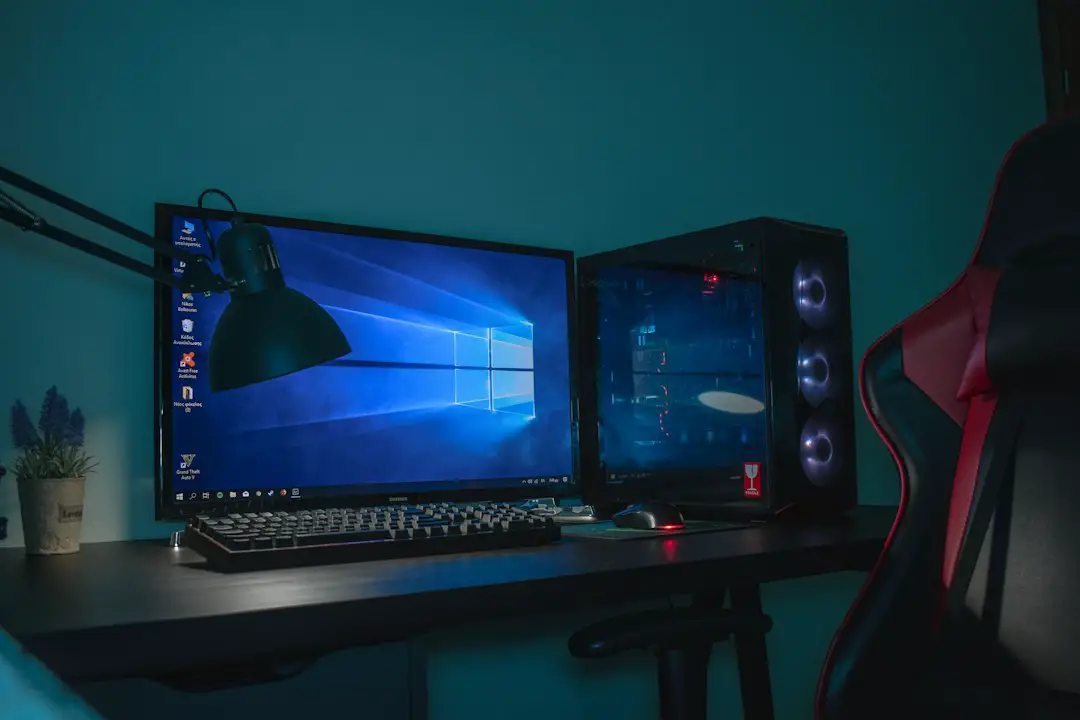
However, many iBUYPOWER gaming desktops are built inside modern gaming cases that prioritize airflow, tempered glass panels, RGB lighting, and USB connectivity. These cases often include front-panel USB ports and audio jacks, but not a dedicated SD card slot. This is common across many gaming desktops, not just iBUYPOWER systems.
If you are looking at a specific iBUYPOWER model, the most reliable answer is found in the product specifications. Look for wording such as “SD card reader,” “media card reader,” “3 in 1 card reader,” or “front panel card reader.” If none of those terms appear, you should assume the system does not have a built-in SD slot.

Why Many iBUYPOWER Desktops Do Not Include SD Card Readers
There are several practical reasons why built-in SD card readers are less common in gaming desktops today. First, many users now transfer files using cloud storage, smartphones, external SSDs, or USB drives. Second, modern PC cases often remove older drive bays to improve airflow and create cleaner internal layouts. Third, external USB card readers are inexpensive, fast, and easy to replace.
Gaming PC manufacturers also focus heavily on features that appeal to performance-oriented buyers. These include:
- Powerful graphics cards for gaming, streaming, 3D rendering, and video editing.
- High-performance processors from Intel or AMD.
- Fast NVMe SSD storage for quick boot times and faster loading.
- Efficient cooling systems, including air coolers or liquid cooling.
- RGB lighting and tempered glass panels for visual customization.
- Multiple USB ports for peripherals such as keyboards, mice, headsets, webcams, and external drives.
Because an SD card slot is not essential for gaming performance, it is often left out unless the system is marketed toward creators or general productivity users. Still, this does not mean SD cards are difficult to use. It simply means you may need a separate reader.
How to Check If Your iBUYPOWER PC Has an SD Card Slot
If you already own an iBUYPOWER PC, checking for SD card support is straightforward. Start by inspecting the front panel of the case. Built-in SD card slots are usually located near the USB ports, power button, headphone jack, and microphone jack. The slot may be labeled SD, SDHC, SDXC, or Card Reader.
Next, inspect the top panel and side-accessible front I/O area, depending on your case design. Some cases place the ports at the top front edge rather than directly on the front face. If you do not see a narrow slot that fits a standard SD card, your PC probably does not have a built-in reader.
You can also check the original paperwork or online order details. iBUYPOWER systems are often sold in different configurations, and even similar-looking models may have different cases or accessories. If the order page does not list a card reader, it is unlikely to be included.
For a software-based check, open Device Manager in Windows and look for entries related to card readers, storage controllers, or USB mass storage devices. However, this method is not always conclusive because a reader may not appear unless an SD card is inserted or a driver is active.
Using an External USB SD Card Reader
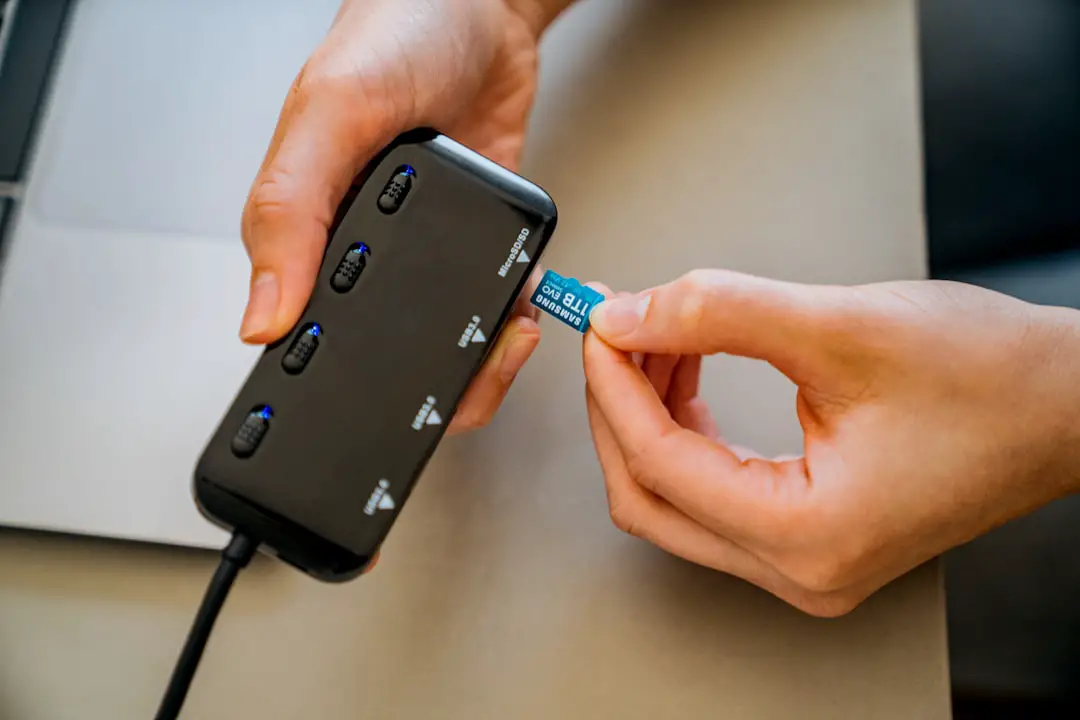
The easiest and most reliable way to use SD cards with an iBUYPOWER desktop is to connect an external USB card reader. These small adapters plug into a USB port and provide one or more memory card slots. Many support standard SD cards, microSD cards, SDHC, and SDXC formats.
For most users, a USB reader is the best solution because it is:
- Inexpensive: Basic readers are affordable and widely available.
- Portable: You can use the same reader with laptops, desktops, and other devices.
- Easy to replace: If the reader fails, you do not need to open the PC case.
- Fast enough for most tasks: USB 3.0 and USB C readers can handle large photo and video files efficiently.
- Flexible: Many models support multiple card types, including microSD.
When choosing a reader, pay attention to the USB standard. A USB 3.0, USB 3.1, USB 3.2, or USB C reader is recommended if you transfer large files, especially 4K video or RAW photography. A slower USB 2.0 reader will still work, but file transfers may take significantly longer.
Can You Install an Internal SD Card Reader?
Yes, it is possible to install an internal SD card reader in some iBUYPOWER desktops, but compatibility depends on the case and motherboard. Internal card readers are usually designed to fit in a 3.5 inch or 5.25 inch front drive bay. Many modern gaming cases no longer include these bays, so this option is not always practical.
If your case has an open front bay, an internal card reader can be a clean and convenient upgrade. It may connect to the motherboard using a USB 2.0 or USB 3.0 internal header. Before buying one, you should confirm three things:
- Case compatibility: Make sure your iBUYPOWER case has the correct front bay size.
- Motherboard headers: Confirm that an available internal USB header is present.
- Physical clearance: Ensure the reader will not interfere with cables, cooling components, or other hardware.
If you are uncertain, it may be safer to contact iBUYPOWER support or a qualified PC technician. Opening the case and modifying internal hardware is usually simple for experienced builders, but it can be intimidating for casual users. You should also avoid damaging front-panel cables, USB headers, or bundled wiring.
What Types of SD Cards Can an iBUYPOWER PC Use?
The type of SD card your iBUYPOWER PC can use depends on the reader, not the PC itself. With the right reader, the system can access common formats such as:
- SD: Older standard-capacity cards, usually up to 2 GB.
- SDHC: High-capacity cards, commonly from 4 GB to 32 GB.
- SDXC: Extended-capacity cards, often 64 GB and higher.
- microSD: Smaller cards used in phones, drones, action cameras, tablets, and handheld gaming devices.
For large-capacity cards, especially SDXC cards, make sure your reader supports the format. Most modern readers do, but older readers may not. If Windows asks to format a card that already contains important files, do not format it immediately. The issue could be a compatibility problem, file system issue, or card corruption.
Performance Considerations for Creators and Gamers
For photographers, video editors, drone pilots, and content creators, SD card speed matters. If you frequently work with large files, choose a high-quality reader that supports fast transfer standards. A fast SD card will not reach its full speed if it is used with a slow reader or an older USB port.
Many iBUYPOWER PCs include high-speed USB ports, but not all ports are equal. Some may be USB 2.0, while others may be USB 3.x or USB C. For the best results, plug your card reader into a faster port, usually marked with blue coloring, SS for SuperSpeed, or a USB C connector.
If your workflow involves professional video or high-resolution photography, consider a reader that supports UHS I or UHS II cards. UHS II readers have an extra row of contacts and can achieve much faster speeds when paired with compatible cards. This is especially useful for transferring large batches of RAW images or high bitrate video footage.

Troubleshooting SD Card Issues on an iBUYPOWER PC
If your iBUYPOWER PC is not detecting an SD card, the problem is usually related to the card, reader, USB port, driver, or file system. Start with simple checks before assuming there is a serious hardware failure.
- Try another USB port: A different port may provide better power or a more stable connection.
- Test another card: The SD card itself may be damaged or locked.
- Check the lock switch: Full-size SD cards often have a small write-protection switch on the side.
- Update Windows: System updates can improve device compatibility.
- Open Disk Management: The card may appear there even if it does not show in File Explorer.
- Try another reader: Low-quality readers can fail or struggle with larger SDXC cards.
If the card contains critical data, avoid repeatedly formatting or writing to it. Use data recovery software or consult a professional recovery service if the files are valuable.
What to Look for When Buying an iBUYPOWER PC
If SD card support is important to you, do not rely on assumptions. Carefully review the product listing before purchase. Focus on the section that describes front I/O, expansion, ports, and included accessories. If the listing only mentions USB ports and audio jacks, it probably does not include an SD card reader.
When comparing models, consider how you plan to use the system. A gamer who only installs games and uses cloud storage may never need a built-in card reader. A photographer, teacher, video editor, or drone user may find SD card access essential. In that case, you can either choose a configuration that includes a reader or budget for a reliable external USB reader.
It is also worth noting that an external reader can sometimes be better than a built-in one. Built-in readers may use older internal connections, while a newer external USB C or USB 3.2 reader can offer improved speed and broader card compatibility.
Final Verdict
An iBUYPOWER PC can absolutely work with SD cards, but most iBUYPOWER desktop systems should not be expected to have a built-in SD card slot unless the specifications clearly say so. The safest assumption is that SD card support will require an external USB card reader, which is simple, affordable, and effective.
For most users, this is not a major limitation. iBUYPOWER desktops typically provide enough USB connectivity to support a card reader without issue. If you need a permanent, integrated solution, an internal card reader may be possible, but only if your case and motherboard support it.
In short: iBUYPOWER PCs are fully capable of reading SD cards with the right adapter or reader. Before purchasing, verify the exact model specifications, and if no SD card reader is listed, plan to use a quality USB SD card reader for dependable performance.