
A network key is one of the most common details needed when connecting a phone, laptop, tablet, smart TV, or printer to Wi-Fi. Although the term can sound technical, it usually refers to the Wi-Fi password that protects a wireless network from unauthorized access.
TLDR: A network key is typically the password used to connect to a secured Wi-Fi network. It can often be found on the router label, in the router settings, or on a device that is already connected. If the key does not work, common causes include typing errors, outdated saved passwords, router changes, or security setting mismatches.
What Is a Network Key?
A network key, also called a Wi-Fi key, security key, or wireless password, is a string of characters used to authenticate devices on a wireless network. When a device attempts to join a protected Wi-Fi network, it must provide the correct key before access is granted.
The network key helps prevent strangers, neighbors, or malicious users from connecting to the network. Without it, anyone nearby could potentially use the internet connection, slow down network performance, or attempt to access shared files and devices.
In most home networks, the network key is associated with one of several wireless security standards. The most common are WPA2 and WPA3. Older networks may use WEP, though this is considered outdated and insecure. A router using WPA2 or WPA3 with a strong password provides much better protection.


Is a Network Key the Same as a Password?
In everyday use, the answer is usually yes. For most people, the network key is simply the Wi-Fi password entered when connecting to a wireless network.
However, in technical contexts, the term may have a broader meaning. It can refer to encryption keys used internally by networking equipment. Still, for typical home or office users, “network key” almost always means the password needed to join the Wi-Fi network.
Where to Find the Network Key
The location of the network key depends on whether the network uses default settings or has been customized. Several common places can help a user find it.
1. On the Router or Modem Label
Many routers and modem-router combination devices include a printed label on the back, side, or bottom. This label may show information such as:
- Network name or SSID
- Wi-Fi password
- Security key
- WPA key
- Default gateway or router login address
If the Wi-Fi password has never been changed, the printed key is likely the correct one. If someone has customized the network password, the label may no longer be accurate.
2. In the Router Settings
The network key can usually be viewed or changed from the router’s administration page. A user typically opens a browser and enters the router address, such as 192.168.0.1 or 192.168.1.1. After logging in, the Wi-Fi settings section should show the wireless password or provide an option to reset it.
The router login is different from the Wi-Fi password. It may be printed on the router label or included in the service provider’s documentation. If the router login was changed and forgotten, a factory reset may be required.
3. On a Windows Computer Already Connected
If a Windows computer is already connected to the Wi-Fi network, the saved key may be visible in network settings. The user can open the wireless network properties and select the option to show the security characters. Administrator permission may be required.
4. On a Mac Already Connected
On macOS, saved Wi-Fi passwords can often be found through Keychain Access. The user searches for the network name, opens the saved entry, and selects the option to show the password. The system may request the Mac account password before displaying it.
5. On a Mobile Device
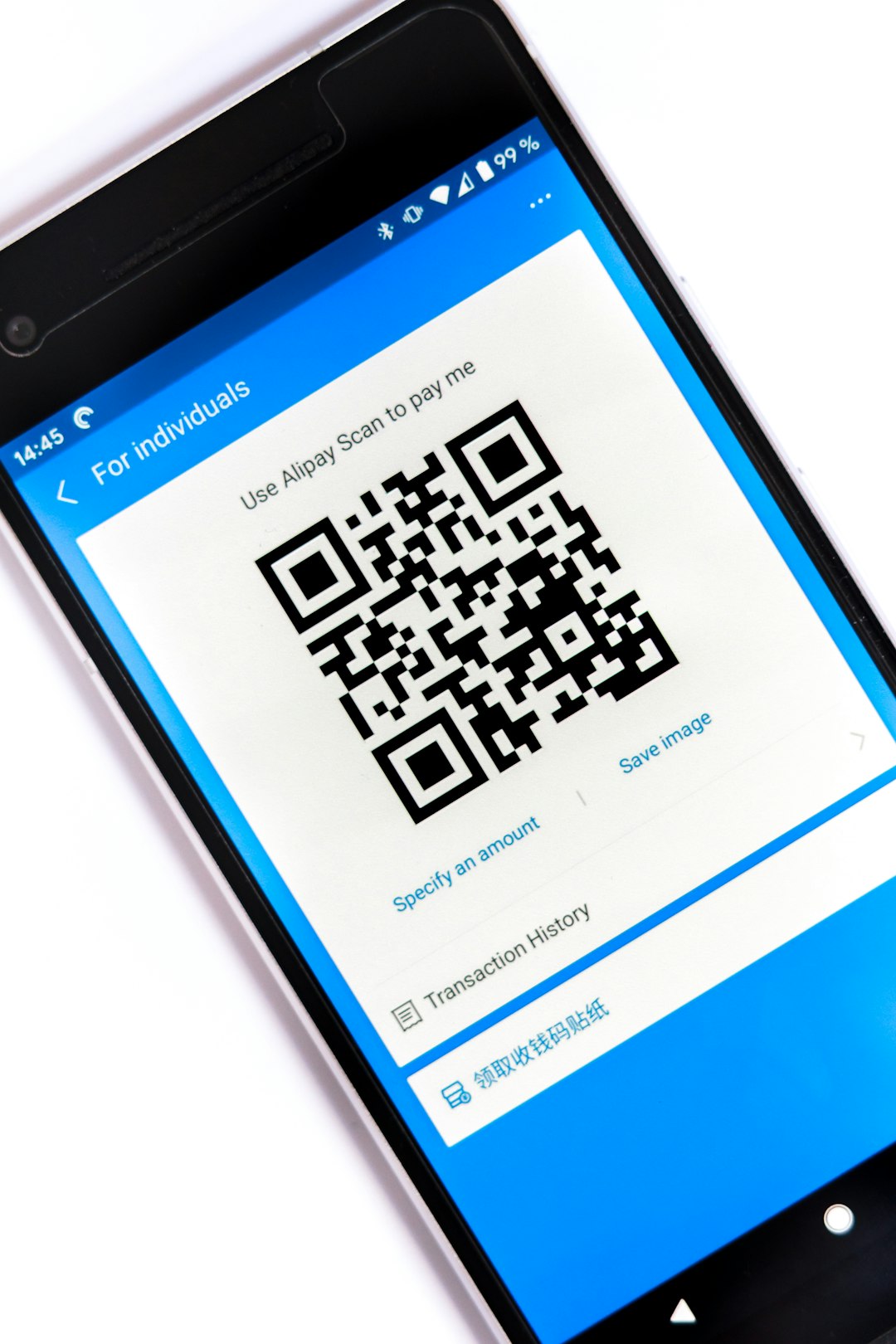
Modern smartphones may allow saved Wi-Fi passwords to be viewed or shared. On many Android devices, the Wi-Fi settings page can display a QR code for the connected network. Some versions also show the password beneath the code. On iPhones, saved Wi-Fi passwords can be viewed in Wi-Fi settings on newer iOS versions, usually after authentication with Face ID, Touch ID, or the device passcode.

What Makes a Strong Network Key?
A strong network key should be difficult to guess but practical enough for trusted users to enter. Weak passwords such as password123, admin1234, or a family name can be easily guessed or cracked.
A reliable Wi-Fi password should include:
- At least 12 to 16 characters
- A mix of uppercase and lowercase letters
- Numbers and symbols
- No obvious personal information
- No common words or simple patterns
For example, a phrase-based password with numbers and symbols is often both secure and easier to remember. The network should also use WPA2 or WPA3 security whenever available.
Common Network Key Problems
Even when the key appears to be correct, devices may fail to connect. Several issues can cause this problem.
Incorrect Typing
Network keys are case-sensitive. A capital letter, missing symbol, or extra space can prevent connection. A user should carefully check each character, especially similar-looking characters such as 0 and O, or 1 and l.
Saved Old Password
If the Wi-Fi password was recently changed, devices may still try to use the old saved key. The solution is to forget the network on the device and reconnect using the updated password.
Wrong Network Selected
Many nearby Wi-Fi networks may have similar names. A device might be attempting to connect to the wrong SSID. The correct network name should be verified before entering the key.
Router Needs Restarting
Routers can occasionally experience temporary errors. Restarting the router and the device often resolves connection issues. The router should be unplugged for about 30 seconds, then powered back on.
Security Mode Mismatch
Some older devices may not support WPA3. If a router is set to WPA3-only mode, older phones, printers, or laptops may fail to connect even with the correct key. Switching the router to WPA2/WPA3 mixed mode can improve compatibility.
Distance or Signal Problems
A weak signal can make it appear as though the key is wrong. If a device is too far from the router or blocked by thick walls, it may fail during authentication. Moving closer to the router can help confirm whether signal strength is the issue.

How to Reset a Forgotten Network Key
If the network key cannot be found, it can usually be reset. The preferred method is to log in to the router settings and create a new Wi-Fi password. Once changed, every device on the network must reconnect using the new key.
If the router admin login is also unknown, a factory reset may be necessary. This is usually done by pressing and holding the reset button on the router for several seconds. However, this restores default settings, including the original network name and password. It may also remove custom settings such as parental controls, guest networks, or port forwarding rules.
Security Tips for Managing a Network Key
- Change the default Wi-Fi password if it is still being used.
- Avoid sharing the main network key with guests; use a guest network instead.
- Update the password periodically, especially after sharing it widely.
- Store the key securely in a trusted password manager or private record.
- Use WPA2 or WPA3 instead of outdated WEP security.
A network key is a small but important part of home and office cybersecurity. By knowing where to find it, how to update it, and how to troubleshoot common connection problems, users can keep their networks accessible to trusted devices and protected from unwanted access.
FAQ
What is another name for a network key?
A network key may also be called a Wi-Fi password, wireless key, security key, WPA key, or passphrase.
Is the network key printed on every router?
Many routers include a default network key on a label, but not all do. If the password has been changed, the printed key may no longer work.
Why does a device say the network key is incorrect?
The most common reasons include typing errors, an outdated saved password, selecting the wrong network, weak signal strength, or incompatible security settings.
Can a network key be changed?
Yes. It can be changed through the router’s wireless settings. After the change, all connected devices must reconnect with the new password.
Is it safe to share a network key?
It should only be shared with trusted people. For visitors, a guest Wi-Fi network is safer because it can provide internet access without exposing the main network.