
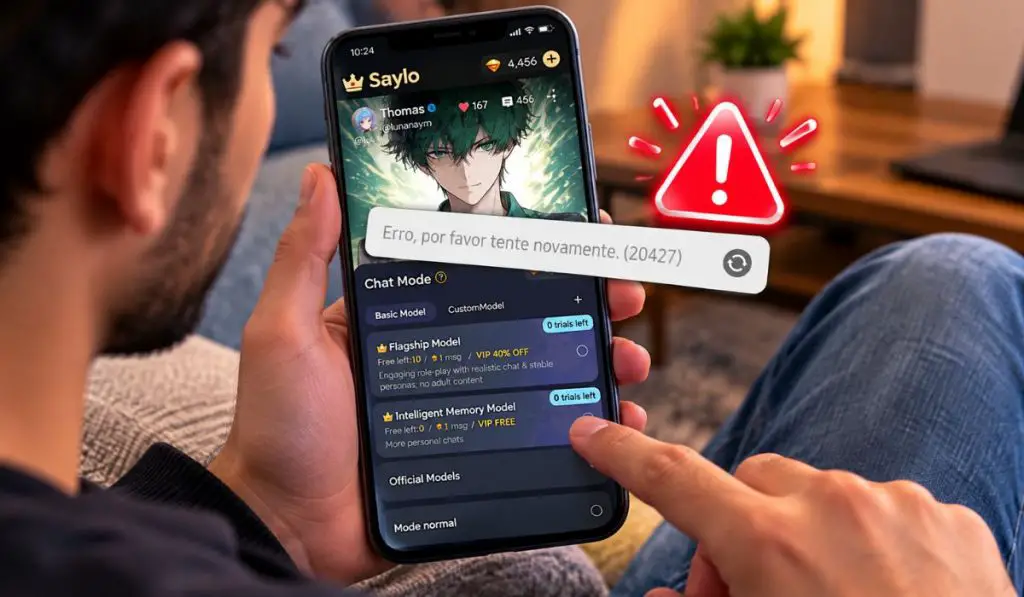
You open an old Saylo chat, type a message and instead of getting a reply, the app shows “Error, please retry (20427)”. Sometimes the strange part is that another character works completely fine, so it does not even look like Saylo itself is broken.
There is no clear public explanation from Saylo that says exactly what error 20427 means. User reports, though, give us a better idea of what may be happening. The error has often appeared when certain characters or stories are no longer available, have become private or have been affected by content changes.
That does not mean every 20427 error has the same cause. If one character fails, that is one kind of problem. If every chat suddenly stops working, that is something different.
What Does Saylo Error 20427 Mean?
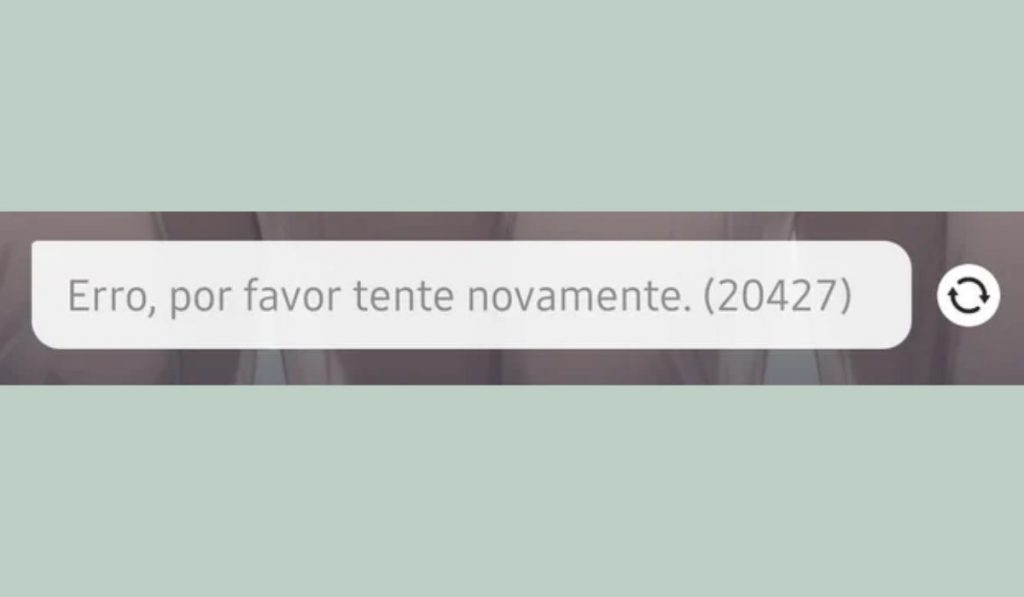
Saylo has not published a simple error-code page saying something like “20427 means this character was deleted.” So it would be wrong to claim that as a confirmed meaning.
What people have reported is a little more useful.
In many cases, error 20427 appears while opening an older character that used to work normally. Some users have also found that other chats still work, while only one or a few characters return the error.
Saylo has previously said that some stories and characters may become unavailable because of content reviews or platform policy changes. That gives us one possible reason behind the error, especially when a specific character suddenly stops working.
So if one character is broken while everything else is fine, the problem may not be your phone at all.
Is the Problem With One Character or Every Chat?
This is the first thing I would check before changing any settings.
Open another Saylo character and send a normal message. Try a newer character too if possible. If those chats work, then your account and internet connection are probably not completely broken.
When only one character gives error 20427, the character may have:
- become private
- been removed from public access
- been changed by its creator
- been affected by a content review
- become unavailable after a platform policy change
If every character is failing, then it makes more sense to look at the app, your account session, internet connection or a possible Saylo service problem.
That little test can save you a lot of time.
Why Did Older Saylo Characters Suddenly Stop Working?
This is one of the more annoying parts because a character can work normally for a long time and then suddenly stop opening.
Users have reported older chats becoming inaccessible even though they could still see them in their history. They would open the conversation, try to continue it and get error 20427 instead.
Saylo has also acknowledged that some characters and stories may become unavailable because of content review and platform policy changes. That does not prove every 20427 error comes from moderation, but it does explain why some old characters can disappear without anything being wrong with your account.
The creator can also change a character. A public character may become private or be removed completely.
From the user side, all of these situations can look pretty similar. Yesterday the chat works. Today it does not.
How to Fix Saylo Error 20427
Before reinstalling anything, try to work out whether the error is coming from the character or the app.
Start With These Quick Checks
Try these first:
- Open a completely different Saylo character.
- Start a new chat and send a message.
- Close Saylo fully and open it again.
- Switch from Wi-Fi to mobile data, or the other way around.
- Try the same account on Saylo’s website.
If another character works immediately, I would not start deleting app data or reinstalling Saylo yet. The problem is probably more specific than that.
If several different chats fail, then normal app troubleshooting makes more sense.
If Only One Character Gives Error 20427
This is where people can waste a lot of time.
Search for the character again instead of opening it from your old chat history. Check whether it still appears publicly and whether the creator’s profile is still available.
If the character has disappeared from search or is no longer public, clearing the app cache will not bring it back.
You can also check whether the creator made a newer version of the same character. Sometimes an older one becomes unavailable while another version remains active.
If every other chat works normally, that is a strong sign that you are dealing with a character-side problem rather than a broken Saylo installation.
If Saylo Is Failing Across Multiple Chats
Now it is worth going through the normal app fixes in order.
- Update Saylo. Open Google Play or the App Store and check whether a newer version is available.
- Sign out and log back in. This can refresh a bad account session.
- Clear the Saylo cache on Android. Go to Settings, Apps, Saylo, Storage and then Clear Cache.
- Restart your phone. Open Saylo again and test a few different chats.
Do not expect these steps to restore a character that has been removed from Saylo’s side. They are more useful when several parts of the app are acting strangely.
Try Saylo in a Browser Before Reinstalling
This is actually a better test than immediately deleting the app.
Open the Saylo website, sign into the same account and try the character that is showing error 20427.
If the character works in your browser but not in the mobile app, then the problem is probably local to the app. Updating it, clearing cache or reinstalling may actually help in that case.
If the same character fails on both the website and the app while other characters continue working, reinstalling probably will not change anything.
That points much more toward the character itself being unavailable.
Reinstall Saylo Only as a Last Step
Reinstalling is worth trying if the entire app is behaving badly, especially after an update.
But I would not treat reinstalling as the main fix for error 20427.
People have reported seeing the error even after reinstalling, which makes sense if the actual problem exists on Saylo’s side. Deleting the app from your phone cannot change whether a character is public, private or removed on the server.
So try the easier tests first.
What If Only Your Favorite Character Is Broken?
This is probably the worst version of the problem because the rest of Saylo can be working perfectly.
Maybe you have been talking with the same character for weeks or months, and now that one conversation refuses to continue.
First, search for the character again. Do not rely only on your old conversation history. If the character no longer appears publicly, there may not be anything you can change on your phone to fix that.
You can also check the creator’s page. There may be a new version, a renamed character or another public character that replaced the old one.
Saylo can also show that a scene has been removed when content is no longer public. If something like that has happened, the old chat may simply no longer be available.
It is frustrating, but repeated restarts and reinstalls are not likely to help when the problem is on the content side.
Will Clearing Cache or Reinstalling Bring the Character Back?
Not if the character itself has been removed, restricted or made private.
Clearing cache only removes temporary local files. Reinstalling gives you a fresh copy of the app. Both can help with app bugs, loading problems and broken local data.
They cannot change what is available on Saylo’s servers.
This is why testing another character should come before almost everything else. If ten chats work and one does not, there is not much reason to assume your entire app installation is damaged.
Is Saylo Down Right Now?
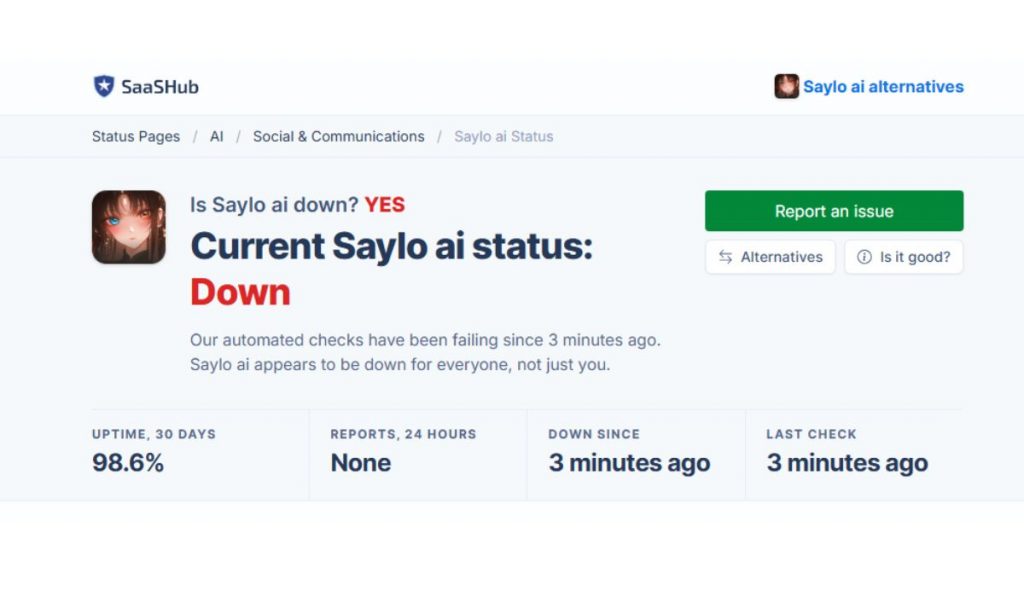
If error 20427 suddenly appears across many unrelated characters and other parts of Saylo also stop loading, a wider service problem is possible.
Try opening different chats, search for characters and check whether your account pages are loading normally.
You can also try Saylo in a browser. If both the website and app are having problems at the same time, waiting and trying again later may make more sense than changing settings on your phone.
Third-party status sites can show reports from other users too, but they are not the same thing as an official Saylo service-status page. Use them as a clue, not as final proof that Saylo is down.
When Should You Contact Saylo Support?
If the problem continues and you cannot tell whether it is an account issue or a character problem, contacting Saylo support is the next sensible step.
This is especially useful when every chat has been failing for a long time, your own character suddenly becomes inaccessible or the error appears on both the mobile app and website.
When you contact support, include the useful details. Tell them you are getting Error 20427, mention whether it affects one character or all of them, and include your device model, operating system and Saylo app version.
A screenshot helps too.
That gives support something useful to investigate instead of only receiving a message saying the app does not work.
Final Thoughts
Saylo Error 20427 does not seem to have one public official definition, but many reports connect it with characters or stories that have become unavailable. That can happen when a character is made private, removed or affected by content or platform changes.
The easiest way to narrow it down is to test another character first. If everything else works, there is probably not much point repeatedly clearing cache or reinstalling Saylo. If several chats are broken, then updating the app, refreshing your login, testing another network and trying the web version are much more useful steps.
The main thing is figuring out what is actually broken before trying to fix it.