
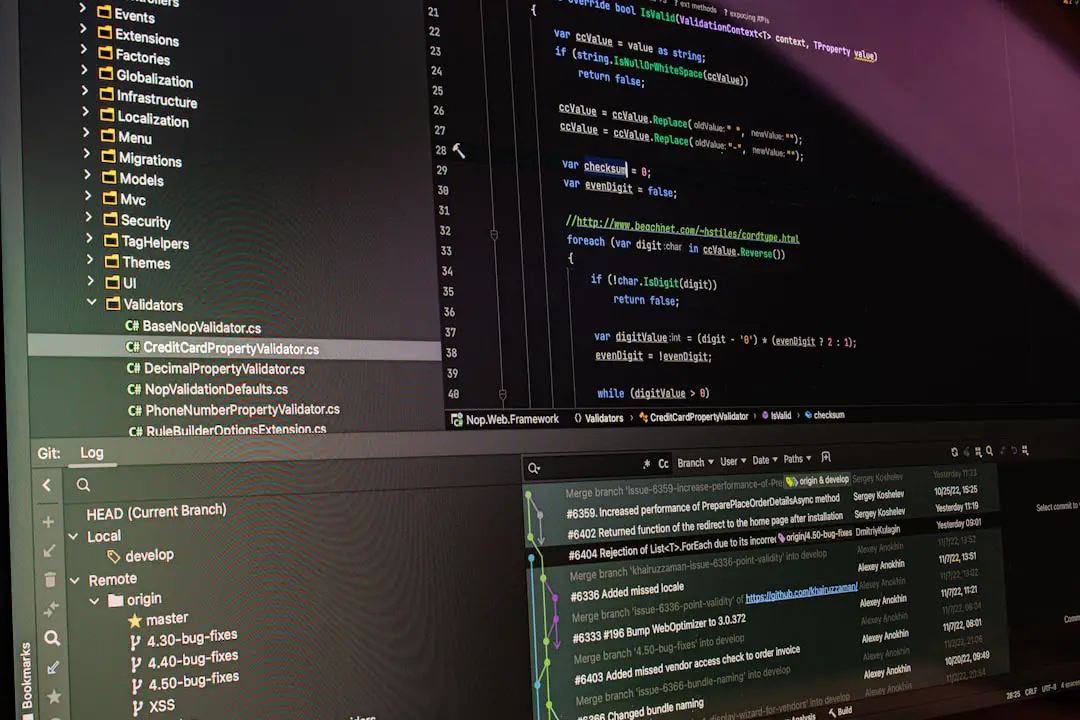
Use the editor’s quick-fix shortcut, not the mouse, if you want spelling corrections to stop interrupting your work. In most coding and writing editors, the fastest pattern is simple: jump to the marked typo, open the quick-fix menu, accept the correction, and move on. VS Code and IntelliJ IDEA both do this well, but they use different defaults and different spell-check systems.
TLDR: In VS Code, install a spell-check extension such as Code Spell Checker, then use Ctrl + . on Windows or Linux, or Cmd + . on macOS, to open spelling fixes. In IntelliJ IDEA, use Alt + Enter on Windows or Linux, or Option + Enter on macOS, when the cursor is on a typo. For example, a developer correcting 40 documentation typos can save roughly 10 to 15 minutes by using keyboard fixes instead of right-click menus. In a small writing team, that can mean a 20% to 30% reduction in cleanup time during review.
VS Code: fast, flexible, but extension-dependent
VS Code does not ship as a full grammar and spelling editor by default. That surprises some users. For practical spell checking, most teams install Code Spell Checker, often called cSpell. Once installed, misspelled words appear with squiggly underlines and are treated as editor diagnostics.
The core correction shortcut is:
- Windows and Linux:
Ctrl + .to open Quick Fix - macOS:
Cmd + .to open Quick Fix - Next problem:
F8 - Previous problem:
Shift + F8
Place the cursor on the underlined word, press the quick-fix shortcut, then choose the suggested spelling. You may also see actions such as Add word to dictionary, Ignore word, or Disable rule. That is useful for project terms, API names, package names, and brand spellings.

The catch is that VS Code can feel inconsistent until the extension is configured. One project may check Markdown and comments. Another may check strings, code identifiers, and commit-style text files. If your workspace settings are messy, expect to waste time wondering why README.md is checked but CHANGELOG.md is not.
For serious use, set clear rules in settings.json. A typical setup enables spell checking for documentation, comments, and plain text while excluding build folders, generated files, and dependency directories. This keeps the spell checker helpful rather than noisy.
IntelliJ IDEA: stronger built-in spell checking
IntelliJ IDEA includes spelling and typo inspections without needing a separate extension. JetBrains IDEs check comments, string literals, documentation, and some identifiers, depending on language support and inspection settings. The main shortcut is easy to remember because it matches other JetBrains fixes.
- Windows and Linux:
Alt + Enter - macOS:
Option + Enter - Next highlighted error:
F2 - Previous highlighted error:
Shift + F2
Move the caret to the misspelled word and press Alt + Enter or Option + Enter. IntelliJ IDEA will show available corrections and dictionary actions. The same shortcut is used for imports, inspections, code intentions, and warnings, so it becomes muscle memory quickly.
Honestly, it feels like IntelliJ gets this part right more often. Spell checking is treated as part of the inspection system, not as an afterthought. The annoying part is noise. Technical identifiers, product names, and abbreviations can produce a long list of false positives if your dictionaries are not maintained.
For teams, the fix is simple: add accepted terms to a shared project dictionary where possible. This prevents every developer from dismissing the same words again and again. It also keeps technical writing consistent across code comments and documentation.
Which is faster: VS Code or IntelliJ IDEA?
For pure keyboard speed, the difference is small. Both editors can correct a typo in two or three keystrokes once configured. The real difference is setup and consistency.
| Editor | Main spell fix shortcut | Best for | Main weakness |
|---|---|---|---|
| VS Code | Ctrl + . or Cmd + . |
Markdown, docs, mixed file types | Needs extension setup |
| IntelliJ IDEA | Alt + Enter or Option + Enter |
Code comments, strings, Java, Kotlin, JVM projects | Can show many false positives |
| Vim | z= for suggestions |
Keyboard-first editing | Requires spell mode knowledge |
| Emacs | M-$ |
Text-heavy technical editing | Setup varies by system |
If your work is mostly documentation, VS Code with Code Spell Checker is often the better fit. If your work is mostly source code with comments and strings, IntelliJ IDEA feels more integrated. For large engineering teams, IntelliJ’s inspection model can be easier to standardize. For mixed content teams, VS Code’s file-type control is hard to beat.
Other editors and their spelling shortcuts
Not every editor handles spelling in the same way. Some are built for prose. Some are built for code. Some treat spell checking as a plug-in task. Here are the practical shortcuts worth knowing.
- Microsoft Word: press
F7to start spelling and grammar review. This remains one of the fastest full-document checks. - Google Docs: use the spelling and grammar tool from the Tools menu. Keyboard access depends on browser and system shortcuts, so consistency is weaker.
- Vim: enable spell checking with
:set spell, move between misspellings with]sand[s, then pressz=for suggestions. - Emacs: use
M-$to run ispell-word on the current word. For longer review, use buffer-level spell commands. - Sublime Text: enable spell checking, then use spelling commands from the edit menu or command palette. Key bindings can be customized.

Best shortcut workflow for fewer interruptions
The fastest spelling workflow is not just one shortcut. It is a repeatable loop. Use it the same way in every editor.
- Jump to the next issue. Use
F8in VS Code orF2in IntelliJ IDEA. - Open the fix menu. Use
Ctrl + .,Cmd + .,Alt + Enter, orOption + Enter. - Accept the right correction. Avoid blindly accepting technical terms.
- Add valid project words to a dictionary. Do this once, not every week.
- Exclude generated files. Spell checking compiled assets is a waste of attention.
This matters more than it sounds. A typo in a public API comment, onboarding guide, or release note can reduce trust. A typo in code may not break a build, but it can spread through variables, logs, and documentation. Once a misspelled term becomes part of a codebase, fixing it can become risky.
Recommended setup
For VS Code, install Code Spell Checker, confirm that your file types are included, and add a shared workspace dictionary for project terms. Learn Ctrl + . or Cmd + .. Pair it with F8 for quick review passes.
For IntelliJ IDEA, keep the built-in typo inspection enabled. Learn Alt + Enter or Option + Enter. Use F2 to move through highlighted issues. Add accepted technical words to the project dictionary so the whole team benefits.

The best choice depends on where your spelling errors appear. If they live in Markdown, release notes, and mixed text files, VS Code is efficient and easy to tune. If they live inside a software project, IntelliJ IDEA gives a more unified correction flow. Either way, the shortcut is the habit that matters. Right-clicking works, but it is slower, clumsier, and easy to forget during focused editing.