
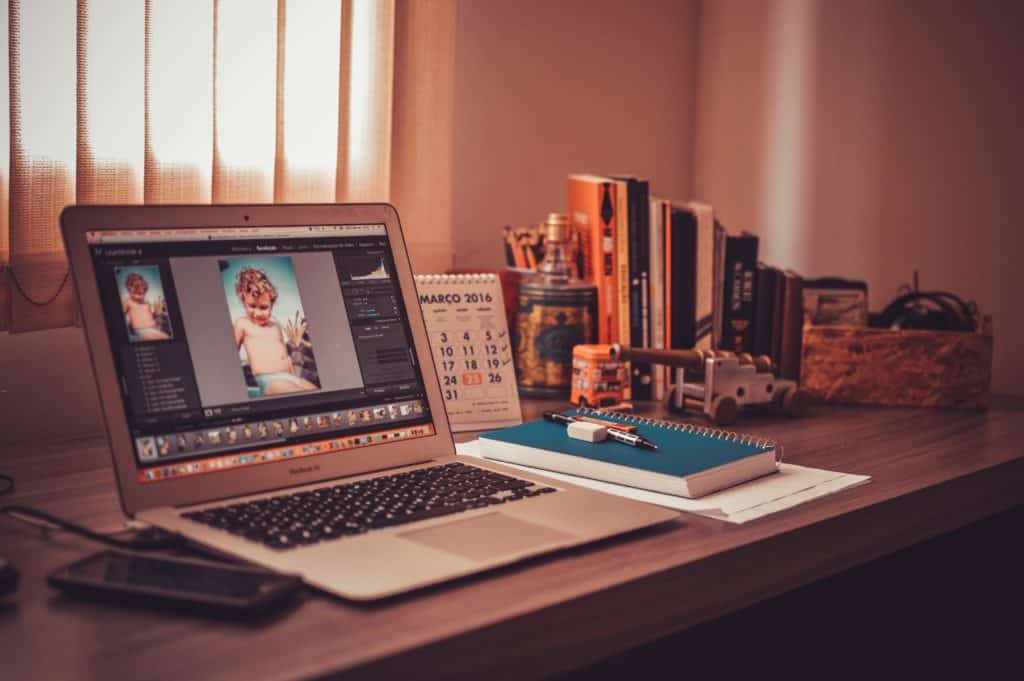
Ever stared at a huge image and thought, “Whoa, that’s too big!” or tried to upload a picture to your favorite site and it gets rejected for being the wrong size? We’ve all been there. The good news? Resizing and editing images isn’t rocket science. In fact, with a few tips and tools, you’ll be tweaking your photos like a pro in no time.
Why Resize and Edit Images?
First, let’s quickly go over why you’d want to resize or edit an image in the first place:
- To make it load faster. Big images take forever to load, especially on slow internet.
- To fit specific dimensions. Websites and social media have different size rules.
- To improve how it looks. Maybe it’s too dark, or the subject isn’t centered.
Okay, now let’s dive into the fun part—editing!
Step 1: Choose the Right Tool
There are tons of tools to help you resize and edit images. Here are some easy options:
- Online Tools: Canva, Pixlr, Fotor (great for fast edits)
- Free Apps: GIMP, Paint.NET (more control and features)
- Pro Tools: Photoshop, Affinity Photo (best for advanced editing)
If you’re just getting started, try an online tool. No downloads, no hassle.
Step 2: Open Your Image
This seems obvious, but hey, we’re doing this step-by-step! Upload or drag your image into the tool. Boom. Magic begins.
Step 3: Resize Like a Boss
To resize your image means changing the width and height. You don’t want it to lose clarity or turn into a blurry mess, so always make sure to:
- Keep the proportions locked. This keeps the aspect ratio the same.
- Know the final purpose. Instagram? Website? Email? Each has a size limit.
Here’s how to resize in most editors:
- Look for “Resize” or “Image Size” in the menu.
- Enter new width (the height will adjust automatically if proportions are locked).
- Hit apply or save. Done!

Step 4: Crop to Focus
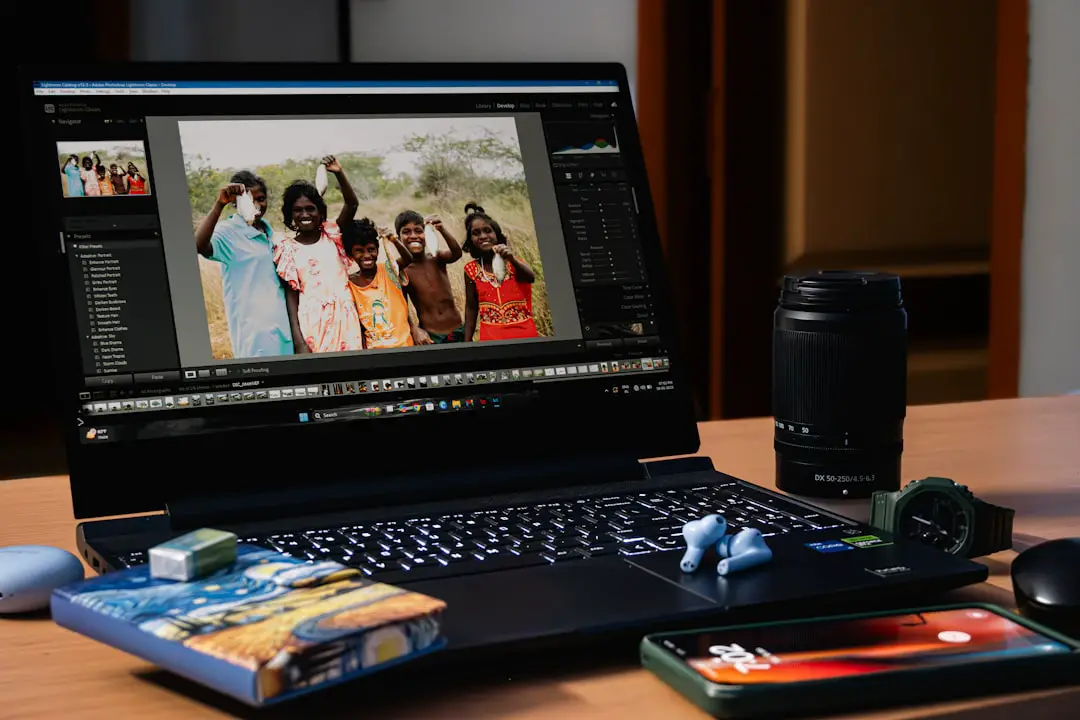
This is the step where you cut away the boring bits and highlight what matters. Maybe your cat is in the corner of the shot and you want to center her.
Here’s what to do:
- Select “Crop” from your toolbar.
- Drag around the area you want to keep.
- Adjust the box until it feels just right.
- Click “Apply” or “Crop.”
This is one of the easiest ways to make an image look instantly better!
Step 5: Adjust Brightness and Contrast
Photos can be way too dark, or washed out. Let’s fix that!
Most tools have basic sliders—super easy to use:
- Brightness: Makes the image lighter or darker.
- Contrast: Boosts the difference between light and dark areas.
- Exposure: Changes the amount of light in the photo (use this carefully).
Tip: Don’t overdo it. You want the image to look natural. Move the sliders slowly and see how it changes.
Step 6: Use Filters Like a Pro
Filters aren’t just for TikTok! They’re a quick way to bring some mood or style into your image. Different filters do different things—some make colors pop, others give a vintage vibe.
Here’s how to play with filters:
- Choose your favorite pre-made filter.
- Test how it looks on your image.
- Adjust the intensity if you can.
Don’t just pick a filter because it looks cool—choose one that matches the photo’s vibe.

Step 7: Add Text (Optional But Fun)
Wanna add your name, a funny caption, or “Happy Birthday Mom”? Easy!
- Click “Text” or “Add Text” in the menu.
- Type your words and pick a font.
- Change the size and color. Position it where you want.
Keep it readable. Avoid neon green on white unless you REALLY like squinting.
Step 8: Save It Right
You’re done editing! Now don’t mess it up by saving it the wrong way.
Here’s what you should know:
- Use JPG for photos. It’s small and great for web use.
- Use PNG for images with text or transparency.
- Always Save As a New File. That way, your original stays safe.
Choose “Save As” or “Export,” then pick the format and quality. Most tools ask how much you wanna compress it—choose “Medium” or “High” for best results.
Bonus Tips to Up Your Game
Ready to go from amateur to awesome? Here are a few bonus pro tips:
- Use layers if your tool supports it. Great for complex edits!
- Zoom in when cropping or erasing to be more precise.
- Try presets or templates, especially for social media sizes.

Final Thoughts
Image editing doesn’t have to be intimidating. With the right tools and a few simple steps, you’ll be resizing and editing like an expert. You’ll fix lighting, sharpen up details, and maybe even impress your friends.
So grab a photo, open up your favorite tool, and start creating! Whether it’s for a blog, a meme, or your grandma’s 90th birthday card—editing like a pro is just a click away.
Happy editing!