
UX Pilot is best treated as a fast ideation assistant inside Figma, not as a final design machine. It helps teams turn rough product ideas into wireframes, screens, user flows, and UX copy without leaving the canvas. That matters because Figma plugins are built to extend the design workspace through community tools and add-ons [source: Figma].
TLDR: UX Pilot can speed up early UX work by generating layouts, flows, and copy from prompts. For example, a product team could sketch a 5-screen onboarding flow in about 10 minutes instead of spending 45 to 60 minutes blocking it out by hand. It is most useful for first drafts, stakeholder demos, and quick design options. You will still need a designer to refine spacing, hierarchy, accessibility, and brand fit.
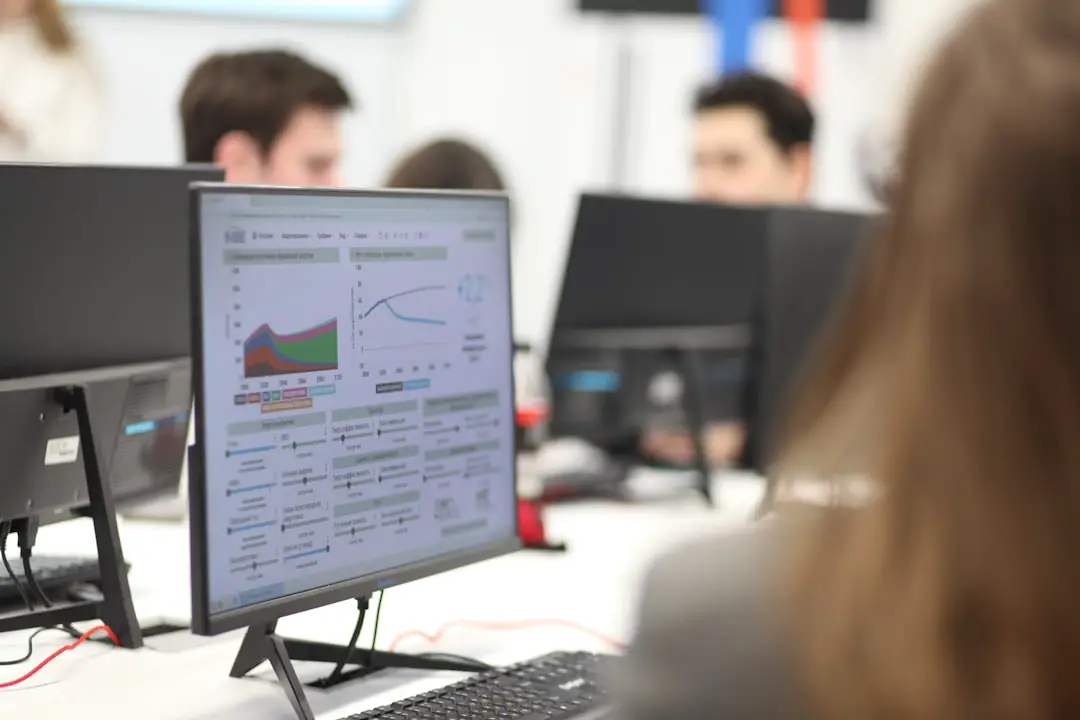
What Is the UX Pilot Figma Plugin?
UX Pilot is an AI-assisted design plugin for Figma. Its job is simple: help you move from idea to usable screen faster. You describe what you need, and the plugin creates a starting point. That might be a mobile app screen, a web dashboard, a landing page, or a user flow.
The appeal is obvious. Blank canvases are annoying. Teams waste too much time asking, “Where do we start?” UX Pilot gives you something to react to. That alone can save a meeting from turning into a 40-minute guessing game.
Key Features
UX Pilot focuses on early product design work. It is not trying to replace full design systems or polished UI craft. Its strongest features are practical and quick.
- AI wireframe generation: Type a prompt such as “Create a SaaS analytics dashboard for marketing managers”, and the plugin can generate a layout with sections, cards, charts, and controls.
- User flow creation: It can help map steps for sign-up, checkout, booking, onboarding, and similar flows.
- UX copy suggestions: Useful for button labels, empty states, form hints, headings, and onboarding text.
- Screen variations: You can test different layout directions before choosing one.
- Figma-based workflow: Since it runs in Figma, designers can edit frames, components, text, and spacing right away.
The main win is speed. The main risk is sameness. AI-generated screens often feel safe. Sometimes too safe. Expect to spend time adding taste, brand details, and sharper interaction thinking.
Recommended Workflow
A good workflow starts with a tight prompt. Vague prompts create vague screens. Be specific about the product, user, goal, platform, and content.
- Start with the user task. Write what the person wants to do. Example: “A freelance designer needs to send an invoice from a mobile app.”
- Add screen type and platform. Say whether you need iOS, Android, web, tablet, or desktop.
- Request structure. Ask for sections such as header, search, filters, cards, empty state, and primary action.
- Generate the first draft. Let UX Pilot create the base layout.
- Edit hard. Fix spacing, hierarchy, naming, and user intent.
- Turn good parts into components. Keep useful navigation bars, cards, modals, and forms.
- Test the flow. Link screens with Figma prototype tools and check if the path makes sense.
Honestly, it feels like the plugin is best when you treat its output as a smart sketch. Not a finished file. If you send raw AI screens to engineering, someone will regret it later.
Where UX Pilot Works Well
UX Pilot shines in messy early stages. It is helpful when product managers have an idea but no wireframes. It is also useful for solo founders who need a quick concept before hiring a designer.
Common use cases include:
- Pitch decks: Create product mockups before the full design phase.
- Design workshops: Generate options live during brainstorming.
- MVP planning: Turn feature lists into rough screen flows.
- UX writing: Draft microcopy for forms, buttons, tips, and alerts.
- Client discovery: Show possible directions without spending days on polished mockups.
Where It Falls Short
The plugin can save time, but it is not magic. It may create layouts that look clean but lack real product logic. It can also miss edge cases like error states, long names, permissions, loading states, or accessibility issues.
It drives me crazy that AI tools often make forms look finished while skipping the boring parts users actually hit. What happens when a payment fails? What if the inbox is empty? What if the user has 200 projects instead of three? Those details still need human thinking.
Alternatives to UX Pilot
If UX Pilot does not fit your process, there are other AI-assisted design tools worth trying.
- Uizard: Good for turning prompts, sketches, and ideas into UI mockups. It suits non-designers and early product teams.
- Galileo AI: Strong for generating polished UI concepts from text prompts. Useful for inspiration and quick visual directions.
- Relume: Better for website structure, sitemaps, and wireframes. Great for marketing sites and agency work.
- Visily: Helpful for teams that want quick wireframes without deep design skills.
- Figma AI features: Useful when you want native AI support inside the same design tool, depending on availability in your plan and region.

Final Verdict
UX Pilot is worth trying if your team spends too much time getting from idea to first draft. It can cut the slowest part of early UX work: starting. The output still needs review, cleanup, and product judgment, but that is fine. A good AI design plugin should remove friction, not remove designers.
Use it for speed. Use it for options. Use it when the team is stuck. Just do not confuse a generated screen with a finished experience.