

Managing design interns can feel like running a tiny creative circus. There are ideas flying around. Files are everywhere. Someone forgot the deadline. Someone else named a file final final real final v9. Good news. AI tools can help your team stay calm, clear, and creative.
TLDR: The best AI tools for managing design interns and teams help with tasks, feedback, meetings, writing, and design reviews. Use tools like Notion AI, Asana Intelligence, ClickUp AI, Figma AI, FigJam AI, Loom AI, Otter, Fireflies, and ChatGPT. Start simple. Pick tools that save time and make communication clearer.
Why AI Tools Matter for Design Teams
Design teams move fast. Interns are still learning. Managers are usually busy. That mix can get messy.
AI tools make the messy parts easier. They can write meeting notes. They can summarize feedback. They can turn rough ideas into task lists. They can help interns understand briefs faster.
AI will not replace a good design lead. It will not give taste, empathy, or team culture. But it can act like a very helpful assistant. One that never gets tired. One that does not mind organizing sticky notes at midnight.
For design interns, this is huge. Interns need structure. They need clear tasks. They need fast feedback. They also need room to play and learn. AI tools can support all of that.
1. Notion AI for Onboarding and Team Knowledge
Best for: onboarding, documentation, project notes, team wikis.
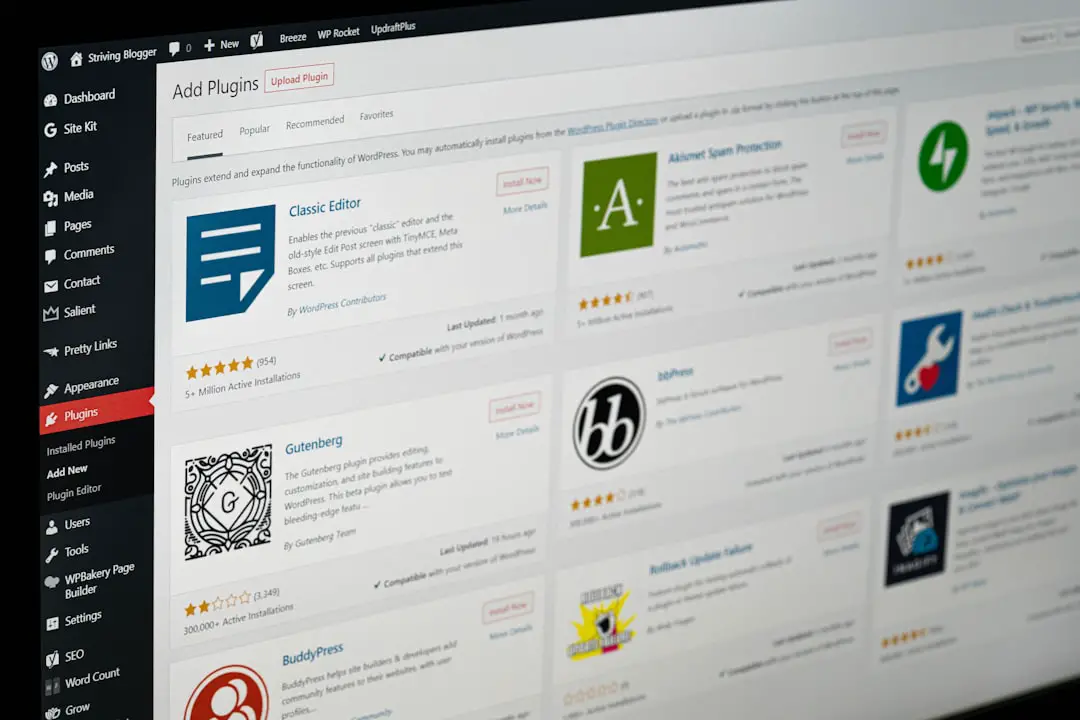
Notion AI is great for keeping all team knowledge in one place. This is perfect for interns. New interns ask many questions. That is normal. But managers do not want to answer the same question 42 times.
With Notion AI, you can create a simple intern hub. Add brand rules. Add design process notes. Add file naming rules. Add examples of good work. Add links to templates. Then let AI help people find answers.
For example, an intern can ask, “How do I prepare a design for review?” Notion AI can pull the answer from your notes. Fast. Simple. Less confusion.
You can also use it to:
- Summarize long project briefs.
- Create checklists for design tasks.
- Turn meeting notes into action items.
- Write first drafts of process documents.
- Build a weekly intern learning plan.
Fun tip: Create a page called “Read This Before Asking Kevin.” Kevin will thank you.
2. Asana Intelligence for Task Management
Best for: deadlines, project tracking, team planning.
Asana is already a strong project management tool. Its AI features make it even better. It can help teams understand what is due, what is blocked, and what needs attention.
This is useful for design interns because task clarity matters. A vague task like “make social graphics” is not enough. Interns need details. What format? What audience? What deadline? What style?
Asana Intelligence can help turn messy project notes into clean tasks. It can also create status updates. That means managers can spend less time chasing updates and more time giving useful feedback.
Use it for:
- Assigning design tasks to interns.
- Writing clearer task descriptions.
- Creating project summaries.
- Spotting at-risk deadlines.
- Organizing campaign design work.
Best move: Make every task include a goal, a deadline, a format, and a feedback person. AI can help write these fields.
3. ClickUp AI for All-in-One Team Chaos Control
Best for: teams that want tasks, docs, goals, and AI in one place.
ClickUp is like a giant toolbox. It has tasks. It has docs. It has whiteboards. It has chat. It has AI. If your design team likes one central workspace, ClickUp can be a strong choice.
ClickUp AI can summarize tasks, write updates, create plans, and clean up notes. This helps managers guide interns without creating a pile of extra admin work.
It is also handy for weekly check-ins. Ask AI to summarize what each intern worked on. Then review it before your one-on-one meeting. This makes the meeting sharper.
You can use ClickUp AI to:
- Create design sprint plans.
- Summarize feedback threads.
- Write project updates.
- Turn goals into weekly tasks.
- Track intern progress over time.
Watch out: ClickUp can feel big at first. Keep your setup simple. Interns do not need a spaceship dashboard on day one.
4. Figma AI for Faster Design Work
Best for: design creation, layout ideas, interface work, quick exploration.
Figma is already a favorite for many design teams. With AI features, it becomes even more useful. Interns can move faster from blank screen to first idea. That is important. The blank screen can be scary.
AI in Figma can help with early concepts, layout suggestions, content, and repetitive design work. It can also help teams rename layers, organize files, and explore options faster.
For interns, this can be a confidence boost. They can test ideas quickly. They can create more versions. They can learn by comparing options.
But here is the key. AI should not make all the design choices. Interns still need to explain their thinking. Ask questions like:
- Why did you choose this layout?
- Who is this design for?
- What problem does this solve?
- What option feels strongest?
- What would you improve next?
Simple rule: AI can help make the first pancake. The designer still decides what breakfast is.
5. FigJam AI and Miro AI for Brainstorms
Best for: workshops, idea sessions, planning, creative exercises.
Brainstorming with interns can be fun. It can also be awkward. Some interns are shy. Some ideas are half-baked. Some people talk too much. You know who you are.
FigJam AI and Miro AI help make brainstorming easier. They can generate ideas, group sticky notes, summarize themes, and create workshop structures.
This is great for design leads. You can run a better session with less prep. You can also help interns see patterns in their ideas.
Use these tools for:
- Mood board planning.
- User journey mapping.
- Brand concept workshops.
- Feature idea sessions.
- Design critique warm-ups.
Try this: Ask interns to add 20 rough ideas in five minutes. Then use AI to group them. This removes pressure. It also shows that rough ideas can become smart directions.
6. Loom AI for Clear Feedback
Best for: video feedback, async reviews, design walkthroughs.
Design feedback can get lost in text. A comment like “make it pop” is not helpful. Pop how? Pop where? Pop like popcorn?
Loom lets managers record quick video feedback. Loom AI can then summarize the video, list action items, and create titles. That makes feedback easier to review.
This is perfect for interns. They can rewatch the feedback. They can pause it. They can take notes. They do not need to remember every detail from a live call.
Use Loom AI when:
- You review a design file.
- You explain a concept.
- You give visual feedback.
- You teach a workflow.
- You onboard a new intern.
Manager tip: Keep videos under five minutes. Interns need clarity, not a documentary series.
7. Otter and Fireflies for Meeting Notes
Best for: transcription, meeting summaries, action items.
Meetings are full of useful things. They are also full of side quests. Someone mentions a deadline. Someone else mentions a client concern. Then everyone forgets who promised what.
Otter and Fireflies can record meetings, transcribe them, and summarize key points. They can pull out action items too.
This helps interns a lot. They may be nervous in meetings. They may not catch every detail. Meeting notes give them a safety net.
These tools are useful for:
- Design critiques.
- Client calls.
- Weekly standups.
- Intern check-ins.
- Project kickoff meetings.
Important: Always tell people when a meeting is being recorded. Respect privacy. Follow your company rules.
8. ChatGPT or Claude for Coaching and Writing
Best for: writing briefs, feedback, learning plans, role-play, idea support.
General AI assistants like ChatGPT and Claude are flexible. Think of them as smart writing and thinking partners. They are useful for managers and interns.
Managers can use them to draft better feedback. This matters because feedback should be clear and kind. Interns can use them to understand design terms, outline presentations, and practice explaining their work.
For example, a manager can ask:
- “Turn this messy feedback into kind, clear notes for a design intern.”
- “Create a two-week learning plan for a UX design intern.”
- “Write a project brief for a landing page redesign.”
An intern can ask:
- “Explain visual hierarchy in simple words.”
- “Help me prepare for a design critique.”
- “Give me questions to ask before starting this project.”
Small warning: Do not paste private client data into public AI tools. Keep sensitive work safe.

9. Trello Automation for Simple Teams
Best for: small teams, simple boards, visual task tracking.
Not every team needs a huge project system. Some teams just need a simple board. Trello is friendly and visual. It is easy for interns to understand.
With automation, Trello can move cards, assign people, set due dates, and create checklists. It is not always as advanced as bigger AI systems. But it is very clear.
Use Trello for a basic intern workflow:
- To Do
- In Progress
- Ready for Review
- Needs Changes
- Done
This type of board is simple. Everyone can see what is happening. No detective work needed.
How to Choose the Right AI Tools
Do not add tools just because they sound cool. That is how teams end up with 14 dashboards and one very tired manager.
Start with your biggest problem. Then choose one tool to solve it.
- If interns are confused: Use Notion AI.
- If deadlines are messy: Use Asana or ClickUp.
- If feedback is unclear: Use Loom AI.
- If meetings are hard to track: Use Otter or Fireflies.
- If brainstorms feel flat: Use FigJam AI or Miro AI.
- If writing takes too long: Use ChatGPT or Claude.
- If design exploration is slow: Use Figma AI.
The best tool is not always the fanciest one. The best tool is the one your team will actually use.
A Simple AI Workflow for Design Interns
Here is an easy workflow you can copy.
- Brief the project in Notion. Add goals, examples, deadlines, and success criteria.
- Create tasks in Asana or ClickUp. Make each task small and clear.
- Brainstorm in FigJam or Miro. Let AI group ideas and find themes.
- Design in Figma. Use AI for early exploration, not final judgment.
- Review with Loom. Record short feedback videos.
- Track notes with Otter or Fireflies. Keep action items visible.
- Reflect each week. Use AI to summarize progress and learning points.
This gives interns a clear path. It also gives managers fewer headaches.
Best Practices for Using AI with Interns
AI is powerful. But it needs rules. Good rules make the team safer and smarter.
- Teach interns how to prompt. Better questions get better answers.
- Review AI output. AI can be wrong. Very confident, but wrong.
- Protect private data. Do not share sensitive files or client secrets.
- Keep human feedback central. Interns need mentorship, not just automation.
- Use AI to explain, not shame. Learning should feel safe.
- Make expectations clear. Tell interns when AI use is allowed.
Also, encourage interns to show their process. If they used AI, ask how. What did they accept? What did they reject? Why?
This builds design judgment. That is the real goal.
Final Thoughts
The best AI tools for managing design interns and teams are the ones that make work clearer. They reduce busywork. They improve feedback. They help interns learn faster.
Use Notion AI for knowledge. Use Asana Intelligence or ClickUp AI for tasks. Use Figma AI for design speed. Use FigJam AI or Miro AI for ideas. Use Loom AI for feedback. Use Otter or Fireflies for notes. Use ChatGPT or Claude for writing and coaching.
But remember this. AI is the sidekick. Your design team is the hero. Interns still need trust, guidance, and room to grow. Give them smart tools. Give them clear feedback. Then watch them make things that surprise you.