
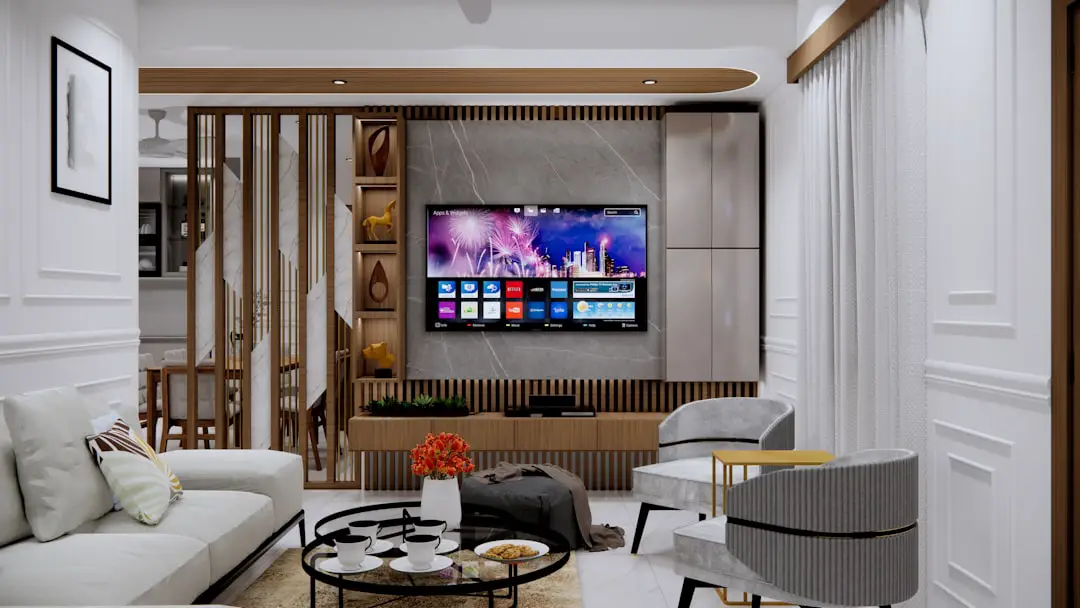
You’re ready for movie night. Popcorn? Check. Blanket? Check. Logged into Disney+ and queued up your favorite Marvel or Pixar movie in glorious 4K Ultra HD? Well… maybe not. Some users have noticed their movies streaming in regular HD, or worse. Here’s what really happened — and how it was an easy fix all along.
TL;DR: The Quick Fix
Some Disney+ users couldn’t access 4K content because their devices weren’t set up correctly. Often, the problem was in the display settings — either on the TV, the streaming device, or even the internet speed. By making a few adjustments, many users were able to enjoy crispy, detailed 4K movies again. Sometimes, you just need to toggle the right switch!
Wait, What? No 4K?
Disney+ offers a treasure chest full of 4K Ultra HD content. From “Avengers: Endgame” to “Encanto”, there’s plenty to enjoy. But some users were left scratching their heads. Even though they had 4K TVs, they were only getting HD streams. So what gives?
Turns out, there are a few hidden settings that can trip people up. And if you don’t have them set just right, Disney+ quietly switches you from 4K to lower quality.

How to Know You’re Not Streaming in 4K
First off, Disney+ doesn’t always scream it from the rooftops when it downgrades your stream. You have to do a little sleuthing:
- Look for the 4K Ultra HD label under the movie or show title.
- If that label is missing, you’re not in 4K.
- You can sometimes check the streaming resolution using your TV’s info or status button (this depends on your TV brand).
If you’re supposed to be streaming in 4K but you don’t see that special badge, it’s time to troubleshoot. 🌟
What Went Wrong?
Here are the most common reasons users weren’t getting their 4K fix:
1. Display Settings Were Incorrect
Many devices were set to 1080p by default. Even though the TV supports 4K, the device itself was stuck in the past. Users had to go into the display settings and switch it to output at 4K.
2. Streaming Device Didn’t Support 4K
Some older Fire Sticks, Apple TVs, or Rokus don’t support 4K at all. Even gaming consoles have models that top out at 1080p. The fix? Upgrade to a newer model that’s 4K-capable.
3. Display Mode Confusion
This one surprised a lot of users. Their devices were set to Standard RGB, Limited Range, or 1080p HDR. While these look okay, they limit the quality. Switching to 4K 60Hz or Auto (Best Available) often unlocked 4K and HDR at full brilliance.
4. Internet Was Too Slow
Disney+ recommends at least 25 Mbps for 4K streaming. If your internet was slower, Disney+ detected that and reduced your stream quality. Solution? Either boost your speed or pause other downloads during movie night.
Fixing It: Simple Steps Anyone Can Follow
Let’s get into the fun part — fixing it!
Step 1: Check Your Device Settings
On most streaming boxes (like Apple TV or Fire TV), you can adjust your display settings:
- Go to Settings → Display or Video Output
- Set resolution to 4K or Auto
- Enable options like HDR or Dolby Vision if your TV supports it
This usually does the trick right away.
Step 2: Make Sure Your TV Is 4K-Ready
You probably already know this, but just double-check. Some TVs say “4K” on the box but only support it through certain HDMI ports. Look for one labeled HDMI 2.0 or HDMI UHD. Plug your device into that port.
Step 3: Internet Speed Test Time
Fire up a speed test app or go to a speed test site on your phone or computer. If your download speed is under 25 Mbps, you’ve found the bottleneck. You may need to:
- Restart your modem and router
- Use an ethernet cable instead of Wi-Fi
- Upgrade your plan with your provider
Step 4: Update Everything
Seriously — update your:
- Streaming app (Disney+)
- Streaming device firmware
- TV software (a.k.a. your TV’s operating system)
Updates can add new features and fix bugs that may keep you out of 4K territory.
Real Users, Real Fixes
Let’s hear from some folks who faced the issue — and conquered it:
“I was going crazy trying to figure out why my LG OLED wasn’t showing Disney+ in 4K. Then I noticed my Apple TV was still set to 1080p! I changed it to 4K HDR, and now everything looks incredible.” — Jamie F.
“Turns out I was plugging my Roku into the wrong HDMI port. Who knew only one port on my TV supports 4K? Quick swap, and boom — 4K unlocked.” — Latisha G.
“We had three kids all on their tablets when I started watching The Mandalorian. Turns out our Wi-Fi couldn’t keep up. I paused their downloads and the quality upgraded in seconds.” — Mike D.
A Final Tip: Look for the Magic Words
Once everything’s set up, go back to your favorite movie or series. You should now see magic words like:
- 4K Ultra HD
- Dolby Vision
- HDR10
- Dolby Atmos — if you have speakers that support it!
These labels mean you’ve unlocked the real power of Disney+’s visuals and sound. You’ll notice sharper details, better colors, and deeper contrast. In short, it’s pure movie magic at home.
No More 1080p Blues
Sometimes tech can trip us up with small settings hidden deep in the menu. But with just a few adjustments, many Disney+ users unlocked stunning 4K content. So if your favorite Disney movie wasn’t looking quite as magical, check your setup. With the right tweaks, you’ll be back to watching Elsa’s snowflakes in breathtaking crystal clarity in no time.
Happy streaming!